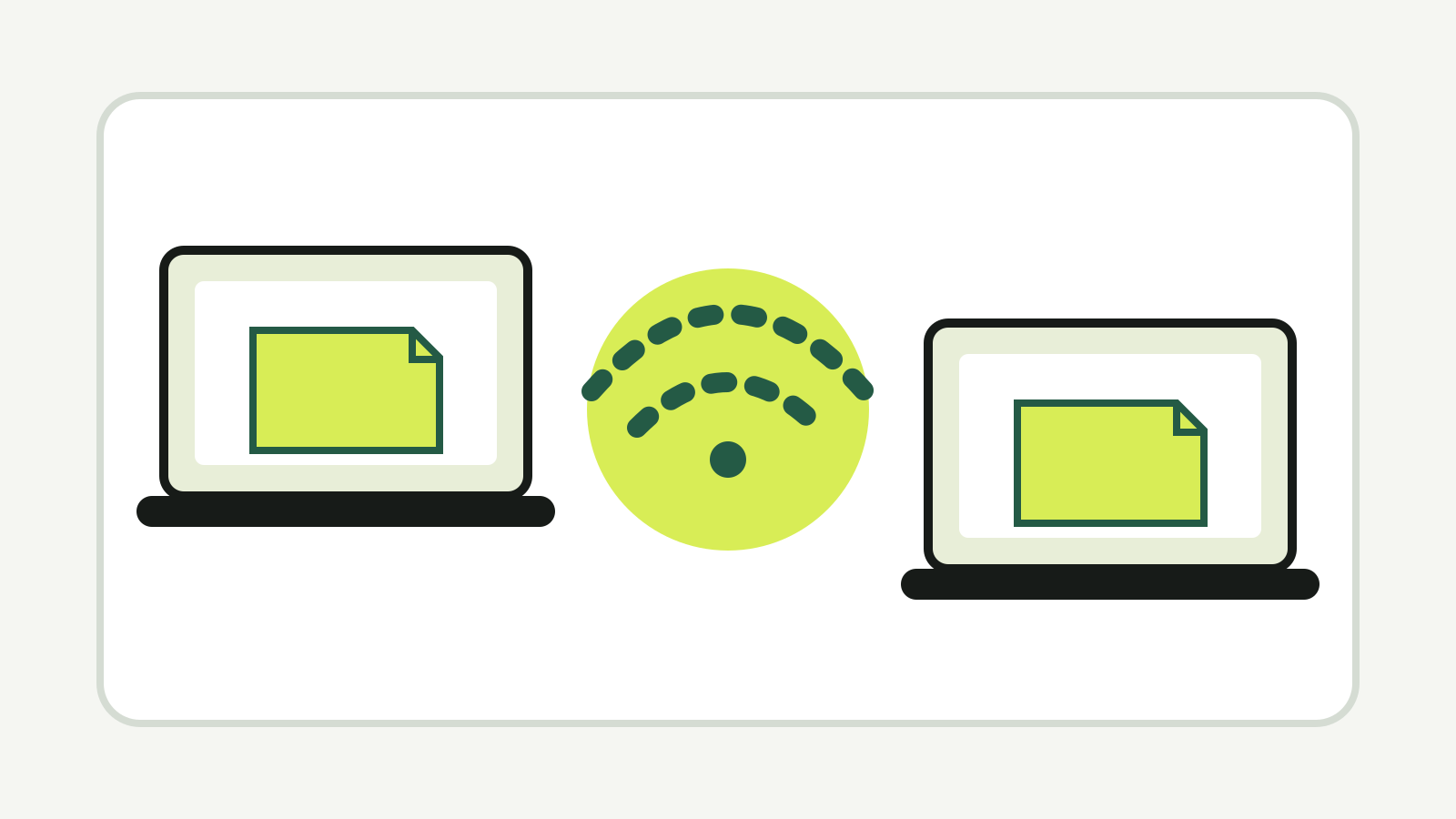
Windows Nearby sharing sends documents, photos and web links between supported Windows PCs over Bluetooth or Wi-Fi. Turn it on for both computers, choose whether only your own devices or everyone nearby can see the PC, then share from File Explorer. The receiving computer still has to accept the transfer.
Microsoft’s current Nearby sharing guide covers Windows 11 and Windows 10. The menus differ slightly, so check which version each PC runs before troubleshooting.
What Nearby sharing can send
Nearby sharing works between Windows PCs. Microsoft lists documents, photos and links as supported content. It is useful when the files are too large or awkward to send through email, but both computers are in the same room.
On current Windows 11 systems, a transfer can use Wi-Fi when the receiving Windows 10 or Windows 11 PC is connected to the same private Wi-Fi network. Otherwise it falls back to Bluetooth. Bluetooth usually has less bandwidth, so a large video may take longer than a document or photo.
Nearby sharing is not the same as network file sharing. It sends a selected item and asks the other PC to accept it. It does not open a shared folder that remains available later.
Turn on Nearby sharing in Windows 11
Do this on both computers:
- Open Start, then Settings.
- Select System.
- Open Nearby sharing.
- Choose who can share with this PC.
- Check the folder under Save files I receive to.
The safer default is My devices only when both computers use the same Microsoft account. Choose Everyone nearby only when you need to receive from another person’s PC, then turn it back after the transfer.
Microsoft warns that Everyone nearby makes the computer name and Bluetooth MAC address available to devices around you. That information helps the discovery process, but it can also make the PC easier to identify in a busy public place.
Send a file from File Explorer
On the computer holding the file:
- Open File Explorer.
- Select the document, photo or other file.
- Select Share in the toolbar, or right-click the file and choose Share.
- Wait for the receiving PC to appear.
- Select that computer.
On the receiving PC, choose Save & open or Save when the notification appears. Windows uses the receiving folder selected in Nearby sharing settings. If you regularly move files this way, choose a folder that is easy to check and include in your normal backup.
Do not assume the transfer finished because the sending window disappeared. Open the received file and check its size before deleting the original.
Share a link or photo
Microsoft Edge can share a webpage through Settings and more, More tools, then Share. Select the nearby PC, and the recipient can open the link in its browser.
For a photo, open the Photos app, select the image, use Share, then choose the receiving computer. File Explorer works too if you already know where the image is stored.
The feature sends a copy. Editing or deleting the received copy does not change the original file on the other PC.
If the other computer does not appear
Check these items on both PCs:
- Nearby sharing is turned on.
- The visibility choice permits the two accounts or devices.
- Bluetooth is enabled.
- Both computers are close enough for Bluetooth discovery.
- For Wi-Fi transfer, both PCs are on the same private network.
- Windows has finished installing pending updates.
- The receiving PC is awake and signed in.
Windows 10 uses an older path under Settings, System, then Shared experiences. Microsoft says Windows 10 must be version 1803 or later for Nearby sharing. Windows 10 reached the end of free support on 14 October 2025, so an eligible PC may still work while no longer receiving ordinary security fixes.
If discovery still fails, Microsoft has a separate troubleshooting path from the Nearby sharing support page. Restarting Bluetooth or the PC can clear a stuck discovery session, but first check the visibility setting because that is easy to miss.
Privacy and safety checks
Use My devices only for transfers between your own computers. If you temporarily use Everyone nearby, confirm the computer name before accepting anything and switch the setting back when finished.
The receiver chooses whether to save the item. Do not accept an unexpected file just because the sender name looks familiar. A PC name can be changed, and Nearby sharing does not replace the usual checks for an unfamiliar attachment.
Nearby sharing also does not create a backup. Once the copy arrives, decide which computer holds the working file and which backup system protects it. For Windows backups, see ULKA’s guide to File History and Time Machine.