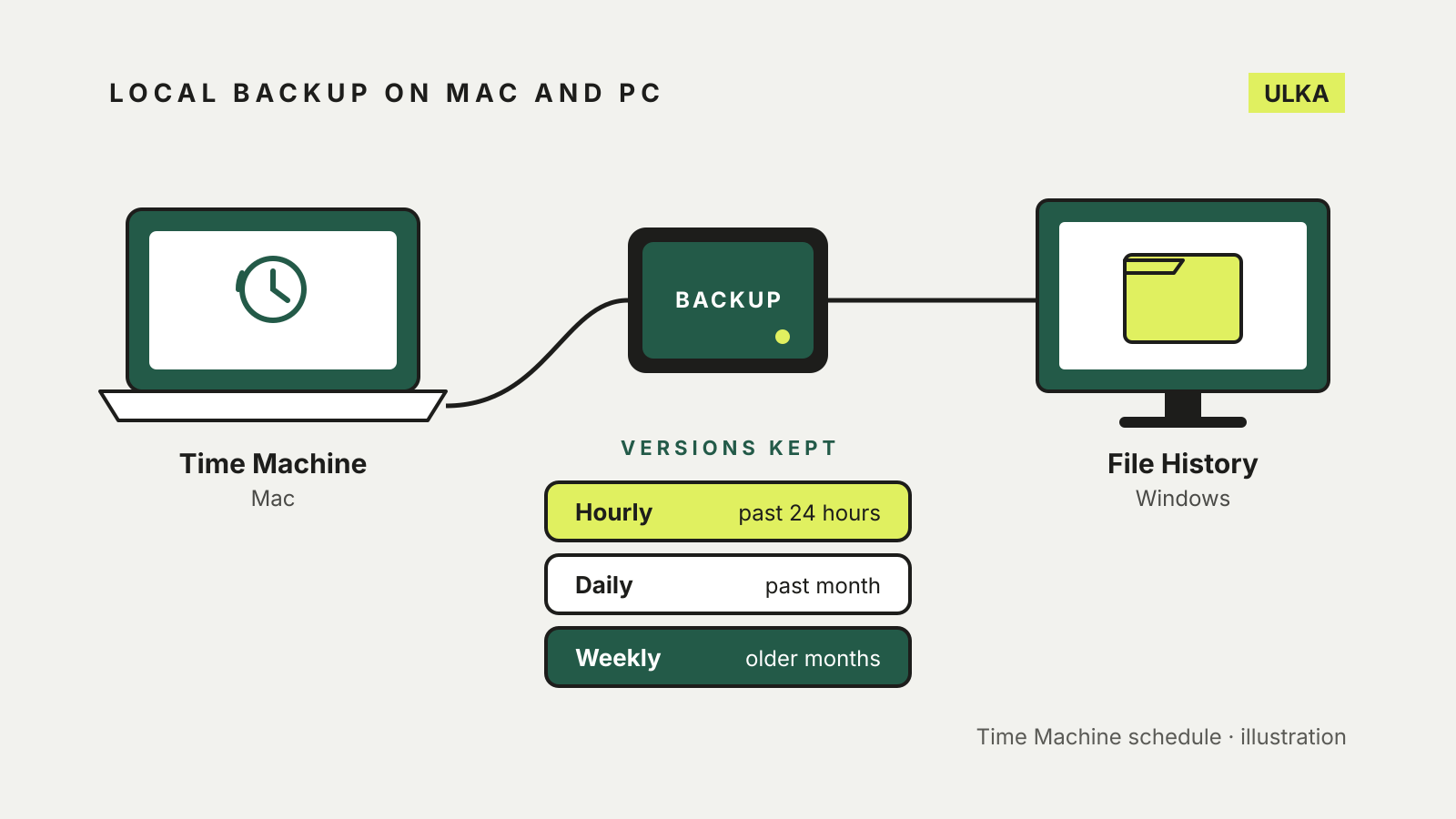
Windows File History and Time Machine on a Mac do the same basic job: they copy your files to an external drive or network location on a schedule and keep earlier versions, so you can get back a file you deleted or overwrote. The difference is scope. Time Machine backs up the whole Mac, including apps and settings, while File History covers your personal files and folders. Both are built in and cost nothing beyond the drive.
This guide compares the two and walks through setting each one up, based on Apple and Microsoft support documentation checked on 20 October 2026. A local backup sits well alongside a cloud service, and our cloud storage and backup guide covers that side.
The short comparison
| Time Machine (Mac) | File History (Windows) | |
|---|---|---|
| What it backs up | The Mac’s files, including apps, music, photos, email and documents | Libraries such as Documents, Pictures, Videos and Music, the Desktop, plus folders you add |
| Where it saves | USB or Thunderbolt drive, or a network location | External drive or network location |
| How often | Automatically, hourly by default | Automatically, at regular intervals |
| Versions kept | Hourly for 24 hours, daily for a month, weekly for older months | Earlier versions of each file and folder |
| Where to set it up | System Settings > General > Time Machine | Control Panel > System and Security > File History |
| Restore | Single files, or the whole Mac | Single files and folders |
What Time Machine keeps
Apple’s Time Machine guide says it automatically makes hourly backups for the past 24 hours, daily backups for the past month and weekly backups for all previous months. When the backup disk is full, the oldest backups are deleted.
Time Machine also keeps local snapshots on the Mac itself. Apple’s page on local snapshots explains that it saves one snapshot of the startup disk roughly every hour and keeps it for 24 hours, so you can restore a recent file even when the backup drive is not connected. These snapshots use space the Mac counts as free and are deleted as space is needed. They are not a replacement for the external drive: if the Mac itself fails, the snapshots go with it.
What File History keeps
Microsoft’s File History page says it automatically backs up all your libraries, including Documents, Pictures, Videos and Music and any libraries you create, along with folders such as the Desktop. Once it is on, it monitors your files and saves regular backups to an external drive or network location.
A folder outside your libraries is not covered until you add it. Right-click the folder, choose Show more options > Include in library, and it joins the backup. Because File History works on folders of personal files, it is not a copy of Windows or your installed apps: after a drive failure you reinstall those and restore your files.
How to set up Time Machine
- Connect an external drive, such as a USB or Thunderbolt drive. Apple recommends at least twice the storage of your Mac: a 1 TB Mac should ideally back up to a 2 TB disk.
- Open the Apple menu, choose System Settings, click General in the sidebar, then Time Machine.
- Click Add Backup Disk, select the drive and click Set Up Disk. The Mac may offer to erase the drive so Time Machine can use it, so move anything else off it first.
- Turn on Encrypt Backup if the drive could be lost or taken. You choose a backup password, and you need it to restore later, so store it somewhere other than the Mac.
- Choose Back Up Now from the Time Machine menu in the menu bar, or wait for the first automatic backup.
From macOS Ventura 13 you can change how often it runs under Options in Time Machine settings.
How to set up File History
- Connect an external drive, or make sure a network location is available.
- Open Control Panel, and under System and Security select Save backup copies of your files with File History.
- Select Turn on.
- If the wrong drive is chosen, select Select drive, pick the external drive or network location and select OK.
- Add any folders outside your libraries with Include in library.
File History is found in Control Panel, not in the Settings app’s backup page. Windows Backup in Settings is a different tool: Microsoft’s Windows Backup page explains that it syncs your chosen folders to OneDrive, and a free Microsoft account includes 5 GB of OneDrive storage. That is a cloud copy, not a local one.
Restoring a file
On a Mac, open the folder that held the file and enter Time Machine from the menu bar. You can move back through the dated backups, select the file and click Restore.
On Windows, open File Explorer, go to the folder that held the file, right-click it and select Restore previous versions. Pick a version from before the file was deleted or changed, then select Restore. Microsoft warns that restoring replaces the current version and cannot be undone, so use Restore to if you want to keep both copies.
Choosing and looking after the drive
Size the drive for the versions, not just the files. Both tools keep older copies until space runs out, so a drive that only just fits your data keeps very little history. Apple’s twice-your-storage rule is a sensible starting point on Windows too.
Raw speed matters less here than capacity, because both tools run in the background. Our comparison of SSD vs HDD for backup covers how the two kinds of drive compare for this job.
Keep in mind what a single drive left plugged in cannot protect against: theft, fire, or a power surge that damages both the computer and the drive. A second copy somewhere else, either a drive kept off-site or a cloud backup, covers those cases.