For SSD vs HDD for backup, an external SSD is the better drive when you move it around, copy large folders often or want restores to finish quickly. An external hard drive is usually the better buy when you need several terabytes and the drive will mostly stay on a desk. The important part is not the label on the case: it is whether the drive holds a separate, current copy that you can restore.
This guide compares the two types for backup rather than for games or everyday computer storage. It follows Australian Cyber Security Centre backup guidance and Kingston’s explanations of how SSDs and hard drives work, checked on 16 October 2026.
The short answer
| If you care most about | Better fit | Why |
|---|---|---|
| Lowest cost for a large archive | External hard drive | More capacity is normally available for the same budget |
| Frequent backups and quick restores | External SSD | Faster file access and transfers |
| Carrying the drive between locations | External SSD | No spinning platters or moving read heads |
| A drive that stays connected at a desk | Either | Choose by capacity, speed and budget |
| Protection from theft or ransomware | Neither on its own | You still need encryption, disconnection and another copy |
Do not buy a drive that only just fits today’s files. Backups grow as photos, projects and device images accumulate. Leave room for several versions and for the backup software’s working space.
What is different inside
A hard disk drive stores data magnetically on spinning platters. A moving head reads and writes the data. That mechanical design is why you may feel vibration or hear activity, and why a fall while the drive is running can be damaging.
A solid-state drive stores data in NAND flash memory and has no moving read head or spinning platter. Kingston’s SSD and HDD explainer describes that basic difference. It also explains why an SSD is less affected by file fragmentation and can reach scattered files more quickly.
Both types can fail. An SSD can wear out or lose its controller; a hard drive can suffer mechanical or electronic failure. The media type changes the risks and the speed of recovery. It does not turn one copy into a complete backup plan.
When an external hard drive makes sense
Choose a hard drive when capacity per dollar matters more than transfer speed. That often includes a family photo and video archive, a desktop computer image, or a large collection that changes slowly.
Kingston’s external-drive comparison says hard drives remain cheaper to produce and that high-capacity models are easier to find. Treat that as a general buying pattern, not a fixed price promise. Compare current Australian prices at the capacity you need, because sales can narrow the gap.
A hard drive is also reasonable for an automated backup that runs overnight. If the first full copy takes hours but later backups only add changed files, the slower medium may not inconvenience you.
Handle it carefully. Put it on a stable surface, do not move it while it is working and eject it before unplugging. If the drive travels in a bag every day, the mechanical design becomes a stronger reason to consider an SSD.
When an external SSD earns its price
Choose an SSD if the drive moves between home and work, if you back up a laptop while travelling, or if waiting for a large restore would be costly.
With no moving platters or read head, an SSD is better suited to bumps in ordinary portable use. It is also faster at copying many small files and large folders. The actual result depends on the drive, cable, USB port, computer and file system, so do not pay for a headline speed your laptop cannot use.
Speed matters most during the first backup and during recovery. A quick restore can be valuable when a failed laptop is stopping work. It matters less for a weekly archive that sits on a shelf.
Portability has a security trade-off: a small drive is easy to lose. Use encryption if the backup contains tax records, identification, client files or other sensitive material. Keep the recovery key somewhere separate from the drive.
The connection can be the bottleneck
Check the ports before buying. A fast SSD connected through an older USB port may perform no better than the link allows. The cable in the box may also be rated differently from another cable that happens to fit.
Look for three things:
- The connector on the drive, such as USB-C or USB-A.
- The USB standard supported by both the drive and the computer.
- Whether the cable carries data at that standard, rather than only charging.
For a backup drive shared between Windows and macOS, the file system matters too. A format chosen for maximum compatibility may not support every feature that the operating system’s own backup tool expects. If the drive is for one computer, let Time Machine or Windows backup software prepare it as recommended.
One external drive is not enough
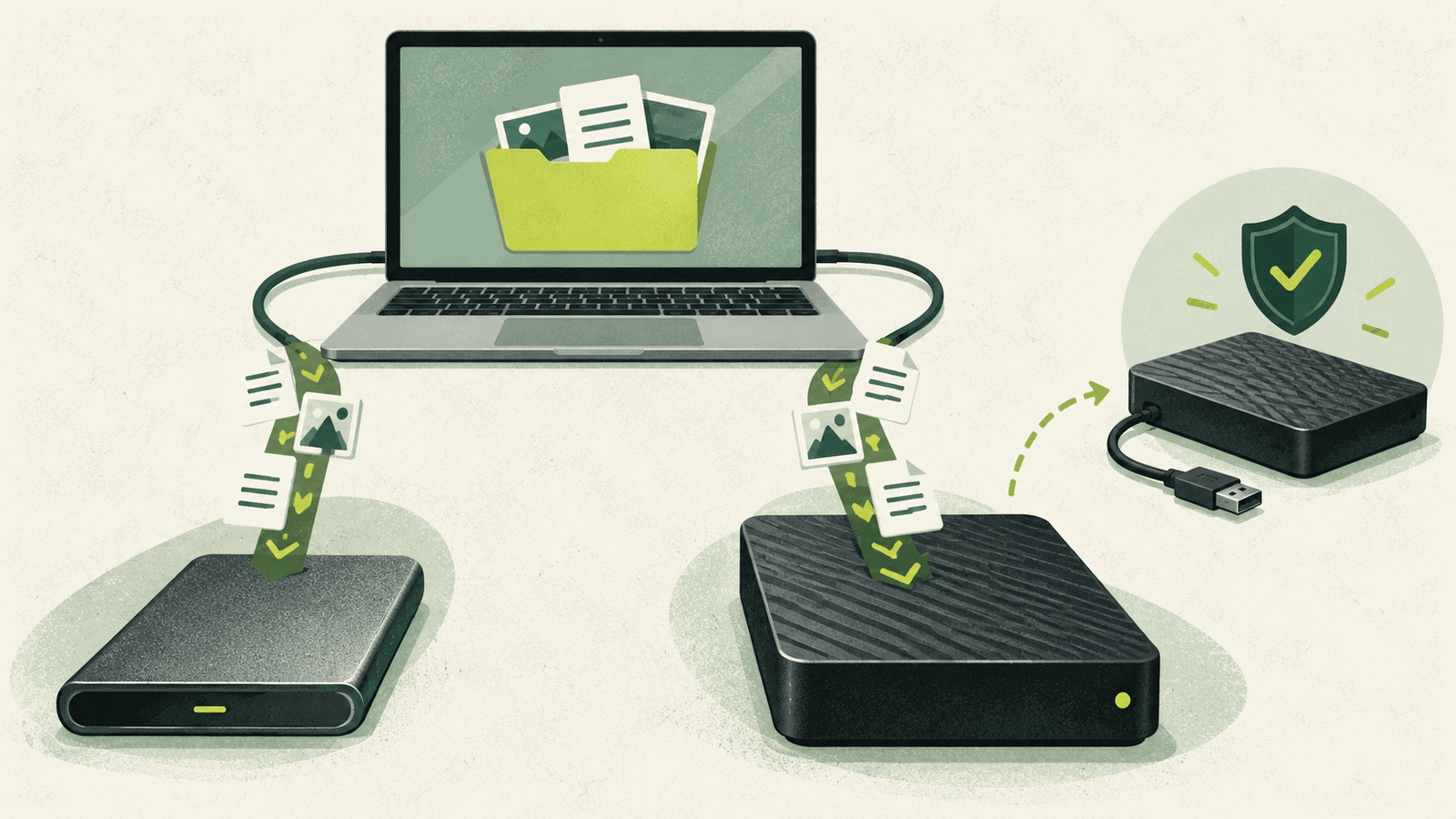
The Australian Cyber Security Centre’s backup guidance recommends regular backups, keeping them disconnected when they are not in use, protecting them from unauthorised access and testing that files can be restored. It also recommends an off-site copy so a fire, theft or other local event does not take the original and the backup together.
That leads to a practical home setup:
- keep one automated or frequent copy on an external drive;
- disconnect it after the backup where practical;
- keep another copy in a reputable cloud backup service or on a second drive stored elsewhere;
- encrypt sensitive backups;
- test a restore before you need it.
A drive permanently connected to the computer can be reached by some ransomware and by accidental deletion. Disconnection reduces that exposure. Our cloud storage and backup guide explains the difference between sync and backup, while the backup recovery plan shows how to test the whole process.
How much capacity to buy
Start by measuring the files that actually need protection, not the advertised size of the computer’s internal drive. Then allow space for versions and growth.
For a simple file backup, buying roughly twice the current data size gives useful breathing room. A computer-image system that keeps several versions may need more. The software’s documentation should be the final guide.
Do not use every remaining byte. A nearly full backup drive can fail to create a new version at the moment you need it. Review the backup log or notification occasionally instead of assuming that a connected drive is still working.
Set it up, then prove it works
After connecting the new drive:
- Use the operating system’s backup tool or reputable backup software rather than dragging the same folder by hand each time.
- Turn on encryption and record the recovery key.
- Schedule the backup for a time the drive is normally connected.
- Run the first backup and check for errors.
- Restore a few files into a different folder and open them.
- Disconnect the drive when the backup is complete, if the workflow allows it.
- Repeat the restore test every few months and after a software change.
The best choice is the drive you will actually use and verify. A cheaper hard drive with a reliable schedule is safer than a fast SSD left empty in a drawer.