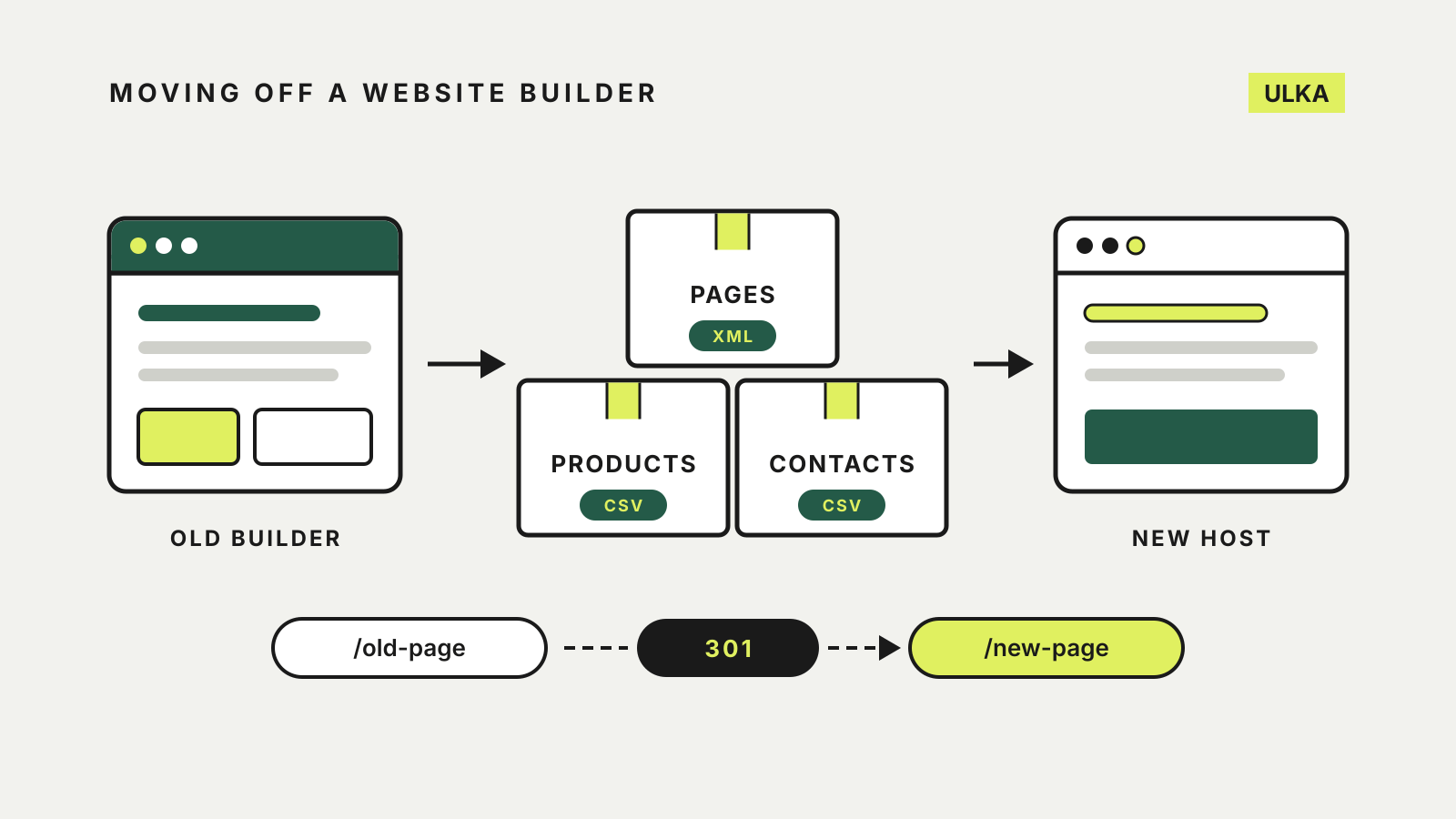
Moving a website off a website builder is mostly a rebuild, not a transfer. Wix and Squarespace both let you take some of your data with you, but neither hands over a working copy of the site that another host can run. What you can export, what you must copy by hand and how you keep old links working decide how long the move takes.
This guide follows the export and migration pages published by Wix, Squarespace and WordPress.com, and Google’s guidance on site moves, checked on 15 October 2026.
What each builder lets you take
Wix. Wix says a Wix site must be hosted and operated on Wix’s servers and cannot be moved to another host, although the content you build belongs to you. Some data does export:
- Contacts: up to 50,000 at once, as a regular, Google or Outlook CSV file. Only the site owner can export them.
- Store products: physical products to a CSV file, up to 5,000 rows per file. Digital products cannot be exported.
- CMS collections: any collection, including hidden and system fields, as a CSV file.
- Blog posts: Wix says it is not possible to export blog posts to other platforms.
Squarespace. Squarespace can export site content to an .xml file in WordPress format, products to a .csv file and contacts to .csv files. The content export is partial. It includes layout pages, gallery pages, text and image blocks, and one blog page with its posts and up to 1,000 comments per post. It leaves out other page types (including store, portfolio and index pages), headers and footers, audio, video and product blocks, drafts, style settings and custom CSS.
Squarespace also says you cannot export images or uploaded videos in bulk. You can download images one at a time from the asset library.
| Wix | Squarespace | |
|---|---|---|
| Pages and layout | No export; rebuild | Layout and gallery pages to .xml; design does not export |
| Blog | No export | One blog page to .xml |
| Products | Physical products to CSV, 5,000 rows per file | Products to .csv |
| Contacts | CSV, up to 50,000 at once | .csv, by list or in bulk |
| Images | Not covered by an export | One at a time from the asset library |
Before you cancel anything
Keep the old site live and paid until the new one is running. You need it as a reference for copying text, and WordPress.com says a Squarespace site should stay publicly accessible throughout the export and import, because the importer fetches images from it.
- List every page. Write down the address of each page, blog post, product and downloadable file. This list becomes your redirect map later.
- Run every export available. Contacts, products, CMS collections and, on Squarespace, the .xml content file. Squarespace notes that you can’t export from a trial site, and the site must be published and public.
- Save the images. Download originals you still have, or save each image from the old site. WordPress.com warns that images from external links may not come through in a Squarespace import and may need uploading by hand.
- Note the extras. Forms, member areas, bookings and newsletter lists sit in separate tools. Check where each one stores its data and how it exports.
- Check the domain. If the builder registered your domain, read its transfer rules early. Wix says you cannot transfer a domain within 60 days of buying it, or within 60 days of changing its registrant contact details, and that a transfer usually takes up to seven days.
Moving the content
WordPress is the best-documented destination: Squarespace’s file is in WordPress format, and WordPress.com has its own Wix importer. The Wix importer brings over static pages, images, menus and the site title by reading the public site. It does not bring blog posts; instead it suggests the Wix RSS feed, which covers the 20 most recent posts. Older posts have to be copied across by hand.
A Squarespace .xml file can be loaded into WordPress through its standard importer. Anything the export left out, from a second blog to store pages, has to be rebuilt.
Whatever the destination, expect to choose a new design. WordPress.com notes that a theme will not recreate your exact Wix design, and Squarespace’s export carries no styles at all. Rebuild the design first, then copy content into it page by page from your list.
Keep your old links working
Search engines and other websites link to your current addresses. If those addresses change on the new platform, each old URL needs a permanent (301) redirect to its replacement.
Google’s site move guidance sets out the order: prepare and test the new site, map every old URL to its new one, then redirect them and watch traffic on both. It also says 301 and other permanent redirects don’t cause a loss in PageRank, that medium-sized sites can take a few weeks or more to show the new URLs in search, and that you should not change everything at once. If you are also changing the domain name, do that as a separate step.
The redirects have to live on the new site. Once your domain points at the new host, the old builder can no longer answer for it, so set the redirects up before you switch the domain over. If the domain and every URL stay exactly the same, Google points to its separate, simpler guidance for a hosting change instead.
Then connect the domain to the new host. Our guide to connecting a custom domain explains the DNS records involved and how to keep the email on your domain working while you change them.
A moving checklist
- Keep the old site and its plan active until the move is finished.
- List every URL on the old site.
- Export contacts, products, collections and any .xml file the builder offers.
- Save images and downloadable files separately.
- Rebuild the design on the new platform, then move the content.
- Map each old URL to a new one and add 301 redirects on the new site.
- Point the domain at the new host and test forms, checkout and email.
- Watch search traffic and fix any old URL that returns an error.
If you are still deciding where to go next, our website builder comparison covers what Wix, Squarespace, Hostinger and Framer let you control, and our hosting guide covers hosts for a self-managed site.