A USB-C cable can charge a laptop quickly and still copy a folder slowly. The connector’s shape tells you that it will fit. It does not, by itself, tell you the cable’s data speed, power rating or support for the display arrangement you want to use.
The easiest way to shop is to write down three separate needs: the amount of power, the data connection and the display connection. Then check the charger or computer, cable and receiving device together. Paying for a more capable cable helps only when the rest of that path can use it.
Read watts and gigabits as different promises
Watts describe power. Gigabits per second describe a data signalling rate. A 240 W label is therefore not a statement about how quickly a video file will copy.
USB-IF’s January 2026 cable-logo guidance makes the distinction explicit. Its certification programme uses combined power-and-performance markings for relevant cables. A cable supporting 20 Gbps and 60 W, for example, has a combined marking describing both capabilities.
The same guidance explains that USB 2.0 USB-C cables can carry 60 W or 240 W while supporting data rates up to 480 Mbps. Their charging logos do not have to display that data rate. This is why a large power number alone is insufficient when buying a cable for an external SSD.
The USB-IF rules describe its compliance and logo programme. They do not establish that every cable bearing a vaguely similar symbol has passed certification. Check the actual product specification and the seller’s identification of the product.
| Job | Details to check |
|---|---|
| Charge a laptop | Required power and supported charging arrangement |
| Copy files to an SSD | Data support at both ports and through the cable |
| Connect a monitor | Computer output, cable and monitor compatibility |
| Use a dock | Host connection and the dock’s shared resources |
Follow the complete data path
Imagine a fast external SSD connected through a cable limited to USB 2.0. The SSD’s headline speed cannot make the cable’s data connection faster. The same principle applies when a capable cable connects to a slower computer port.
A dock adds another part to check. Several sockets may share one upstream connection to the computer. Copying files while using other devices can therefore behave differently from a single-device demonstration.
Storage performance also matters. A nominal 10 Gbps link is not a promise of sustained transfers at 1.25 GB per second. Protocol overhead, the source drive, the destination drive and the files themselves affect the result. A folder containing thousands of small files may behave differently from one large video.
Put the speed labels into perspective
The chart below converts nominal signalling rates into the ideal minimum time for moving 100 GB of data. It uses decimal units and the calculation 100 × 8 ÷ rate, with the rate expressed in gigabits per second.
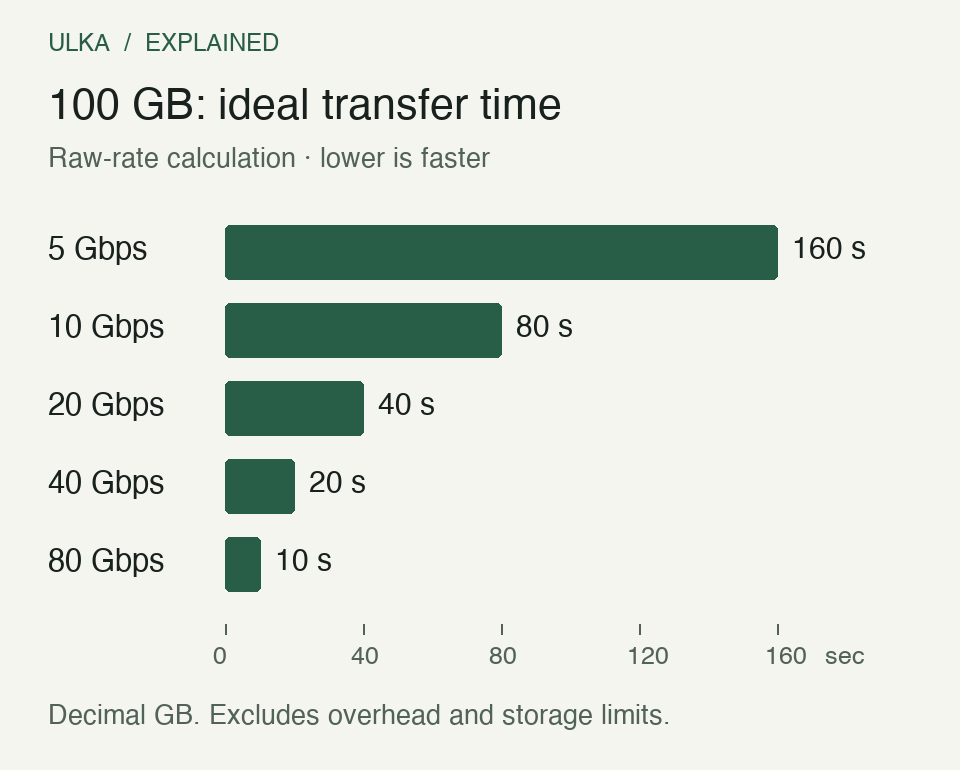
Calculation, not a device benchmark. Real transfers take longer because usable throughput is lower than the raw signalling rate; storage and workload can add further limits.
At 480 Mbps, the same ideal calculation is about 27 minutes and 47 seconds. That large difference explains why a perfectly serviceable charging cable can feel unsuitable for moving a camera archive. It does not mean buying the fastest cable automatically delivers the shortest bar on the chart.
Treat a monitor as a separate compatibility check
A monitor introduces requirements beyond ordinary file transfer. Confirm that the computer’s port supports the intended display output, that the cable carries the required connection and that the monitor or dock accepts it.
Check resolution and refresh rate together. Saying that a connection supports “4K” leaves out whether it supports the refresh rate, colour settings and number of screens you need. The limitations may come from the computer rather than the cable.
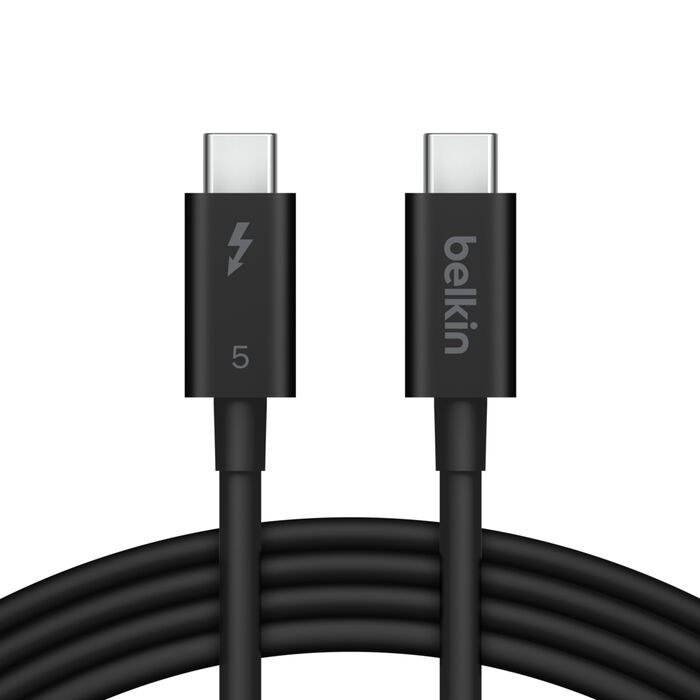
Belkin’s Thunderbolt 5 cable is an example of a product that lists power, data and display capabilities separately. Its page specifies up to 240 W power delivery and 80 Gbps bidirectional bandwidth, with a Bandwidth Boost mode allowing up to 120 Gbps in one direction and 40 Gbps in the other. That directional mode should not be described as 120 Gbps available equally in both directions.
The product image illustrates a real cable, rather than serving as a recommendation to buy that model. A simpler and cheaper cable may meet your actual requirement.
The charger does not force its maximum into the laptop
A cable’s power rating is a capability, not an instruction to consume that amount. The power delivered depends on the compatible charger, cable and device arrangement. A 240 W cable cannot turn a 65 W charger into a 240 W supply.
For a multi-port charger, read how output is divided when several sockets are occupied. A headline total is not necessarily the amount available to each connected device simultaneously. Check the manufacturer’s combination table rather than adding up socket labels.
Keep the required cable length in mind too. Use a product rated for the connection at that length. Do not assume that a longer version or an unverified extension preserves every capability of the original cable.
Diagnose before replacing the whole setup
When a connection disappoints, change one component at a time. First connect the device directly to the computer, removing the dock or adapter. Then try a cable whose specification you know, keeping the same computer port and workload.
For a display, start with one screen and a supported resolution and refresh rate. For a drive, use a non-sensitive test file and compare the same transfer. Note the exact port, cable, adapter and device models so a successful arrangement can be repeated.
Label cables once you know what they support. “Laptop charging” and “SSD data” are more useful in a drawer than trying to remember which black lead came in which box. Keep manufacturer specifications with the receipt when the connection is important to your work.
Our Computing section covers related choices around laptops, storage and peripherals.
Questions
Does a 240 W cable transfer files faster than a 60 W cable?
Not necessarily. Power rating and data capability are separate. Compare the stated data rates and the connected ports.
Why is my measured copy speed below the label?
The label describes a signalling capability. Protocol overhead, storage performance and the workload reduce the usable file-transfer rate.
Can every USB-C socket run a monitor?
No. Check the computer’s supported display output and the complete cable, dock and monitor combination.
Should I buy the highest specification available?
Buy for a documented need. A higher-rated cable cannot remove a lower limit imposed by the charger, host port or device.
Sources
USB Implementers Forum, USB Type-C Cable Logo Usage Guidelines, January 2026 edition; Belkin, Thunderbolt 5 cable INZ005 product specifications, consulted for this guide. Transfer chart: ULKA calculations from the stated nominal rates. Cover: Belkin product photograph.