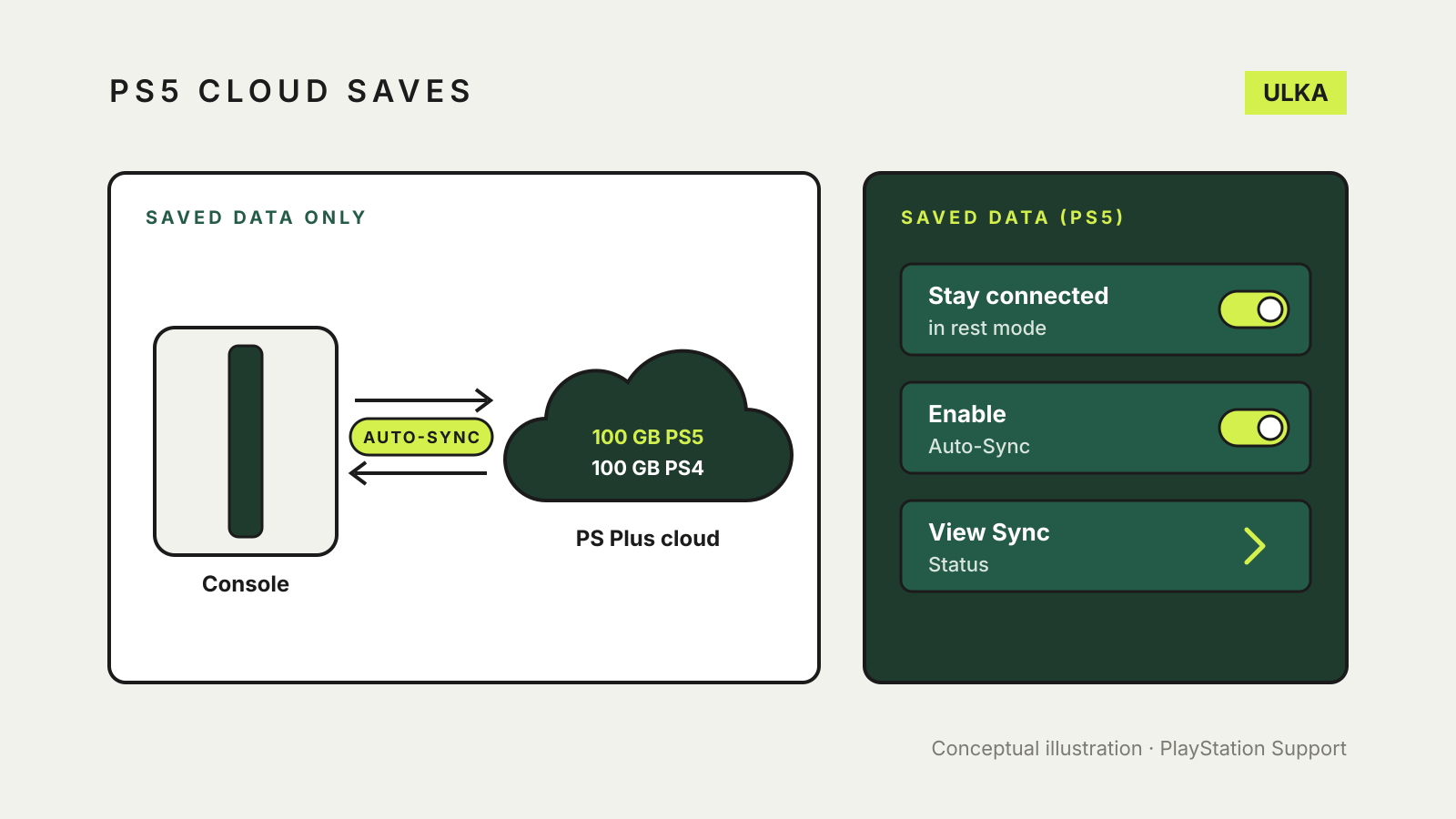
PS5 cloud saves come with a PlayStation Plus membership, which gives you up to 100 GB of cloud storage for PS5 saved data and another 100 GB for PS4 saved data. To keep them current, go to Settings > Saved Data and Game/App Settings > Saved Data (PS5) > Sync Saved Data > Auto-Sync Saved Data and turn on Enable Auto-Sync. Your console then syncs when you close a game or put the PS5 into rest mode, as long as rest mode stays connected to the internet.
This guide covers setting up auto-sync, uploading and downloading by hand, checking that a game has actually synced, and what to do before you change consoles or let PlayStation Plus lapse. It follows PlayStation’s Australian support pages, checked on 11 November 2026.
What PS5 cloud saves store, and what they don’t
PlayStation describes cloud storage as space on the network where you copy saved data, so you can upload a game’s progress on one PS5 or PS4 and download it on another. Saves only. Installed games do not go to the cloud, and PlayStation’s storage chart shows screenshots and video clips are not stored there either.
| Type of data | PS Plus cloud storage | Where else it can go |
|---|---|---|
| PS5 saved data | Yes, up to 100 GB | Full console backup to a USB drive |
| PS4 saved data | Yes, up to 100 GB and 1,000 files | USB drive, or full console backup |
| PS5 and PS4 games | No | USB extended storage or an M.2 SSD |
| Screenshots and video clips | No | Copy to a USB drive |
If you are short of space for games rather than saves, our guide to PS5 USB extended storage explains what a drive can hold and play.
Turn on auto-sync
PlayStation says cloud storage sync needs automatic updates enabled, and the console has to stay online in rest mode.
- Go to Settings > System > Power Saving > Features Available in Rest Mode and turn on Stay Connected to the Internet.
- Go to Settings > Saved Data and Game/App Settings.
- For PS5 games, select Saved Data (PS5) > Sync Saved Data > Auto-Sync Saved Data and turn on Enable Auto-Sync.
- For PS4 games played on your PS5, select Saved Data (PS4) > Auto-Upload and turn on Enable Auto-Upload.
You can switch the setting on or off game by game from the same screen.
PS5 and PS4 saves behave differently. For PS5 games, PlayStation says the console and cloud storage sync to whichever copy is most recent. For PS4 games, saves upload automatically, but you have to download them to the PS5 yourself.
Upload or download a save by hand
The quickest route is from the game itself: highlight it on your Games home, press the Options button and select Upload/Download Saved Data. PlayStation says this moves the game’s most recent saved data.
For more control:
Upload
- Go to Settings > Saved Data and Game/App Settings.
- Select Saved Data (PS5) or Saved Data (PS4).
- Select Upload or Delete from Console Storage, then the Upload to Cloud Storage tab.
- Choose the saves and select Upload.
Download
- Go to Settings > Saved Data and Game/App Settings.
- Select Saved Data (PS5) or Saved Data (PS4).
- Select Download or Delete from Cloud Storage, then the Download to Console Storage tab.
- Choose the saves and select Download.
The Delete tab on the same screen removes saves from the cloud when you are running close to the limit.
Check that a game has synced
Do this before you delete a game, trade in a console or reset it. For PS5 games, go to Sync Saved Data > View Sync Status, or highlight the game, press Options and select Check Sync Status of Saved Data. If a game shows as not synced, upload it by hand and check again.
Moving to a new PS5
PlayStation’s advice is short: sign in to your PlayStation account on the new console and download your saved data. A few habits make that smoother:
- check sync status on the old console first, especially for games you played offline;
- turn on auto-sync on the new console before you start playing, so a fresh local save does not become the “most recent” copy by accident;
- remember PS4 saves need a manual download even with auto-upload on.
You can also pick up from your cloud save on a friend’s console by signing in to your account there.
If your PlayStation Plus subscription ends
PlayStation says that when a subscription ends you lose access to its benefits, including online storage. You keep the benefits until the end of the period you have already paid for, even after cancelling. PlayStation’s current support pages do not say how long cloud saves are kept after that, so do not count on them being there when you come back.
Before your last paid day, download every save you care about to the console. For a copy that does not depend on a subscription at all, PlayStation’s backup tool copies all user data, including saved data, to a USB drive formatted as FAT32 or exFAT: Settings > System > System Software > Back Up and Restore > Back Up Your PS5. Two cautions from PlayStation: restoring a backup erases everything currently on the console, and trophies are not included, so sync those first.
If you also play on Switch, the same “check before you trust it” approach applies to Nintendo Switch cloud saves.