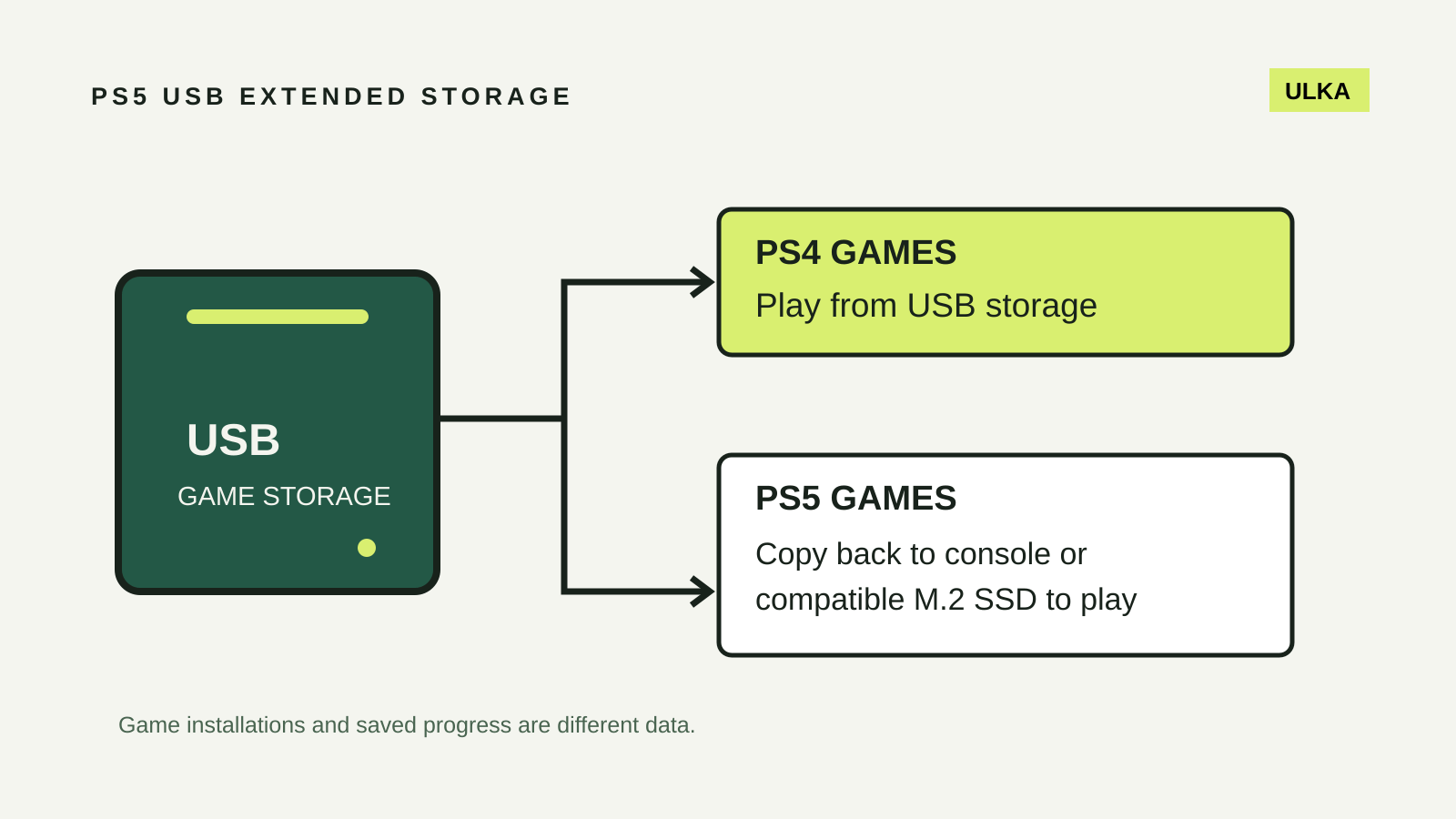
PS5 USB extended storage can hold PS5 game installations, but those games must be copied back to console storage or a compatible installed M.2 SSD before you play them. PS4 games can run directly from USB extended storage. That distinction matters more than whether a drive is advertised as fast: an external SSD does not remove the PS5 playback restriction.
Decide whether you need an archive or more playable space
Start with the games you actually switch between. If several large PS5 installations are sitting untouched, moving them off the console may be enough. If you want every PS5 game ready to launch without a transfer, USB storage will not solve that particular problem.
PlayStation’s storage-location table distinguishes game installations, saved progress and media. It lists USB extended storage separately from M.2 storage and an ordinary USB drive.
That gives you three separate planning questions: where to keep installed games, where saved progress belongs and where to copy captures. Do not buy a drive on the assumption that the word “storage” makes those jobs interchangeable.
Check the drive and the port separately
The official USB extended-storage guide requires SuperSpeed USB 5 Gbps or faster and a capacity from 250 GB to 8 TB. Connect directly, not through a USB hub. Only one extended-storage drive can be used at a time, and compatibility is not guaranteed for every device.
Then check the socket. PlayStation’s USB ports guide identifies SuperSpeed ports separately from Hi-Speed ones. The CFI-1000 model group has a front Hi-Speed USB-A port; CFI-2000/7000 models have a front Hi-Speed USB-C port. Both groups also have SuperSpeed ports, including the two rear USB-A sockets.
A plug fitting into the console is therefore not the whole compatibility check. Read the port diagram for your model and the drive’s connection specification. Keep the supplied cable with the drive so an unverified replacement does not become another variable when troubleshooting.
Format only a drive whose contents you can erase
Formatting as extended storage erases the drive. First check its contents on the device you normally use and move anything you need elsewhere.
For a new setup, connect the drive to a suitable SuperSpeed port, then open Settings > Storage > USB Extended Storage > Format as USB Extended Storage. A drive already used as extended storage on PS4 or another PS5 does not need reformatting.
If several drives are nearby, identify the intended one before accepting the erase operation. Labelling the cable or enclosure is a useful household precaution, especially when backup disks and game disks look alike. This is not a reason to format a drive just because a console prompts you to choose one.
For general external-drive decisions, our SSD vs HDD for backup guide explains the trade-offs. Its backup use case is different from a console game library.
Move a game out, then plan its return
In Game Library, highlight the game, press the options button and choose Move Games and Apps, then Move. To bring a PS5 game back, find it in Game Library > Installed, open its options and select Copy to console storage.
Choose a game you are unlikely to need immediately for the first move. Before reorganising the whole library, confirm where that installation appears and what the console offers when you select it. This makes the storage arrangement understandable without assuming a transfer time or claiming a speed test.
Keep room for the game you intend to bring back. An external archive is less useful if the console is completely full every time you want to change games. Think of it as a rotation plan rather than an unlimited extension of the console’s playable space.
Keep saved progress out of the game-installation decision
PlayStation’s storage table does not list PS5 saved data as content for USB extended storage. It lists PlayStation Plus cloud storage for saved data, with a subscription required.
Check saved-data management separately before deleting or reorganising installations. “I moved the game” is not a useful description of every kind of data associated with it. The Gaming collection covers other decisions about hardware and services without treating a storage purchase as a universal fix.
Use the console’s safe-removal control before unplugging an active extended-storage drive, or wait until the console is fully off. Never interrupt a transfer.