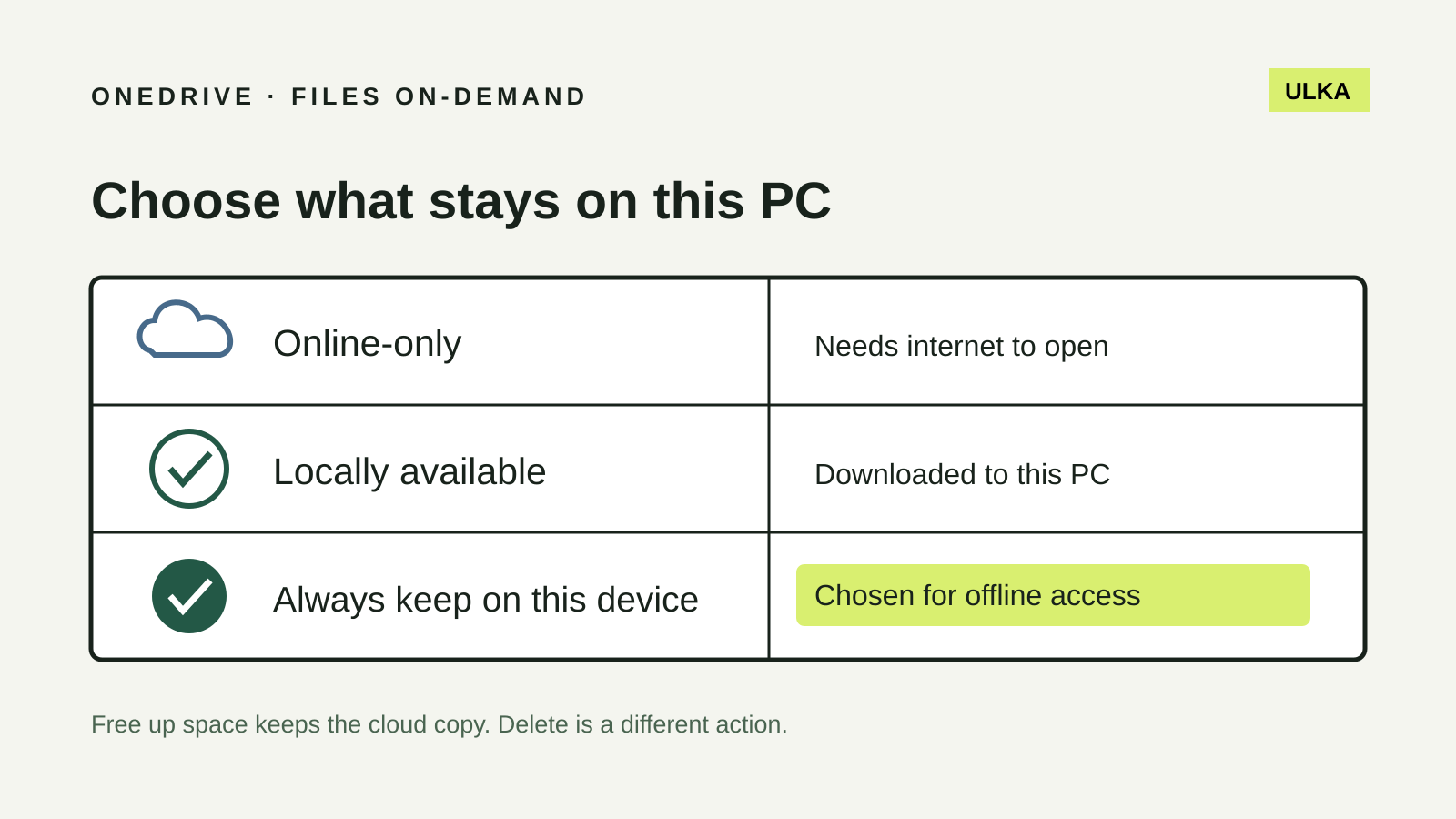
OneDrive Files On-Demand separates online-only files from downloaded ones. On Windows, Always keep on this device selects offline availability; Free up space retains the cloud copy. Check the file’s status before relying on it without internet access.
Read the status before trusting the folder
Microsoft’s Files On-Demand guide distinguishes three useful states:
| Status | What it tells you |
|---|---|
| Blue cloud | Online-only; an internet connection is needed to open it |
| Outlined green tick | Locally available after downloading |
| Solid green circle with a white tick | Marked Always keep on this device for offline access |
The folder name alone does not establish which state applies. Two documents beside each other can have different local availability.
Before a flight, a site visit or an unreliable connection, choose the actual working files. A whole archive may be unnecessary, while a single missing attachment can stop the task. Include the supporting documents you will need to interpret the main file.
Choose offline access deliberately
In File Explorer, right-click the relevant file or folder and choose Always keep on this device. Microsoft says the selected content downloads and takes space on the PC.
Allow that download to finish before relying on it. A practical rehearsal is to open copies of ordinary working files, disconnect from the network and check the files you expect to use. Keep sensitive information on a device only when you are authorised to store it there.
For a project, write a small offline checklist: main document, reference attachments and any export required by the receiving application. This is more useful than remembering only that you opened OneDrive the previous evening.
These are preparation suggestions, not a claim that ULKA tested a particular computer or account.
Freeing disk space is not deleting the cloud file
To change downloaded content back to online-only, use Free up space rather than Delete. Microsoft explains that the cloud copy remains. It also notes that Storage Sense can return locally available files to online-only according to its settings.
When making room, decide which files you still need away from the internet. Clearing every local copy just before travel may solve the capacity problem and create an access problem.
Microsoft’s size-reporting explanation distinguishes file size from Size on disk: online-only files can appear in the folder without their full contents occupying local storage.
Use that distinction when investigating a large-looking folder. Do not start deleting documents just because a total size is larger than you expected. Check the actual local allocation and the files’ status first.
Treat deletion as a separate decision
Microsoft warns that deleting an online-only file removes it from OneDrive across devices and the web. Files On-Demand is not a private local-only deletion mode.
If you make a mistake, Microsoft’s recovery guide directs you to the OneDrive website’s Recycle bin, where eligible files can be selected and restored. Online-only files deleted from the cloud do not appear in the PC’s Recycle Bin.
For personal accounts, Microsoft describes a 30-day recovery period. Work or school accounts normally have 93 days, unless an administrator changes retention. Permanently removed items are not recoverable through that recycle bin.
Check promptly and in the correct account. Avoid emptying either recycle bin while investigating. A deleted project folder and an unavailable online-only folder are different problems; identify which occurred before taking further action.
Separate everyday access from a recovery plan
An offline copy helps you work without a connection. A recovery plan asks how you will retrieve the right files after an accidental change, lost device or other failure. Do not use one answer as proof of the other.
Our cloud storage and backup comparison explains those roles. For a separate local recovery approach, read Backups that restore.
A useful personal checklist has three columns: files needed offline, files safe to leave online-only and files requiring a separate recoverable copy. Review it when a project ends or your device changes. The point is not to keep everything everywhere, but to know what will still be available when one part of the setup is missing.