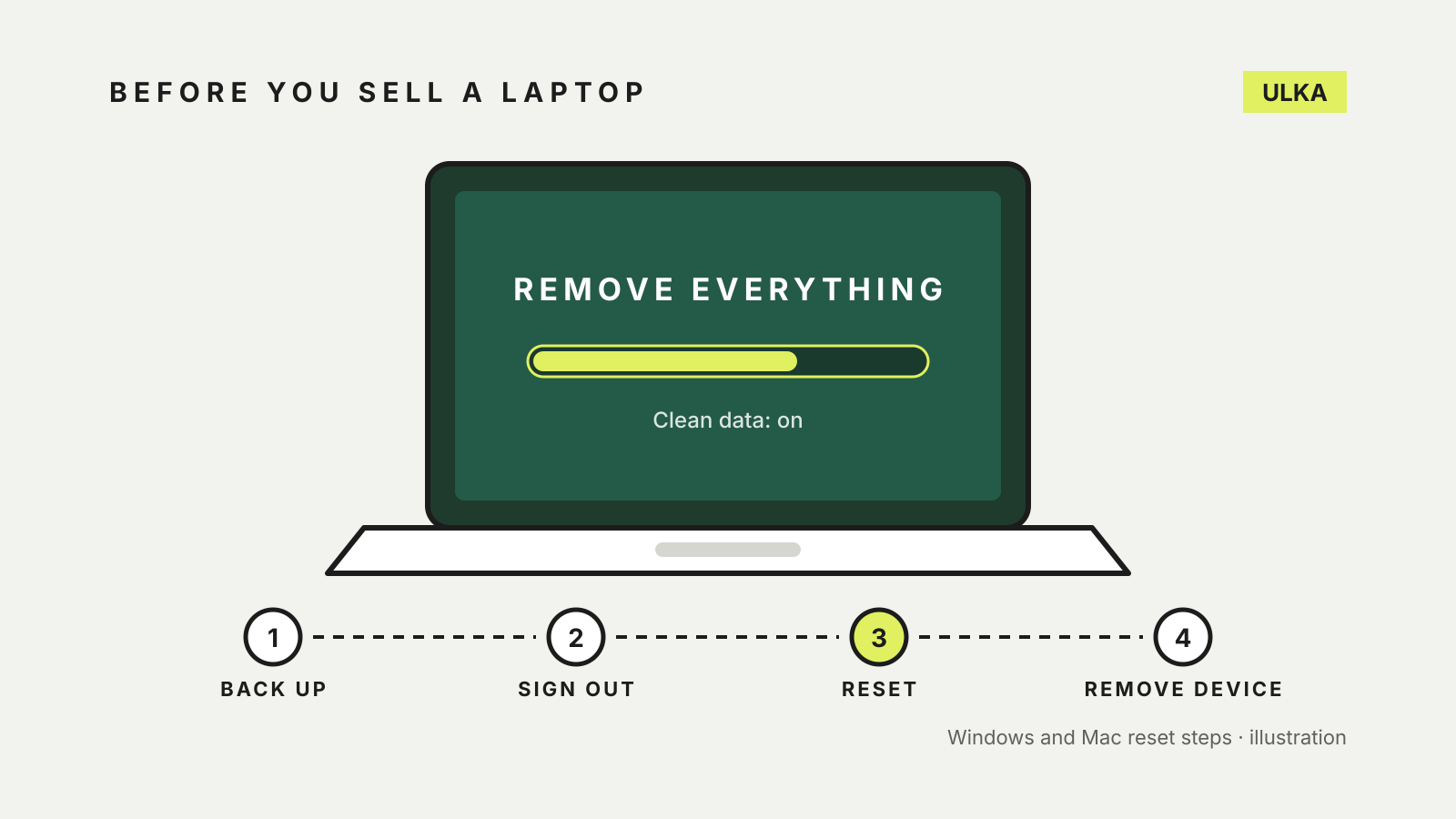
How to wipe a laptop before selling it comes down to three jobs: copy off what you want to keep, take the laptop out of your accounts, and reset it so the next owner starts from a clean setup screen. Windows and macOS both have a built-in reset that does most of the work, but each has a step people skip, and that step is usually the one that causes trouble later.
This guide follows Microsoft Support and Apple Support pages checked on 23 October 2026. Menu names can change between updates, so look for the closest match if your screen differs.
Before you start, on either system
- Back up. A reset removes your files. Microsoft points Windows users to Windows Backup; Apple suggests Time Machine or transferring files straight to a new Mac. Our guide to File History and Time Machine covers both.
- Open the backup somewhere else. Check that the files you care about are actually there before you erase anything.
- Find your passwords. You will need your computer login and, on a Mac, your Apple Account password. An encrypted Windows PC may ask for its BitLocker recovery key.
- Sign out of anything you can’t sign out of remotely. Password managers, banking apps and work tools are easier to close down on the laptop itself.
Wipe a Windows laptop
Microsoft’s Reset your PC page covers Windows 11 and Windows 10.
- Open Settings and go to System > Recovery. On Windows 10, the path is Update & Security > Recovery, then Get started under Reset this PC.
- Select Reset PC.
- Choose Remove everything. Microsoft describes this as the option for “when you are giving away or selling your PC”.
- Turn on Clean data. Microsoft says this cleans the drive as well as removing files, takes longer, and “makes it harder for other people to recover files you’ve removed”.
- Choose Cloud download for a fresh copy of Windows with the latest updates, or Local reinstall if your internet connection is slow.
- Follow the on-screen instructions and leave the laptop plugged in.
Expect the screen to go black for a long time. Microsoft says it can stay that way for upwards of 15 minutes and the PC may restart itself. Restarting it yourself during the process could make the reset fail.
Microsoft adds that this data erasure is aimed at consumers and “does not meet government and industry data erasure standards”. For a personal laptop, Clean data is the documented option; for a work device with sensitive records, ask your employer what standard applies.
Remove the PC from your Microsoft account
A reset clears the laptop, but your Microsoft account still lists it. Microsoft’s page on preparing a Windows PC or Xbox for sale gives these steps:
- Go to account.microsoft.com/devices and sign in.
- Find the laptop and select Show details.
- Under its name, select More actions > Remove.
- Tick I’m ready to remove this device, then select Remove.
Microsoft also suggests unlinking the device from Microsoft Store downloads. Its device management page says Store apps and content can be downloaded to only 10 devices on one account, so an old laptop you have sold can block a new one.
Wipe a Mac laptop
Most current MacBooks can use Erase All Content and Settings. Apple says it needs macOS Monterey 12 or later on a Mac with Apple silicon or the Apple T2 Security Chip.
Apple’s Erase Assistant guide lists what it does: it signs you out of Apple services such as iCloud, turns off Find My and Activation Lock, erases your content, settings and apps, and erases all volumes and all user accounts, not just yours.
- Open System Settings and click General in the sidebar.
- Click Transfer or Reset, then Erase All Content and Settings.
- Enter your Mac login password when asked for administrator details, and your Apple Account password when asked.
- If a message asks whether you want to sign back in to iCloud, ignore it and click Erase All Content & Settings.
The Mac restarts, may ask you to connect a keyboard, mouse or Wi-Fi network, activates and restarts again. Apple’s factory reset article says that if you are selling the Mac and want to leave it in an out-of-box state, don’t continue through the setup assistant. Press and hold the power button until it turns off.
Apple adds one step for Macs with Apple silicon running macOS 26 or later: if the Mac has been repaired, or you’re not sure, use Repair Assistant to check for an unfinished repair first.
Older Macs
If your Mac can’t use Erase All Content and Settings, Apple’s article on what to do before you sell a Mac sets out the longer route:
- Sign out of iCloud in System Settings (your name > Sign Out), or System Preferences on older versions.
- Sign out of iMessage in Messages settings.
- Unpair or rename Bluetooth accessories if they carry your name or will stay near the Mac.
- Start up from macOS Recovery, erase the Mac with Disk Utility and reinstall macOS.
- When the setup assistant appears, press Command-Q to shut down.
- On an Intel-based Mac, reset NVRAM, then shut down again at the setup assistant.
If the Mac has an AppleCare plan, Apple notes you can cancel it or transfer it to the new owner.
Check before you hand it over
Turn the laptop on once more. A Mac should show “Hello” or its setup assistant, which Apple describes as the finished state. A reset Windows PC should start Windows setup rather than your own sign-in screen. If you see your account, desktop or files, the reset did not finish.
Then check your accounts from another device. Your Microsoft account device list should no longer show the PC, and on a Mac, Apple says Erase Assistant has already removed it from Find My.
If you are selling a phone at the same time, our guide on how to wipe a phone before selling covers iPhone and Android.