To turn off Gemini in Gmail, you change a Google setting called smart features, not a switch labelled Gemini. Google splits it into three separate settings, and each one controls a different set of features. Turn off the right one and Gemini stops summarising and drafting from your mail; turn off the wrong one and you may lose inbox tabs and Smart Compose while Gemini stays put.
This guide follows Google’s Gmail Help pages for personal accounts, checked on 23 October 2026. Google renames menus from time to time, so look for the closest match if a label on your screen differs.
The three smart feature settings
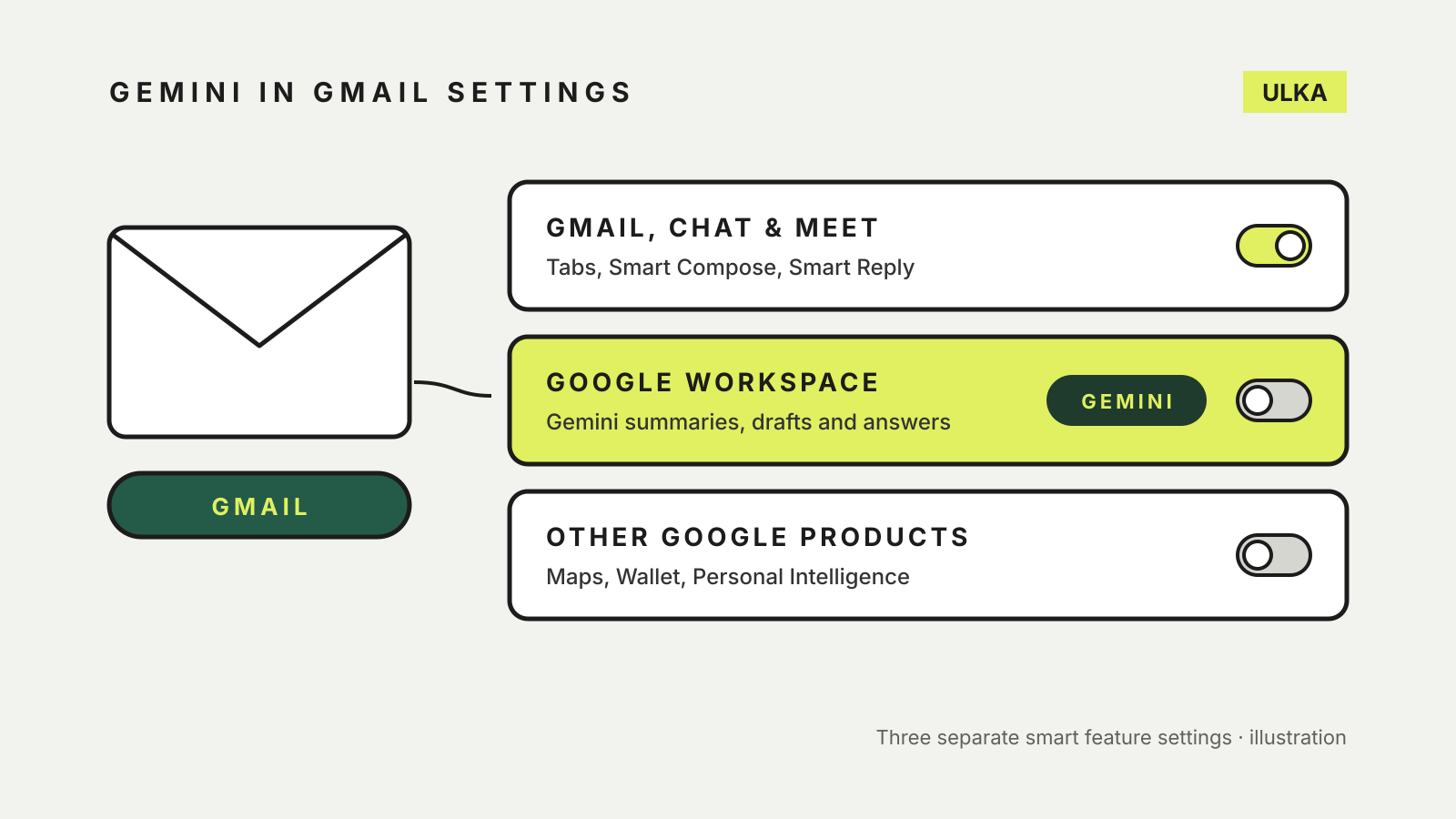
Google’s help page on smart features and controls describes three settings that work independently of each other.
| Setting | What it controls | Examples Google gives |
|---|---|---|
| Smart features in Gmail, Chat and Meet | Use of your Gmail, Chat and Meet data inside those apps | Primary, Social and Promotions tabs, Smart Compose, Smart Reply, summary cards for travel and parcels |
| Smart features in Google Workspace | Use of your Workspace data across Calendar, Gmail, Chat, Meet, Drive and more | Gemini summaries, drafts and answers from your content, flights from Gmail added to Calendar, personalised Drive search |
| Smart features in other Google products | Use of your Workspace data in products outside Workspace | Reservations in Maps, passes in Wallet, Personal Intelligence in the Gemini app and Search |
The Gemini features sit under the second setting. Google says that when smart features in Google Workspace are on, you can “ask Gemini to summarise content, create drafts and find key information”, along with other Google Workspace with Gemini features. When the setting is off, you can’t use those experiences in Workspace products.
The first setting is the one people often switch off by mistake. It covers the older features: the inbox tabs, Smart Compose, Smart Reply and summary cards. Turning it off does not touch the Workspace setting, and Google says the reverse is also true.
Turn off Gemini in Gmail on a computer
These steps come from Google’s help page and start in Gmail in a web browser.
- Open Gmail and click Settings (the gear icon) at the top right, then See all settings.
- On the General tab, scroll to Google Workspace smart features.
- Click Manage Workspace smart feature settings.
- Turn off Smart features in Google Workspace. If you also don’t want your mail used for Personal Intelligence in the Gemini app, Maps or Wallet, turn off Smart features in other Google products.
- Click Save at the bottom right.
The same panel is available from Google Calendar, Chat, Drive and Meet settings on the web. Google notes that you can only turn these two settings back on from a web browser.
Keep or drop the classic Gmail features
If you also want to stop Gmail reading your mail for Smart Compose, Smart Reply, summary cards and automatic sorting into tabs:
- In Gmail, go to Settings > See all settings.
- On the General tab, scroll to Smart features.
- Untick Turn on smart features in Gmail, Chat and Meet.
Think before you change this one. Without it, Google says you lose automatic filtering into Primary, Social and Promotions, along with suggested text and replies. Some features with their own switches, such as conversation summaries and Smart Reply in Google Chat, stay available.
What changes on your phone
Google says changes to smart feature settings apply across all devices and apps where you’re signed in. It also warns that some changes made on a computer don’t show up in the mobile app straight away, and that you should update the Gmail app if you don’t see a notice about the change. Google says you can also change smart feature settings in the Gmail app for Android, iPhone and iPad if you would rather make the change there.
Which Gemini features Australians actually see
Google’s page on Gemini features in Gmail shows how much depends on your account. For personal Gmail accounts without a paid plan, Google says most features are limited to the US for now. AI Overview conversation summaries, which condense a long email thread when you open it, are listed as available globally for personal accounts in English and several other languages.
People with a Google AI Plus, Pro or Ultra plan, or an eligible Google Workspace plan, get more: AI Overviews in Gmail search, Proofread, Help me write and, on Android and iOS, Gmail Live voice questions. Some features, including AI Inbox, are listed as US only even on paid plans. Turning off smart features in Google Workspace switches off whichever of these your account has.
Work and school accounts
On a work or school account, your administrator decides. Google’s admin documentation says administrators can turn Gemini on or off for each Workspace service, including Gmail, and that the default is on. Administrators can also set a default for smart features, which users can then override in their own settings. If the options above are missing or greyed out, ask your IT team.
What turning it off does to your data
Google says your Workspace content is used to provide smart features for as long as the relevant setting is on. Turning a setting off stops your content being used for those features, and to improve them, from then on. Google also notes that what it has already learned while the setting was on may persist after you turn it off.
These settings are separate from the Gemini app’s own history. Chats you have at gemini.google.com are kept under Gemini Apps Activity, which you can review and delete from Settings & help > Activity. Our guide to AI chatbot privacy settings covers those controls for Gemini, ChatGPT and Claude, and the iPhone equivalent is in how to turn off Apple Intelligence.