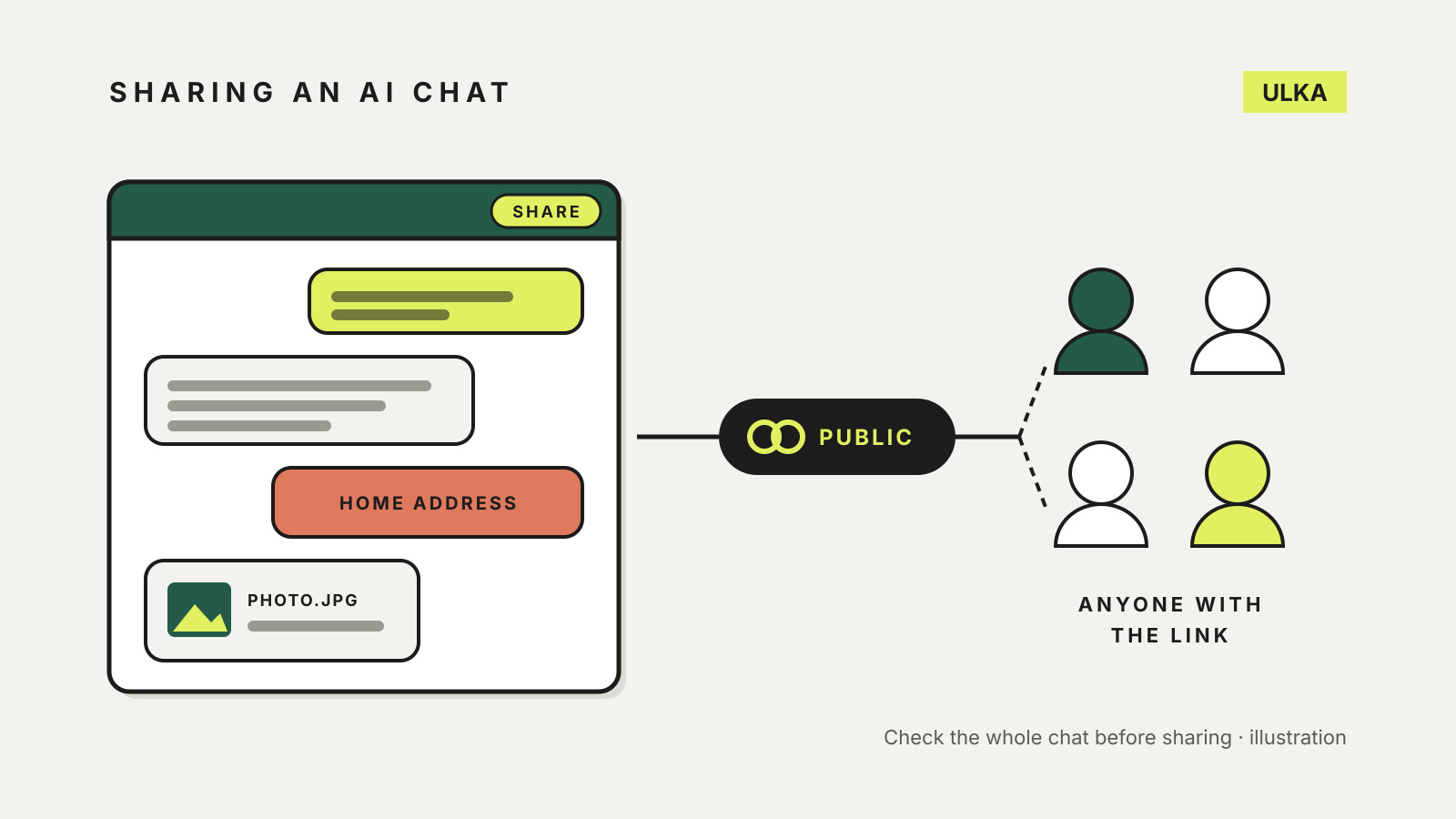
To share a ChatGPT conversation, open it, select Share and copy the link. Claude and Gemini work the same way. The catch is what happens after you send it: on a personal account, anyone who has the link can read the chat, not only the person you sent it to, and on Gemini they can also reshare it and continue the conversation in their own account. Before sharing, it is worth knowing what each link includes and how to switch it off later.
This guide covers the three services side by side: what a shared link contains, whether later messages are added, and where to find and delete old links. Each provider’s help pages were checked on 22 October 2026.
How sharing works on each service
| ChatGPT | Claude | Gemini | |
|---|---|---|---|
| How to share | Share, then Create link or Copy link | Share (top right), then Share again | Share below a response, then Share conversation |
| Who can open a personal-account link | Anyone with the link | Anyone with the link | Anyone with the link |
| Later messages added? | No, until you choose Update link | No, until you unshare and share again | No |
| Uploaded files | Supported images and files can appear | File not included; conversation only | Uploaded images can be viewed and downloaded |
| Recipient can continue the chat | Yes, as a private copy | Not described in Anthropic’s help | Yes, except Gem chats and under-18 users |
| Manage old links | Settings > Data controls > Shared links | Settings > Privacy > Shared chats | Settings & help > Your public links |
ChatGPT
OpenAI’s shared links help page describes the steps: open the conversation, select Share, review the preview, then select Create link or Copy link.
For a personal account, anyone who has the link can view the shared conversation. The link is a snapshot of the conversation when you create or update it, so messages you add later are not included until you select Update link. OpenAI says shared links are anonymous by default, but some older sharing experiences may show the creator’s name, so check the preview before sending.
Work accounts are different. A link made in a ChatGPT Business, Enterprise or Edu workspace opens only for eligible members of the same workspace, and it can include messages added after you share it.
Anyone who continues your shared chat gets their own separate, private copy. Deleting your link stops future access but does not remove a copy someone has already saved.
To review your links, go to Settings > Data controls, then select Manage next to Shared links. You can delete them one by one or all at once. Deleting the original conversation also removes its shared link.
Claude
Anthropic’s sharing guide says chats are private by default. To share one, click Share in the upper-right corner of the chat, then Share in the pop-out to create the link.
The snapshot contains every message sent before you shared it, including artifacts. Messages sent afterwards stay private unless you unshare the chat and share it again, which refreshes the snapshot.
Claude’s handling of attachments is the most conservative of the three. Anthropic says an uploaded file is not included in the shared snapshot, and that raw data pulled in by connected tools stays hidden. Only the conversation and Claude’s replies are visible. On Team and Enterprise plans, chats can only be shared with members of the same organisation.
To stop sharing, open the Share menu and change the visibility from Public to Private. On Free, Pro and Max plans, Settings > Privacy has a Shared chats list with an Unshare button for each.
Gemini
Google’s Gemini sharing help is the most direct about the risk: sharing a chat creates a public link, and anyone with it can read the chat, reshare it, and continue it with Gemini on their own. Continuing is not available for chats made with Gems or for users under 18.
To share on the web, click Share below a response, then Share conversation. A g.co/gemini/share link is copied for you. Points to know:
- The link shares the entire conversation, not just the response you clicked.
- Images you uploaded can be viewed and downloaded from the shared page, along with Canvas documents, images and videos Gemini created.
- Google does not add your name or account to the shared page.
- The page shows the chat as it was when you created the link. Later edits do not appear.
- With a Gem, you choose whether to include its instructions.
To remove a link, go to gemini.google.com, open Settings & help, then Your public links, and delete one or all. Google notes this does not remove posts where you pasted the link, and does not delete copies other people have continued in their own accounts. If you cannot find Share on a work account, your Workspace administrator may have switched sharing off.
Before you press Share
Treat any personal-account link as public. OpenAI’s own advice is not to include health information, financial details, passwords, account numbers or other sensitive personal information in shared content. In practice:
- Read the whole chat, not just the last answer. Earlier messages often carry names, addresses or work details you have forgotten about.
- Check attachments. A shared ChatGPT or Gemini chat can expose an uploaded image or file.
- Start a clean chat for sharing. If the useful answer sits inside a long, personal thread, ask the question again in a new chat and share that one.
- Use a work account for work material. Business and Enterprise links stay inside the organisation on all three services.
- Tidy up old links. Use the management screens above every few months, and delete links you no longer need.
Sharing is separate from what the provider keeps or uses for training. For those settings, see our guide to AI chatbot privacy settings. If the chat you are about to share contains facts, our guide to fact-checking AI answers is worth a look first.