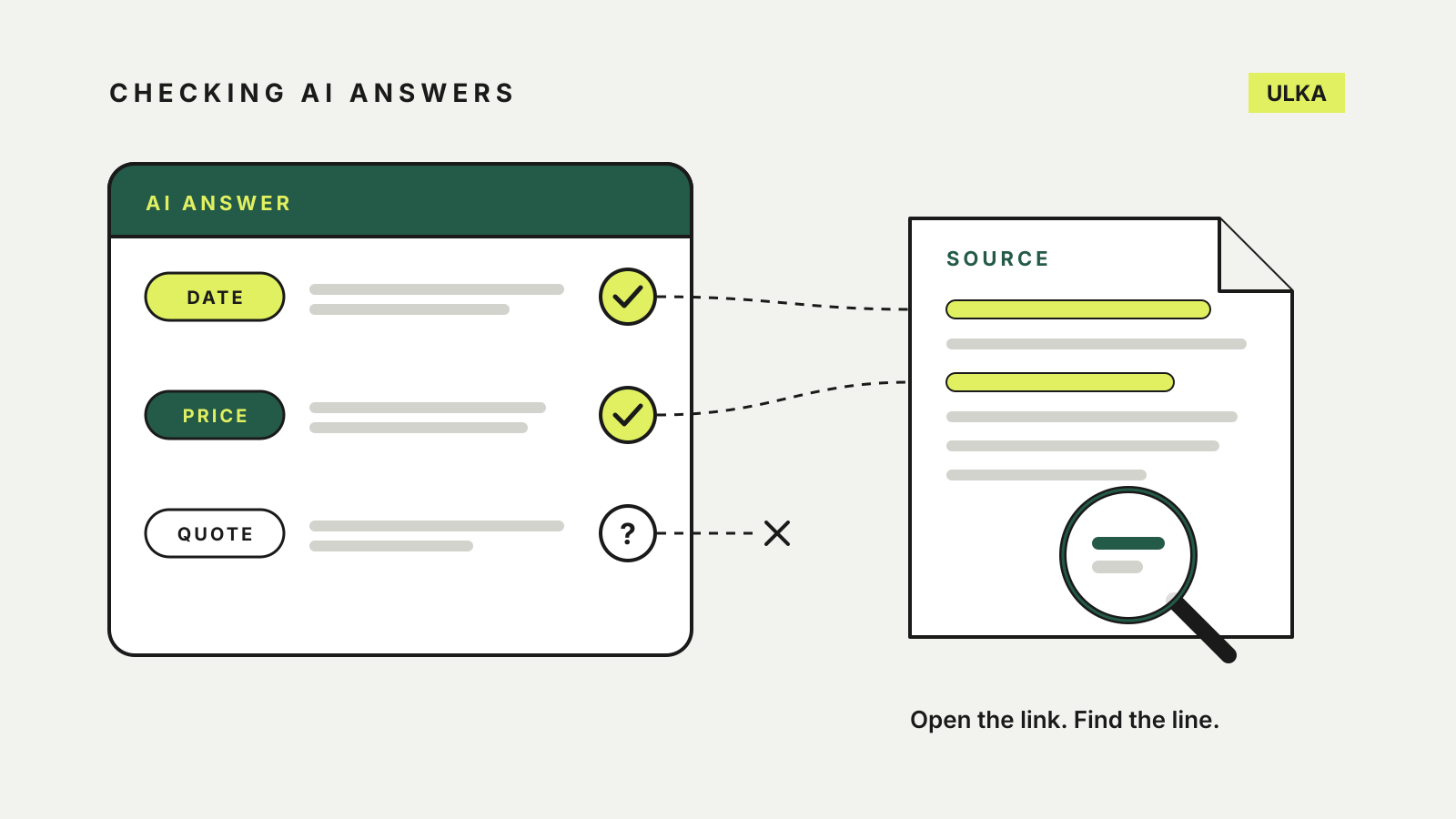
To fact-check AI answers, open the sources behind each claim that matters and confirm the page actually says what the chatbot says it does. If an answer has no sources, ask again with web search on, or take the claim to an authoritative site yourself. ChatGPT, Claude and Gemini can all show where an answer came from, and all three companies warn that the answer can still be wrong.
This guide draws on OpenAI, Anthropic and Google’s own help pages, checked on 18 October 2026. Menu names change between app versions, so treat the steps as a guide to where to look.
Why a confident answer is not a checked one
OpenAI’s help article Does ChatGPT tell the truth? is unusually direct. It says ChatGPT can produce incorrect or misleading outputs and “might sound confident—even when it’s wrong”. Its examples of these hallucinations include wrong dates and definitions and fabricated quotes, studies, citations or references to sources that do not exist.
Google says the same of Gemini. Its page on responses from Gemini Apps warns that Gemini “can hallucinate and present inaccurate information as factual”, and asks you not to rely on its responses as medical, legal, financial or other professional advice.
There are practical limits too. OpenAI notes that a model only knows its training data up to a cut-off unless it uses a tool such as search, and that it may be unable to read a site because of paywalls or the site’s own settings. A fluent answer can be built on a gap.
Step 1: Find the claims that matter
Not every sentence needs checking. Pick out the ones you are going to act on or repeat:
- numbers, prices, dates and deadlines
- names of people, products, laws or organisations
- quotes and anything presented as what a source “says”
- rules that apply to you, such as eligibility, tax or health advice
If you plan to forward the answer, check those claims before it leaves your hands.
Step 2: Make the chatbot show its sources
Each of the three services can attach links to an answer, but none does it for every response.
| Service | How to get sources | Where they appear |
|---|---|---|
| ChatGPT | Searches automatically when it helps; to force it, select View all tools, then Search, or type / and choose Search | Citations in the answer and a Sources button |
| Claude | On accounts with the toggle, select + then Web search; with the newer Claude experience it searches when it helps | Citations in the response, with source links |
| Gemini | Shows sources when they are available | A Sources button below the answer or in-line, opening a side panel |
OpenAI’s ChatGPT search guide says web search is available on Free, Go, Plus and the business plans, and even to people who are not signed in. You can also regenerate an existing answer with web results. On desktop you can point to a citation to preview it.
Anthropic’s web search help page says every response that uses search includes citations, “so you can easily verify sources yourself”. On Team and Enterprise accounts, an owner has to switch web search on for the workspace first.
Google’s sources help page notes that sources can include public websites, files you uploaded and, if you connected Google Workspace, your own emails and documents. If there is no Sources button, Gemini did not provide links for that answer.
Step 3: Open the source and read it
A citation shows where the chatbot looked. It does not prove the page agrees. OpenAI’s search guide says plainly that search results and citations “can be incomplete, outdated, or incorrect”, and asks you to open a cited source to check it supports the answer.
When you open a link, check three things:
- Does the page say it? Find the sentence or figure. A chatbot can merge two sources or carry a number from one context to another.
- When was it published or updated? OpenAI recommends checking the date. A correct figure from an old page can be wrong today.
- Who wrote it? The organisation that sets the rule or sells the product is usually the authority. For a price, that means the provider’s own Australian page; for a regulation, the government agency’s site.
If a cited page is in your own Drive or email, the same applies. Gemini can quote your files, and your files can be out of date too.
Step 4: Ask again, more narrowly
When a source does not support the claim, say so in the chat. OpenAI suggests asking ChatGPT to search again using a specific source, date or location. “Check this against the provider’s Australian pricing page and give me the date shown on it” works better than “Are you sure?”
You can also hand over the source yourself. With web search on, Claude can fetch a page from a URL you paste and work from its full text. Anthropic warns free users that a long article pulled in this way can use a large share of their usage limit.
In Gemini, you can regenerate only the most recent response in a chat, according to Google’s regenerate help page. A different wording is not evidence, though. Two answers that agree can share the same mistake.
Step 5: Know when to stop using the chatbot
For anything with consequences, such as a medical decision, a legal deadline, a tax rule or a payment, finish with the primary source rather than the summary. OpenAI’s own advice is to use ChatGPT “as a first draft, not a final source” and to verify quotes, data, technical information and references.
Location can skew local answers as well. ChatGPT estimates your area from your IP address, and OpenAI notes a VPN can change that. If results look like they are for the wrong city or country, name the place in your question. That matters for Australian prices, services and rules.
A good habit is to ask for the source before you ask for the conclusion. Our guide to writing clearer AI prompts shows how to ask for “only the attached document” or “say if something is missing” so there is less to check later. If you are still choosing an assistant, our AI chatbot comparison covers how each one handles sources.