Most Mac owners do not need to buy antivirus software. Every Mac already has built-in malware protection, and the Australian Cyber Security Centre (ACSC) names it alongside Windows Security as antivirus that comes free with modern computers. That protection only works well when macOS is kept up to date and you pay attention to its warnings, and a paid suite still makes sense in a few situations.
This guide explains what macOS does on its own, where it stops, and when third-party security software is worth considering. Apple and ACSC guidance was checked on 17 October 2026.
What a Mac already includes
The ACSC’s antivirus guidance says Apple computers include antivirus software called XProtect, which runs silently in the background and has no options for manual scanning or configuration. There is no app to open and no button to press.
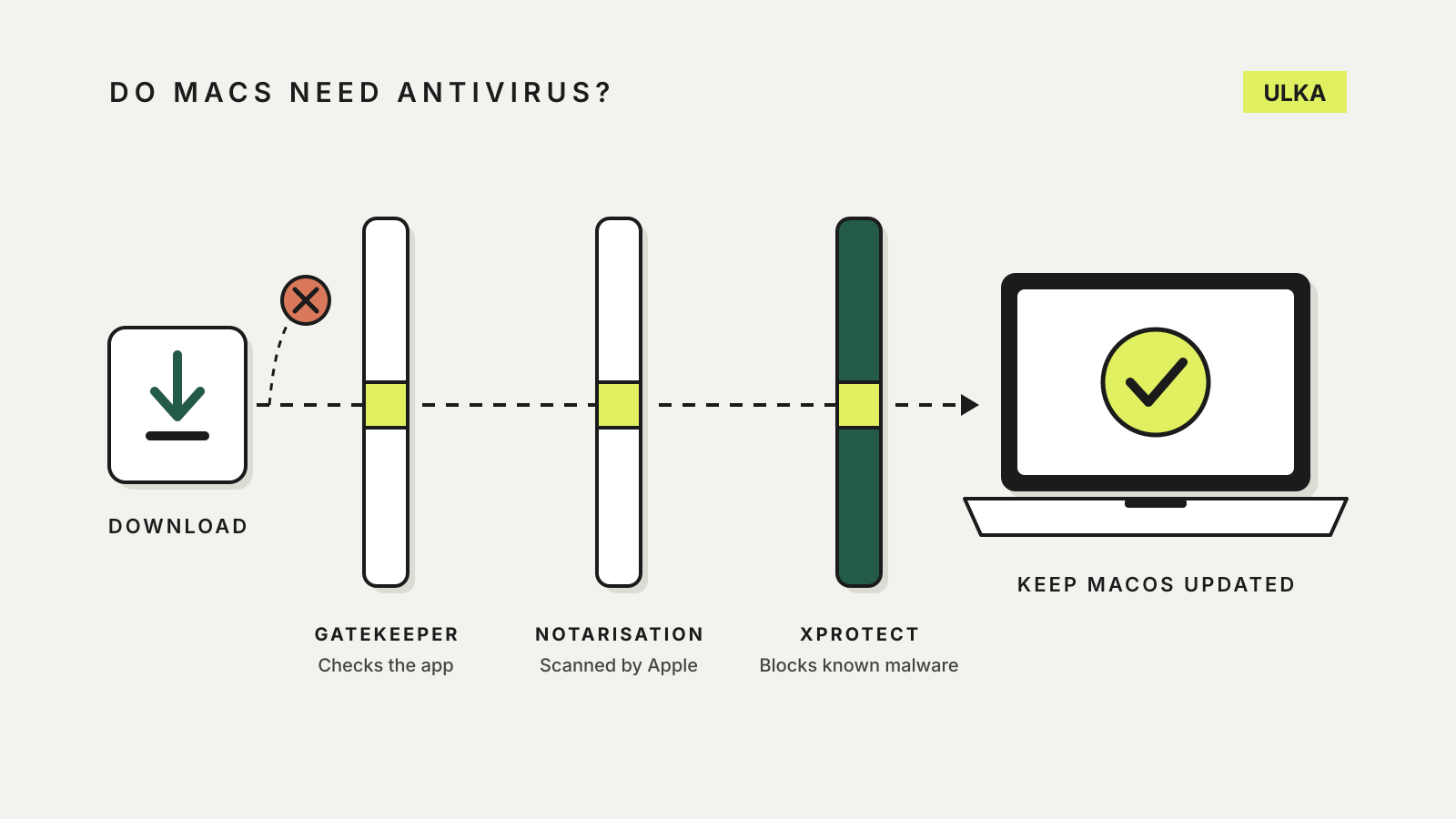
Apple’s platform security guide describes three layers of defence that work together:
| Layer | What it does |
|---|---|
| Gatekeeper | Checks that software from outside the App Store is from an identified developer and has not been altered, and asks before you open it the first time |
| Notarisation | Apple scans apps that developers distribute outside the App Store for known malware before they are released, and can revoke an app later if it turns out to be malicious |
| XProtect | Signature-based detection that blocks known malware when an app first launches or changes, moves it to the Bin and can remove infections |
Apple says XProtect’s signatures update automatically, independently of macOS updates, and that macOS checks for these updates daily by default. When it finds known malware, it blocks it, moves it to the Bin and alerts you in the Finder. Apple also says XProtect has a behavioural engine for detecting unknown malware.
The App Store adds a further check. Apple’s page on opening apps safely calls it the safest place to get Mac apps, because Apple reviews each app before accepting it and can remove one quickly if there is a problem.
Where the built-in protection stops
Built-in protection is a good baseline, not a guarantee. The ACSC points out that antivirus does not protect against every threat and works best paired with good security habits. Three gaps matter most on a Mac.
You can override it. Gatekeeper warns you about apps it cannot check, but Apple lets you click Open Anyway in System Settings > Privacy & Security. Apple warns that running software that has not been signed and notarised may expose your Mac and personal information to malware.
It looks for malware, not scams. A phishing page asking for your Apple Account or bank password is not malware. Neither is a fake support call. Our guide to spotting scam texts in Australia covers the messages that start most of these.
It is not something you can check on demand. The ACSC’s malware removal steps are blunt about this: on a Mac without third-party antivirus, if you find signs of malware, assume XProtect has not detected or blocked it.
Settings worth checking
You cannot configure XProtect itself, but the settings around it make a real difference.
- Keep macOS updated. Apple’s update guide recommends using the latest macOS compatible with your Mac. Open System Settings > General > Software Update, and use its settings to control whether updates download and install automatically. The ACSC also says antivirus needs to be updated along with the device to work effectively.
- Check where apps can come from. In System Settings > Privacy & Security, under Allow apps downloaded from, Apple offers App Store or App Store and identified developers. The first is the stricter choice. These options may be missing on a Mac managed by an employer.
- Take the warnings seriously. If your Mac says Apple cannot check an app for malicious software, Apple suggests contacting the developer or looking for an updated version or an alternative in the App Store before overriding anything.
- Use a standard account day to day. The ACSC’s malware advice recommends a standard account for everyday use, keeping administrator accounts for those who need them, because standard accounts are less susceptible to malware.
When paid antivirus makes sense
The ACSC says third-party antivirus can offer more features than the free, built-in option, and suggests weighing your security needs, situation and budget. Situations where a Mac owner might reasonably pay:
- You want to run scans yourself. Third-party products let you start a full scan, which XProtect does not.
- You manage several devices or a small business. The ACSC notes that an endpoint security product may help manage different devices and operating systems, and that organisations handling sensitive data such as medical or financial information may benefit from extra protection.
- You want the extras in a suite. The eSafety Commissioner’s Be Connected course notes that paid suites can add features such as a password manager and webcam protection, and cover several devices and platforms. Check whether you already have those elsewhere.
If you buy, the ACSC warns that malware can pose as a fake antivirus product, so download only from the provider’s official website or the App Store, and research the company’s reputation and costs. It also cautions that some free antivirus is funded through advertising or by collecting and selling your data. Our antivirus comparison looks at device coverage and renewal terms for the main paid suites.
The short answer
For a personal Mac that stays updated, gets its apps from the App Store or identified developers, and is used by someone who does not click past security warnings, the built-in protection is usually enough. Add a paid product when you need on-demand scanning, central management across several devices, or features you would otherwise buy separately. Either way, keep a backup: the ACSC’s malware steps end with restoring a clean device, and that is far easier with a recent copy of your files.