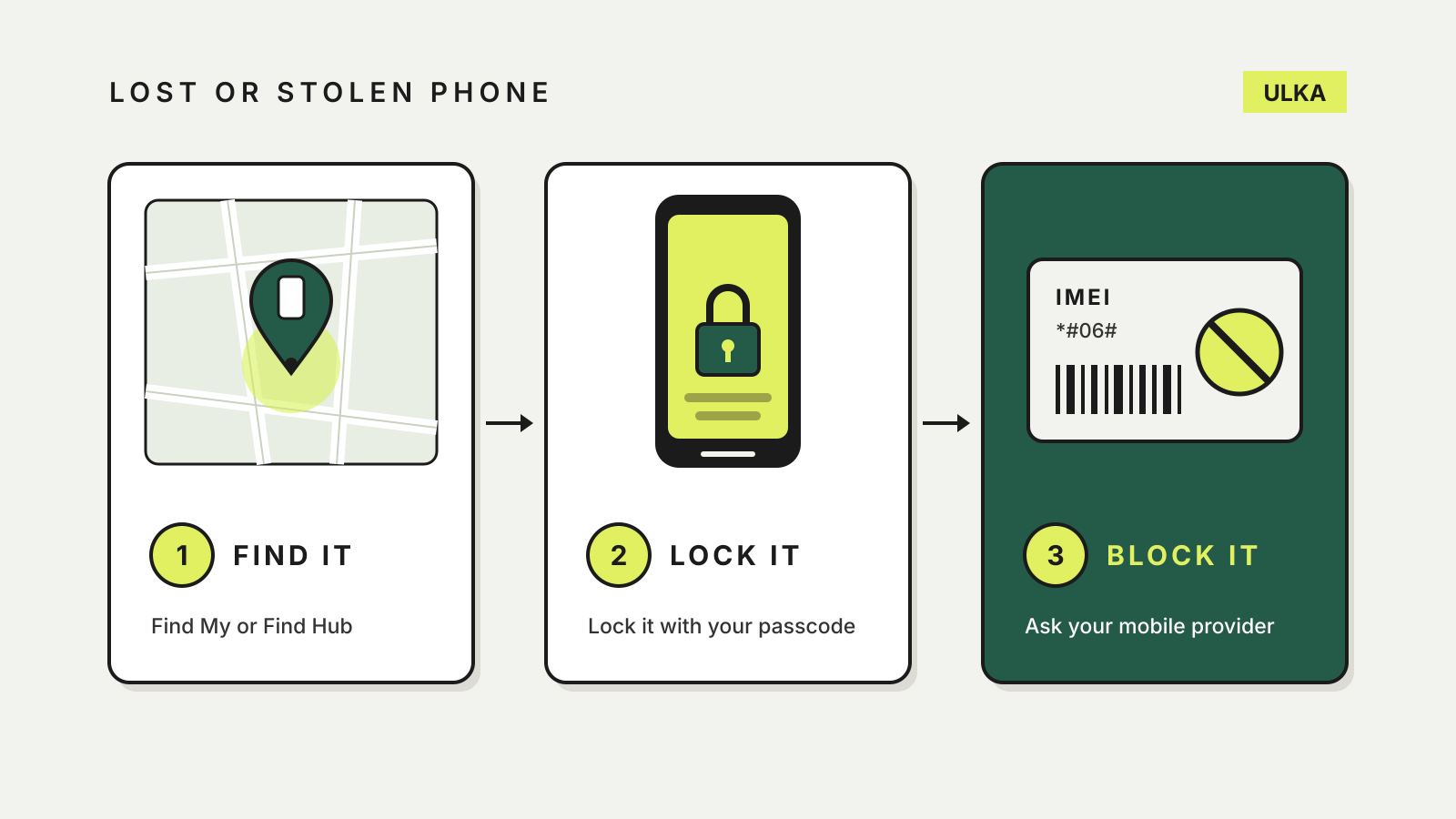
If your phone is lost or stolen in Australia, work through three things in order: try to find it, lock it remotely, then ask your mobile provider to block it. Finding and locking happen through Apple’s Find My or Google’s Find Hub. Blocking happens through your phone company, which can stop the handset working on every Australian network. Each step covers a gap the others leave open.
This guide sets out the steps for iPhone and Android, what an IMEI block does and does not do, and the settings worth turning on before anything goes missing. Apple, Google and Australian Mobile Telecommunications Association (AMTA) pages were checked on 17 October 2026.
Step 1: try to find it
iPhone
Apple’s lost iPhone guide gives three ways in: the Find My app on another Apple device signed in to your Apple Account, a Family Sharing member’s device, or Find Devices at icloud.com/find in any browser. Signing in to icloud.com/find does not need a verification code, which matters when the lost phone is the device that would normally receive one.
From there you can play a sound, see the location on a map, mark the phone as lost or erase it. The phone only shows up if it is switched on and connected to Wi-Fi or mobile data. If Find My was not turned on before the phone went missing, Apple says it will not appear at all and cannot be marked as lost or erased remotely.
Android
Google’s Find Hub help page says Find Hub turns on automatically when you add a Google Account to an Android phone. Use the Find Hub app on another Android device, sign in as a guest on a friend’s phone, or open Find Hub in a browser.
To locate, lock or erase the phone, Google says it must have power, be connected to mobile data or Wi-Fi, be signed in to a Google Account, have Find Hub turned on and be visible on Google Play. Play sound rings the phone at full volume for five minutes, even if it is set to silent or vibrate.
Step 2: lock it and leave a message
Do this as soon as you suspect the phone is not just down the back of the couch.
- iPhone: Lost Mode. Apple says marking the device as lost locks it with your passcode and suspends the cards and passes you use with Apple Pay. You can add a phone number and message for whoever finds it. In the Find My app, open Devices, select the phone, then turn on Lost Mode and tap Activate.
- Android: Mark as lost. Find Hub locks the phone with your PIN, pattern or password and lets you add contact details and a message to the lock screen.
- Android: Remote Lock. Google’s theft protection page describes a quicker option that needs only your phone number. Go to android.com/lock, enter your phone number, complete the check and ask for the device to be locked. It needs Remote Lock switched on beforehand, an active SIM, a verified phone number and an internet connection. If the phone is offline, it locks once it reconnects.
Apple adds a warning that applies to everyone: it will never contact you to say your iPhone has been found. Treat any message or call claiming to have your phone, and asking for your passcode or a verification code, as a scam.
Step 3: call your provider and block the phone
AMTA’s lost and stolen phones page explains how blocking works in Australia. Every phone has a unique 15-digit IMEI number. When you report the phone lost or stolen, your provider adds its IMEI to a national blocking list, every Australian mobile network receives the block, and the phone stops working in Australia even with a different SIM card. AMTA says the service costs nothing.
Contact your own provider; AMTA lists Telstra on 125 111, Optus on 13 39 37 and Vodafone on 1555 from a mobile or 1300 650 410. To request a block, AMTA says you need an active service with an Australian provider and must have used the phone on that service.
| An IMEI block does | An IMEI block does not |
|---|---|
| Stop the phone working on all Australian networks | Locate or track the phone |
| Protect you from call and data charges run up by someone else | Work overseas |
| Reverse, through your provider, if the phone turns up | Sign you out of apps and accounts already logged in |
That last row is why locking the phone and securing your accounts still matter after the block. AMTA also notes that an IMEI block is different from blocking your SIM: your provider can cancel or replace the SIM, but that does not disable the handset itself.
You can find the IMEI by dialling *#06# on most phones, in the phone’s settings, or on the box or receipt. If the phone is already gone, Google says the IMEI of an Android phone appears in Find Hub under the device’s Settings, including at android.com/find. Apple says police may ask for your iPhone’s serial number, which you can find even without the device.
If the phone is gone for good
Report a theft to police. Apple and AMTA both list this step, and Apple also suggests contacting your carrier to report the missing phone and ask it to disable your account.
Erasing is the last resort. Apple says a remote erase cannot be undone, and if the phone is offline the erase starts the next time it connects. Do not remove the iPhone from Find My, even after erasing it: Apple says that removes Activation Lock and makes it easier for a thief to reset and resell the phone. If you have AppleCare+ with Theft and Loss, keep the phone in Find My until your claim is approved.
On Android, Google says a factory reset from Find Hub permanently deletes the phone’s data, though it may not delete an SD card, and the phone will no longer appear in Find Hub afterwards. If you do recover it after an erase, you need your Google Account password to use it again.
Finally, check your accounts. Apple recommends reviewing your Apple Account information from another trusted device or at account.apple.com and changing the password if you see anything you did not do. AMTA’s advice extends that to email, banking and social apps.
Set this up before you need it
Several protections only work if they were switched on before the phone went missing.
- Find My or Find Hub. Check it is on now. On Android, Google says a screen lock helps the device get help from the Find Hub network.
- Stolen Device Protection (iPhone). Apple’s Stolen Device Protection page says it is available from iOS 17.3 and must be turned on before the phone is lost. Away from familiar places, it requires Face ID or Touch ID for actions such as using saved passwords or turning off Lost Mode, and adds a one-hour delay before changes such as a new Apple Account password. Turn it on in Settings > Face ID & Passcode > Stolen Device Protection.
- Theft protection (Android). In Settings > Google > All services > Theft protection, Google lists Theft Detection Lock, which locks the screen if the phone appears to be snatched, Offline Device Lock and Remote Lock. Some features need Android 15 or later and vary by phone model.
- Your IMEI. Dial *#06# and keep the number somewhere other than the phone.
- A recent backup, so losing the phone does not mean losing its photos and messages.
If you are buying a second-hand phone, AMTA’s IMEI checker shows whether it has been blocked, and AMTA says carriers cannot unblock a phone you bought after it was reported lost or stolen. When it is your turn to sell, our guide to wiping a phone before selling covers turning these protections off properly.