A VPN on public Wi-Fi is worth using if you connect to café, airport, hotel or library hotspots regularly. It encrypts your traffic between your device and the VPN service, so other people on the same network cannot easily see what you are doing. It is one layer, though, not a fix for everything: a fake hotspot, a phishing page or an out-of-date phone is still a problem with a VPN switched on.
This guide sets out what the Australian Cyber Security Centre recommends for public Wi-Fi, where a VPN fits in, and the settings on iPhone and Windows that help whether or not you use one. Guidance and support pages were checked on 16 October 2026.
What the risk actually is
Public hotspots can be used by anyone and are often free and open. The Australian Cyber Security Centre’s public Wi-Fi advice says that makes them an attractive target for criminals trying to steal passwords or other sensitive information.
Two problems come up most often:
- Look-alike hotspots. Wi-Fi names are not unique. Anyone can create a network called the same thing as the café’s, and the ACSC warns that criminals may pose as a legitimate hotspot this way.
- Other people on the same network. On an open network, nearby users share the connection with you. File sharing and discoverable devices can expose more than you intend.
A secure web page (HTTPS) encrypts what you send to that site. The ACSC advises checking for “https” and the lock symbol, and stopping if the browser shows a warning. A certificate warning on public Wi-Fi is a reason to disconnect, not to click through.
Where a VPN helps
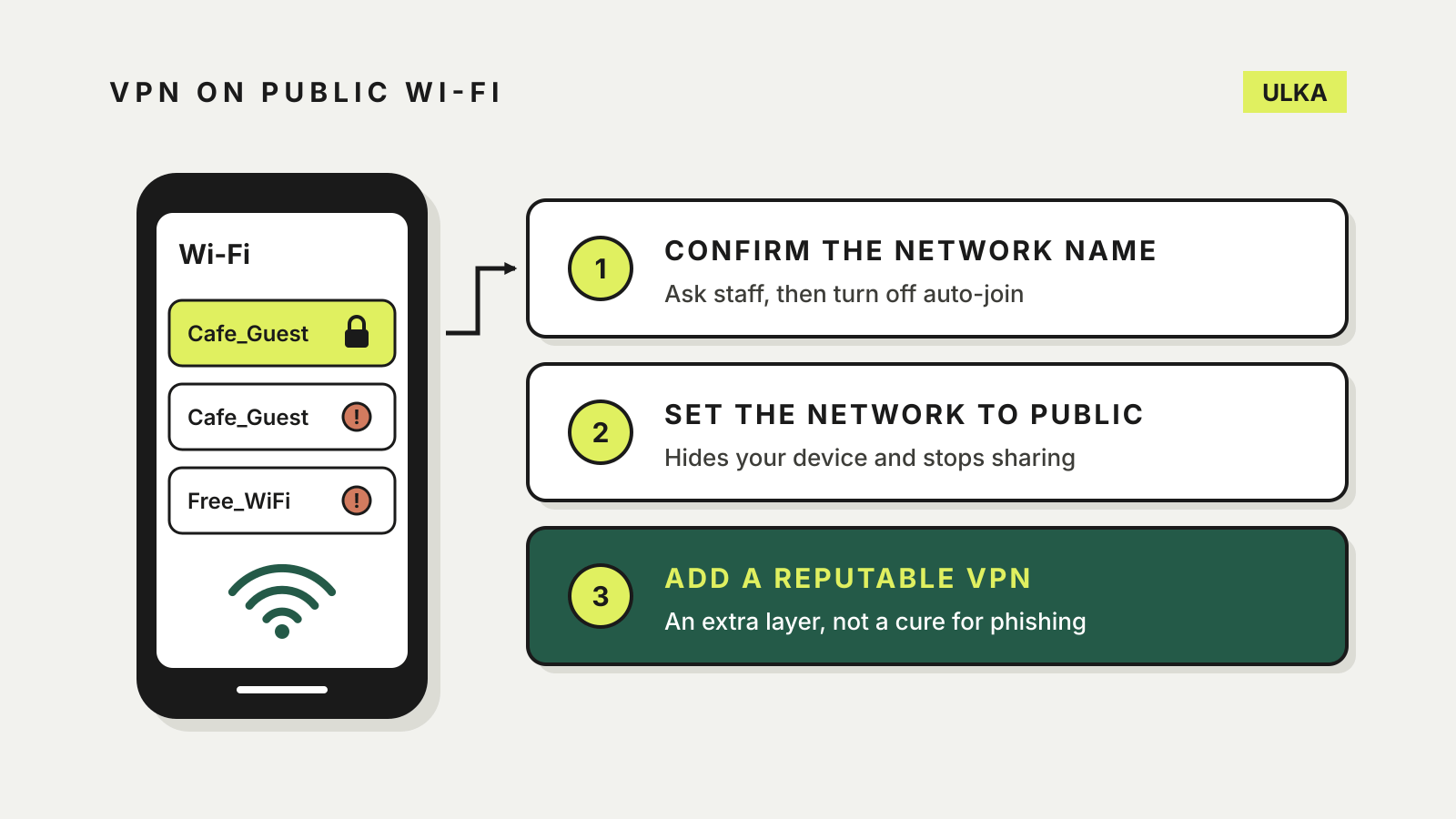
The ACSC says a VPN encrypts and secures your data and acts as an extra layer of protection on public hotspots. Its advice is direct: if you use public Wi-Fi frequently, install and use a reputable VPN on your device.
Its remote-working guidance adds detail on the limits. A VPN hides your identity and activity from other users on the same network, but it will not protect you from malware, phishing or software security flaws.
| Situation | Does a VPN help? |
|---|---|
| Other users on the café network watching traffic | Yes, traffic to the VPN is encrypted |
| A fake hotspot with the venue’s name | Partly: it hides your traffic, but connecting to the fake network is still a risk |
| A phishing page asking for your password | No |
| Malware or an unpatched app on your device | No |
| The VPN company itself seeing your traffic | No: you are trusting the provider instead |
That last row matters. The ACSC notes that VPN providers have access to a large amount of their users’ data, so research the company, its privacy policy, how it stores information and whether it shares it. Our guide to whether a free VPN is safe covers what free plans limit, and the VPN comparison looks at paid options for Australians.
Habits that matter as much as the VPN
The ACSC’s checklist for public hotspots works with or without a VPN:
- Confirm the network name on the venue’s signage or with staff.
- Turn off auto-join for public hotspots so your device does not reconnect on its own.
- Prefer networks that need a password, and avoid open or unsecured ones where you can.
- Forget the network when you finish.
- Turn off file sharing, and choose “public” when a device asks what kind of network it is.
- Think twice about banking and other sensitive tasks. If possible, wait for your home connection or use mobile data.
Using your phone’s mobile data, or a personal hotspot from your own phone, avoids the shared network altogether. The ACSC’s remote-working advice names a personal hotspot as a trusted option.
iPhone and iPad settings
Apple lets you stop a device joining a known network automatically. According to Apple’s Wi-Fi support page:
- Open Settings, then tap Wi-Fi.
- Tap Edit to see known networks.
- Tap the More Info button next to the network.
- Turn off Auto-Join, or tap Forget This Network.
If you use iCloud Keychain, forgetting a network on one device makes your other devices with the same Apple Account forget it too.
Apple devices also use a private Wi-Fi address by default, a different hardware address for each network, which makes it harder for network operators to track the device across locations. On iOS 18 and later, Apple says a new network with weak or no security defaults to a Rotating address that changes every two weeks. Leave it on unless a network will not work without it.
Windows settings
Microsoft says that when you first connect to a network in Windows 11, it is set as public by default, and recommends that setting. On a public network your PC is hidden from other devices, so file and printer sharing are off.
To check it:
- Open Settings > Network & internet.
- Select Wi-Fi, then the network you are connected to.
- Under Network profile type, choose Public network (Recommended).
Keep Microsoft Defender Firewall switched on for public networks. Microsoft’s firewall page warns that turning it off could make your device more vulnerable to unauthorised access. Our Windows Security settings guide covers the rest of that screen.
So, do you need one?
If you use public Wi-Fi a few times a year to check a timetable, careful habits and secure HTTPS pages may be enough. If you work from cafés, travel often or rely on hotel Wi-Fi, a reputable VPN is a sensible extra layer, as the ACSC recommends. Either way, keep your device updated, use multi-factor authentication on important accounts and treat a browser warning as a stop sign.