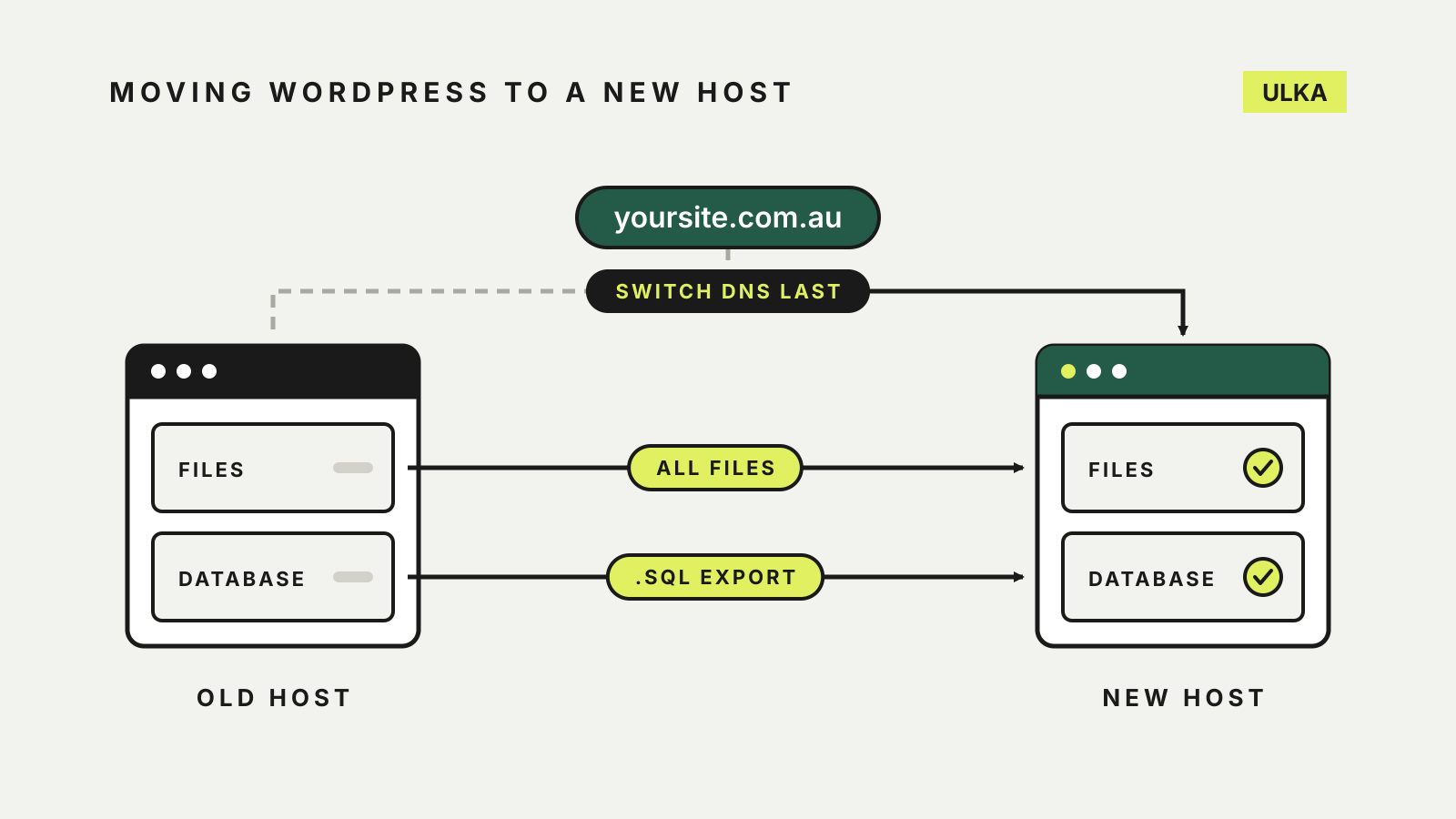
To migrate WordPress to a new host, you copy two things: the WordPress files and the database. If the domain and addresses stay the same, that copy is most of the job. The work that goes wrong is usually around it: a backup you never tested, a database login that changed, permalinks that stop working, or a domain switched over before the new copy was checked.
This guide covers a standard single-site WordPress install moving between hosts while keeping its domain. It follows the official WordPress documentation on migrating and backups, checked on 16 October 2026. If your current host or new host offers a migration tool, it may do several steps for you, but the order of checks below still applies.
What has to move
WordPress keeps your site in two places, and the official backup guide is clear that you need both to restore it:
| Part | What it holds | How it usually moves |
|---|---|---|
| Files | WordPress core, themes, plugins, uploaded media, wp-config.php and .htaccess | Downloaded through the host’s file manager, SFTP or a backup tool |
| Database | Posts, pages, comments, users, settings and most plugin data | Exported as a .sql file (often compressed) and imported on the new server |
Downloading the WordPress folder does not back up the database, because the database lives in a separate system, usually MySQL or MariaDB. Treat the files and the database export as one set taken at the same time.
Before you start
Take a full backup and keep a copy off the server. The WordPress migration guide begins by backing up the WordPress directory, images, plugins and other files as well as the database. Store a copy on your computer or in cloud storage, not only on the host you are leaving.
Keep the old hosting account active. Do not cancel it until the new site has run cleanly for a while. If something is missing, the old copy is your fastest fix.
Find out who controls DNS. Your domain’s records may be managed at the registrar, at the old host or at a separate DNS service. You will change them at the end, so confirm you can log in. Our guide to registering a .au domain explains where the registrar fits.
Lower the DNS TTL a day or two ahead. Time to live controls how long DNS records are cached. Cloudflare’s TTL explainer notes that a longer TTL means record updates take longer to reach visitors. A shorter TTL before the move helps the switch take effect sooner. Wait for the old TTL to expire before you rely on the new one.
Pause changes. Avoid publishing, taking orders or approving comments during the copy, or note what changes so you can repeat it on the new server.
Step by step: same domain, new host
- Create the new hosting account and an empty database. Note the database name, user, password and host the new provider gives you.
- Export the database from the old host, for example through phpMyAdmin or a backup plugin.
- Download all the files in the WordPress directory, including hidden files such as
.htaccess. - Upload the files to the new host’s web directory.
- Import the database into the empty database on the new host.
- Update
wp-config.phpif the database name, user, password or host changed. WordPress says this is required when those details are different on the new server. - Preview the site before switching DNS. Some hosts provide a temporary address or let you edit your computer’s hosts file to view the new server. WordPress notes that if you test on a different address, you must temporarily change the
siteurlandhomevalues in thewp_optionstable, then set them back. - Reset permalinks. If you use custom permalinks or other rewrites, WordPress advises reconfiguring them when the site goes live, using the Settings > Permalinks screen.
- Point the domain at the new host by changing the A record or nameservers, as your new host instructs.
- Check the site over the following days before closing the old account.
If your domain and URLs stay the same, WordPress describes the move as copying the files and database. No search-and-replace is needed.
If the domain or address is changing
Moving from example.com.au/site to example.com.au, or from one domain to another, adds work. WordPress lists a sequence: back up, change the URLs in Settings > General, export the files and database again, update wp-config.php for the new server, then upload and import.
The difficult part is the old address left inside the database. WordPress warns that a plain text replacement across the whole database can break serialised data, because some themes and widgets store values together with the length of the URL. Use a tool that handles this. WP-CLI’s search-replace command handles PHP serialised data, and its --dry-run option shows what would change without saving it. Run the dry run first.
Two warnings from the WordPress documentation are worth repeating:
- Do not change the GUID column in the posts table. Feed readers use it to recognise posts they have already shown, so changing it can make old posts reappear as new.
- Remove the
RELOCATEsetting fromwp-config.phpif you used it to recover the admin area. WordPress says leaving it in place is insecure.
Set up redirects from the old addresses so existing links and search results still work. Our guide to moving a site off a website builder covers redirect mapping in more detail.
Checks after the switch
Work through these once the domain points to the new host:
- the home page, a few older posts and a page with images load over HTTPS without browser warnings;
- you can log in to the dashboard and save a draft;
- contact forms send and arrive, and any online shop completes a test order;
- media from earlier years displays, not only recent uploads;
- scheduled tasks such as backups and newsletters run on the new server;
- the new host’s own backup schedule is switched on, and you have restored one test file from it.
WordPress recommends backing up regularly and always before an upgrade, keeping several recent backups in different places, and occasionally checking that automated backups actually work. Set that up on the new host straight away rather than after the first problem.
When to use a migration tool instead
A migration plugin or a host’s managed move can save time on a large site, and some hosts will do the copy for you. It does not remove the need for an independent backup, a preview before the DNS change and the checks above. Ask the new host what their service covers, whether email moves too and what happens if the copy fails.
If you are still choosing where to go, compare support, backups and renewal prices in our hosting services guide before you start the move.