Windows Security settings decide how much of the protection built into Windows 11 is actually switched on. Most of it is on by default, but a few useful options are off until you change them, and others can be switched off by an installer or a past troubleshooting session without you noticing. Ten minutes in the Windows Security app is enough to check the ones that matter.
This guide is based on Microsoft’s support documentation for the Windows Security app, checked on 13 October 2026. Menu names below are from Windows 11; Windows 10 uses similar sections with slightly different paths.
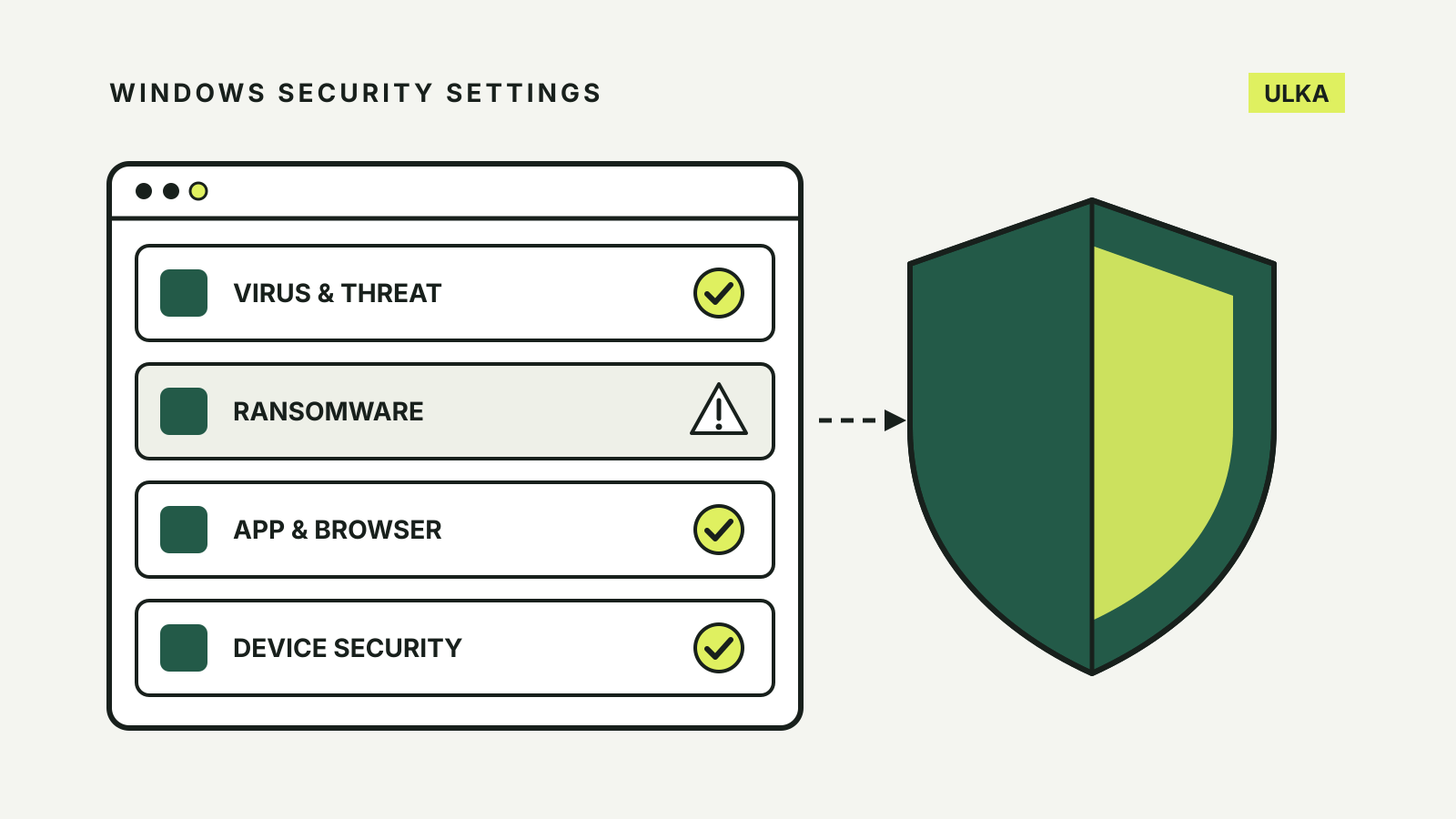
Open the app by selecting Start, typing Windows Security and choosing it from the results. A green tick on each section means Windows sees nothing to fix. A yellow or red mark is your starting point.
The settings to check, in order
| Section | Setting | What to look for |
|---|---|---|
| Virus & threat protection | Real-time protection | On, unless another antivirus is installed |
| Virus & threat protection | Tamper protection | On |
| Virus & threat protection | Exclusions | Only items you recognise |
| Ransomware protection | Controlled folder access | Consider turning on |
| App & browser control | Potentially unwanted app blocking | On, with apps and downloads |
| App & browser control | Phishing protection | On |
| Device security | Memory integrity | On, if your drivers allow it |
Virus & threat protection
Microsoft’s virus and threat protection guide explains the main switches under Virus & threat protection > Virus & threat protection settings > Manage settings.
Real-time protection scans files and programs as they are opened or run. If you install a compatible antivirus from another company, Microsoft Defender Antivirus turns itself off and the app says so. That is expected. What you do not want is Defender off with nothing else running.
Tamper protection stops malicious apps from changing Defender settings such as real-time protection and cloud-delivered protection. As an administrator you can still change those settings yourself in the app; other apps cannot. Microsoft notes that you have to turn tamper protection off before you can switch real-time protection off, which is one reason to leave it on.
Exclusions tell Defender to skip a file, folder, file type or process. Microsoft recommends an exclusion over turning protection off when one trusted item keeps being flagged. Exclusions are also easy to forget. Open Add or remove exclusions and remove anything you do not recognise or no longer need.
While you are on this page, check Protection history for anything that was blocked or quarantined recently.
Ransomware protection
Controlled folder access checks apps against a list of known, trusted apps and blocks others from changing files in protected folders. It is designed to stop ransomware from encrypting your files. You find it under Virus & threat protection > Ransomware protection > Manage ransomware protection.
The trade-off is interruptions. If a legitimate app you use is blocked from saving to a protected folder, Windows shows a notification and you can add that app to the allowed list. Try it for a week. If it gets in the way too often, turn it off and rely on backups instead.
The same page offers to set up OneDrive file recovery. Whatever you use, a separate backup is what gets your files back after an attack; our cloud storage and backup guide compares the options.
App & browser control
Microsoft’s App & browser control guide covers the settings under App & browser control > Reputation-based protection settings.
Potentially unwanted app blocking. These apps are not malware, but they may show advertising, use your PC for crypto mining or install extras you did not ask for. Microsoft’s page on potentially unwanted apps says the blocking is turned off by default and recommends turning it on with both Block apps and Block downloads selected. A detected app is only blocked, not removed, until you choose an action in Protection history.
Check apps and files and SmartScreen for Microsoft Edge use Microsoft Defender SmartScreen to warn you about known malicious downloads and websites, including phishing and tech support scam pages. Leave both on.
Phishing protection applies if you sign in to Windows 11 with a password. It warns you if you type that password into a site or app that SmartScreen considers malicious. By default it only warns you about entering your password into malicious content; the other options are under Phishing protection.
Smart App Control blocks apps that Microsoft’s cloud service predicts are malicious or untrusted, and unsigned apps it cannot assess. It starts in evaluation mode, then turns itself on or off. Once it is on or off, you cannot return to evaluation mode without resetting or reinstalling Windows. Microsoft’s Smart App Control FAQ says recent Windows updates let you turn it on from the Windows Security app without a clean installation, where it is available for your device. If you install a lot of small or unsigned tools, expect it to block some of them.
Device security
Under Device security > Core isolation details, check Memory integrity. Microsoft’s device security guide describes it as a feature that makes it harder for malicious programs to use low-level drivers to take over your PC. It needs hardware virtualisation turned on in your PC’s UEFI or BIOS.
If Windows says memory integrity cannot be turned on because of an incompatible driver, Microsoft suggests checking with the device maker for an updated driver. If there is none, you have to choose between that device or app and the protection.
The bottom of the same page tells you whether your PC meets the requirements for standard or enhanced hardware security.
When another antivirus is installed
A paid security suite takes over from Defender’s antivirus, and Windows Security shows which product is active. Tamper protection does not affect how other antivirus apps work. If you later uninstall that suite, open Windows Security again and confirm that real-time protection has come back on.
Before paying for a suite, compare what it adds to the tools above. Our guide to antivirus software does that for three paid options.