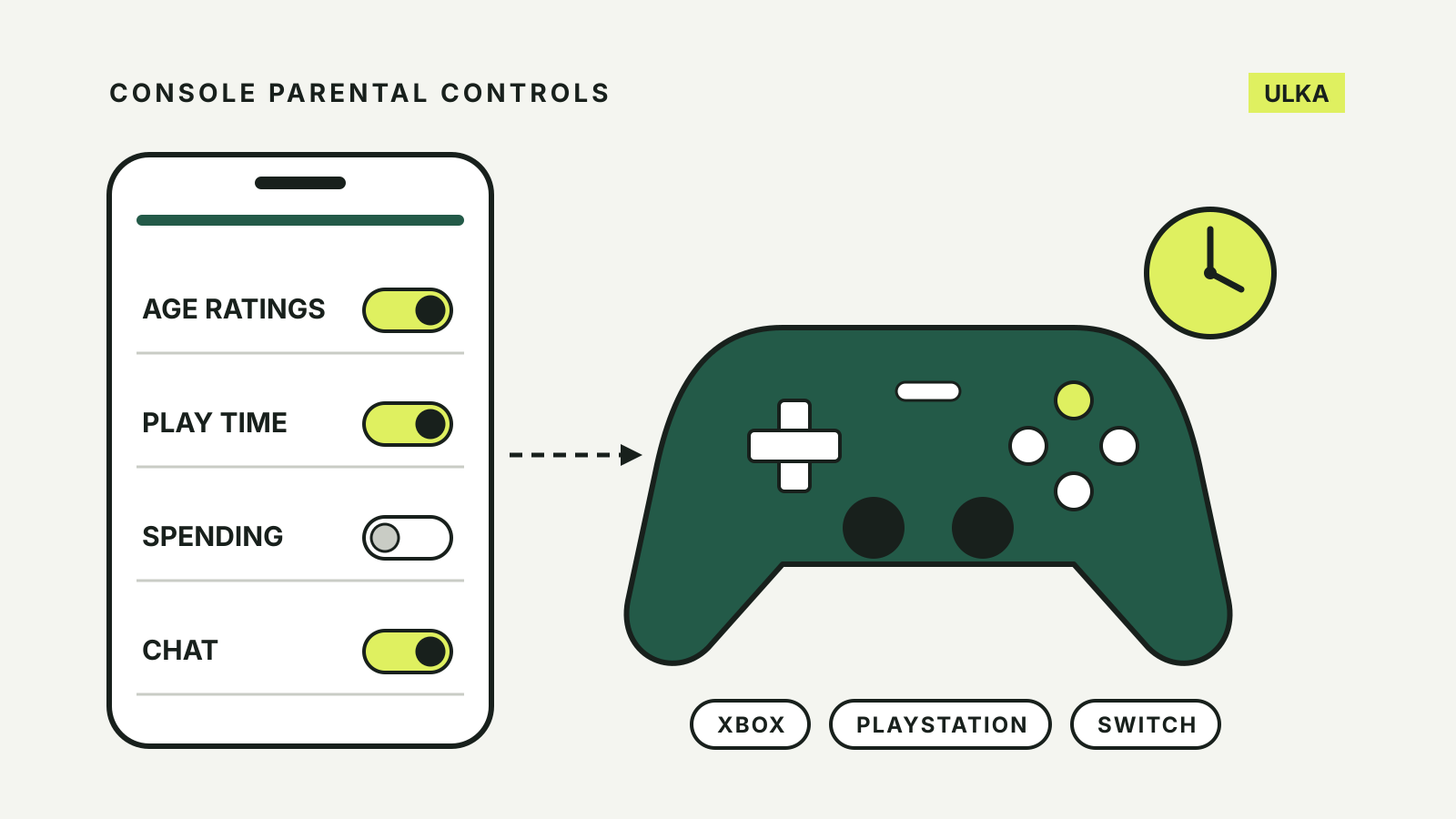
Console parental controls on Xbox, PlayStation and Nintendo Switch cover the same four jobs: which games a child can open, how long they can play, what they can buy and who they can talk to. The difference is where each setting lives. Some are on the console, some only in a phone app and some in the parent’s online account, and Nintendo applies its limits to the whole console rather than to each child.
This guide is based on the support pages Microsoft, Sony and Nintendo publish for Australia, plus the Australian Classification ratings explainer, checked on 13 October 2026. Menu names change with system updates, so match them against what you see on screen.
The four settings side by side
| Xbox | PlayStation | Nintendo Switch | |
|---|---|---|---|
| Parent app | Xbox Family Settings | PlayStation Family | Nintendo Switch Parental Controls |
| Applies to | Each child’s Microsoft account | Each child account | The whole console |
| Play time | Daily schedules, pause | Duration and playable hours | Daily limit and bedtime, app only |
| Spending | Ask to Buy, allowance | Monthly limit, 0 by default | Restricted in the Nintendo Account |
| Chat and friends | Friend requests, multiplayer | Online communication | Free communication, GameChat |
Start with a child account
Xbox and PlayStation controls follow the child’s own account, so the first step on both is to make sure your child is not signing in with an adult one.
On Xbox, the child joins your Microsoft family group. Microsoft’s family settings page says only a parent in the family group can change Xbox privacy and online settings for a child account, and you can check who is listed as a child or an adult at account.microsoft.com/family.
On PlayStation, the playtime controls page says every child needs a separate child account created with their own name and date of birth, managed by the family manager or an appointed parent or guardian. Sony’s account help adds that a child on an adult account can use PlayStation services without parental controls, which breaches its terms of service.
Nintendo works differently. Its parental controls FAQ says the controls are set for the console, not the user, so the same restrictions apply to everyone who plays it. The parent chooses a four-digit PIN, which is needed to bypass a restriction, change the settings or restore the console to factory settings.
Game ratings: what the console reads
All three systems filter games by age rating. Nintendo’s FAQ confirms that in Australia the console uses the Australian Classification Board ratings, which are also the labels Xbox shows on its Australian family page.
The Australian Classification ratings explainer says G, PG and M are advisory, with no legal restriction on who plays the game. MA 15+ is legally restricted to people aged 15 and over, and R 18+ to adults. Two rules matter for parents: games with paid loot boxes or other in-game purchases linked to chance are rated at least M, and games with simulated gambling are rated at least R 18+.
- Xbox: parents can filter or allow games, apps and websites by age. A child can ask for access to something blocked, and the parent approves or declines it.
- PlayStation: the PlayStation Family app offers restriction presets for different age groups, or custom settings, and a child can request a game above their age limit.
- Nintendo: the presets are Young Child, Child and Teen, or custom settings. You can also allow specific games regardless of their rating.
Play time and bedtime
Xbox. The Xbox Family Settings app sets a screen time schedule for each child, with different hours for each day of the week. You can pause play, which shows the child a “your screen time is up” message until you allow more. Microsoft notes that the countdown runs while the child is signed in, so remind them to sign out when they finish. The same schedule can cover a Windows PC through the child’s Microsoft account.
PlayStation. Sony uses three settings: Restrict Playtime, When Playtime Ends (“Notify Only” or “Log Out”) and Duration and Playable Hours for every day or particular days. The child account needs its time zone set first. On a PS5, a child can ask for more playtime from a reminder notification, and you can approve or decline it from the PlayStation Family app. The limits apply across PS5 and PS4.
Nintendo Switch. Play time limits are only available in the free Parental Controls app. Nintendo’s setup guide says the daily limit runs up to six hours and the bedtime alarm sets a daily stopping time. You choose whether the game is suspended when time runs out or a notice simply appears while play continues. Because the limit applies to the console, every player shares it, although the app can show play time for each user.
Spending
Xbox. With Ask to Buy on, you get a request when your child wants a game, app or in-game purchase they cannot pay for. You can also add money to their account as an allowance and review their spending history. Microsoft’s purchase approval guide gives the console path: Settings > Account > Family settings > Manage family members, choose the child, then Privacy & online safety > Xbox Live privacy > View details & customise > Buy & download, and turn on “Ask a parent”.
PlayStation. Child accounts have no wallet of their own. Purchases come from the family manager’s wallet up to a monthly spending limit, which the PlayStation Family app guide says is set to 0 by default. Sony warns that anyone you appoint as a guardian can change the limit. On your own account, “Require Password at Checkout” stops purchases made without your password.
Nintendo. Nintendo eShop purchases are restricted in the parent’s Nintendo Account settings at accounts.nintendo.com, not on the console. The Parental Controls app links straight to those settings.
Chat, friends and online play
- Xbox: the app manages friend requests (“Ask a parent” to add a friend), online multiplayer, clubs and cross-network play. You can allow Minecraft online even when other online multiplayer is off.
- PlayStation: the controls cover communication with other players, viewing content other players create, and web browsing. Sony’s safety guide for parents lists these alongside playtime and spending. Some games, such as Roblox, run their own chat controls separately from the console’s settings.
- Nintendo: consoles can restrict free communication with other players. On Switch 2, GameChat for children under 16 needs the Parental Controls app linked to the console, where parents choose which friends a child can chat with and whether video chat is allowed.
A 15-minute setup
- Install the parent app for your console: Xbox Family Settings, PlayStation Family or Nintendo Switch Parental Controls.
- Check your child is on a child account (Xbox and PlayStation), or link the console to the app and choose a PIN (Nintendo).
- Pick an age preset, then compare it with the Australian ratings of the games your child already plays.
- Set school-day and weekend play times, and choose whether play stops or a reminder appears.
- Set spending: Ask to Buy on Xbox, a monthly limit on PlayStation, eShop restrictions in the Nintendo Account.
- Review chat and friend settings, then the in-game settings of any game with its own chat.
If you are deciding how your child will play beyond a console, our guide to cloud gaming in Australia covers streamed games on phones, TVs and laptops.