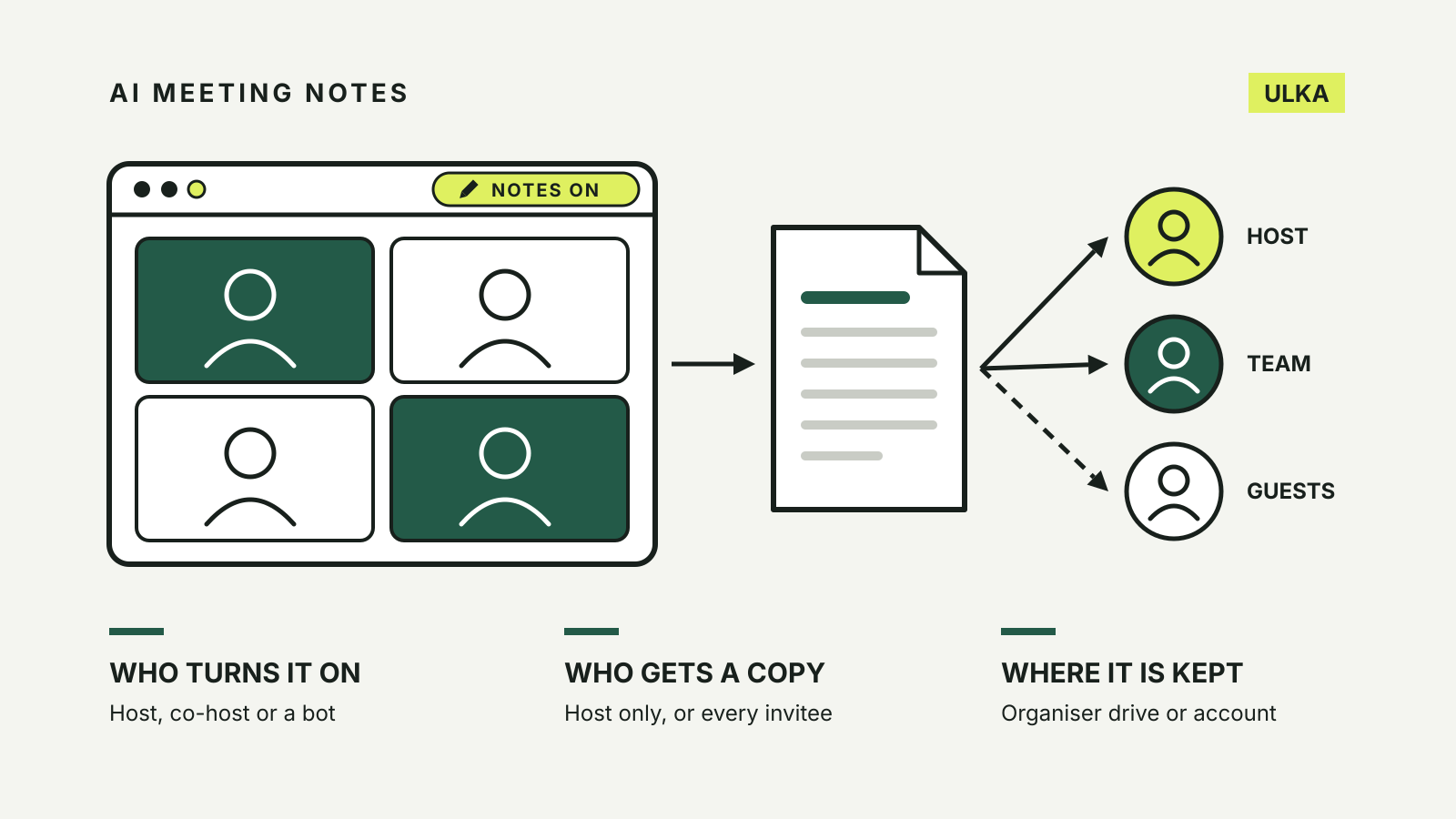
AI meeting notes are easy to switch on and easy to forget about, which is where the privacy questions start. A notetaker in Zoom, Google Meet, Microsoft Teams or Otter listens to the conversation, writes a summary or transcript, then saves and sends it according to settings that someone else in the meeting may have chosen. Before you rely on one, or before one runs in a meeting you join, it helps to know three things: who can turn it on, who receives the notes, and where they are kept.
This guide is based on the help documentation published by Zoom, Google, Microsoft and Otter, and guidance from the Office of the Australian Information Commissioner (OAIC), checked on 12 October 2026. Menus and plan availability change, so check your own account.
What each service shows and stores
| Zoom meeting summary | Google Meet “Take notes for me” | Teams transcription | Otter Notetaker | |
|---|---|---|---|---|
| Who can start it | Host and co-host; others can ask | Organiser and internal participants, or hosts only with host controls | Organiser and people from the organiser’s organisation, unless meeting options limit it | The account holder’s Notetaker joins as a participant |
| What others see | The Zoom AI icon changes colour | A notice and a pencil icon on every screen | A notice that the meeting is being transcribed | Optional email to guests before the meeting |
| Where it is kept | Your Zoom account, email and Chat | Organiser’s Google Drive | Organiser’s OneDrive for Business | The recorder’s Otter account |
| Who gets a copy | Set by the host’s sharing setting | Set by the organiser’s “Send notes to” choice | Meeting chat and Recap tab | Set by the recorder’s auto-share setting |
Zoom: meeting summary
Zoom’s meeting summary is available to licensed users on paid Zoom Workplace plans from Pro upwards. Only the host and co-host can start or stop it from the meeting controls, although any participant can ask the host to start it. When it is running, the Zoom AI icon changes colour for everyone. Zoom says the feature may use third-party AI models.
Two settings in the Zoom AI section of the web portal settings matter most, according to Zoom’s settings article:
- Auto-start when meetings start. The summary starts as soon as anyone starts your meeting, even if you are not there yet.
- Automatically share summary with. The choices are only you, hosts and co-hosts, invitees in your organisation, or all invitees including people outside it. Only people on the original invite receive it; people who joined through a forwarded link do not.
Zoom notes that anyone who receives a summary may save it and share it further. The host can edit or delete a summary from Summaries in the web portal, and deletion cannot be undone. When stopping the feature mid-meeting, the host can also tick Delete meeting assets.
Google Meet: “Take notes for me”
Google’s help page says “Take notes for me” needs an eligible Google Workspace edition or Google AI plan, and works when the meeting is held in English, French, German, Italian, Japanese, Korean, Portuguese or Spanish. When it starts, Meet tells every participant that notes are being taken and shows a pencil icon on all screens.
The meeting organiser and participants from the host’s organisation can start or stop note-taking. With host controls on, only the organiser, hosts and co-hosts can. On a work or school account, it may start automatically for some meetings because of admin settings.
The notes document is saved in the organiser’s Google Drive, in a “Google Meet” folder with a sub-folder for each meeting. Before starting, a host can choose who receives the notes:
- all invited guests, including people outside the organisation
- invited guests in the organisation
- hosts and co-hosts only
“Invited guests” means everyone on the calendar invite, not just the people who turned up. Two defaults are worth checking: screenshots of presented slides can be added to the notes, and “Also turn it on for future instances of this meeting” is pre-selected for recurring meetings.
Microsoft Teams: transcription and recap
In Teams, starting a recording also starts transcription. All participants see a notice that the meeting is being transcribed, and each participant can choose to hide their identity in captions and transcripts. The organiser, co-organisers and presenters can stop and restart it.
The transcript is stored in the organiser’s OneDrive for Business and appears in the meeting chat and Recap tab until the organiser deletes it. Microsoft’s table shows that people from another organisation can follow the live transcript but cannot view it after the meeting, and that by default only organisers and co-organisers can download it.
Otter and other notetaker bots
Third-party notetakers work differently: they join the call as a participant from someone’s connected calendar. Otter’s settings page lists auto-join options ranging from every calendar event with a Zoom, Meet or Teams link down to “Meetings I manually select”. Its auto-share options include all event guests, guests on your domain, Workspace members, or “Don’t Share”.
Otter can also email all calendar guests 5 to 10 minutes before the meeting to say the Notetaker will join and record. That email is a setting the account holder turns on, not a guarantee, so a bot in the participant list may be your only warning.
Settings to check before your next meeting
If you run meetings:
- Set automatic sharing to yourself, or hosts only, until you have read and corrected the notes.
- Turn off auto-start or auto-join for meetings with clients, patients, job candidates or family matters.
- Say at the start of the call that notes are being taken and where they will go.
- Delete notes you no longer need. Zoom and Teams both let the organiser delete summaries or transcripts.
If you are a participant:
- Look for the notice, the coloured icon or an unfamiliar bot in the participant list.
- Ask the host to stop the notes before a sensitive part of the discussion.
- In Teams, you can hide your identity in captions and transcripts.
When the meeting involves other people’s information
For businesses and organisations covered by the Privacy Act, the OAIC’s guidance on commercially available AI products says privacy obligations apply to personal information put into an AI system and to output that contains it. It notes that recordings of people can contain sensitive information, which generally requires consent, and that consent cannot be implied merely because someone was notified. A pop-up saying “notes are being taken” is a notice, not agreement.
AI summaries can also be wrong. Read the notes before forwarding them, especially decisions and action items attributed to named people. For the training and history settings in the chatbots themselves, see our guide to AI chatbot privacy settings, and our explainer on AI agents for tools that act on your behalf.