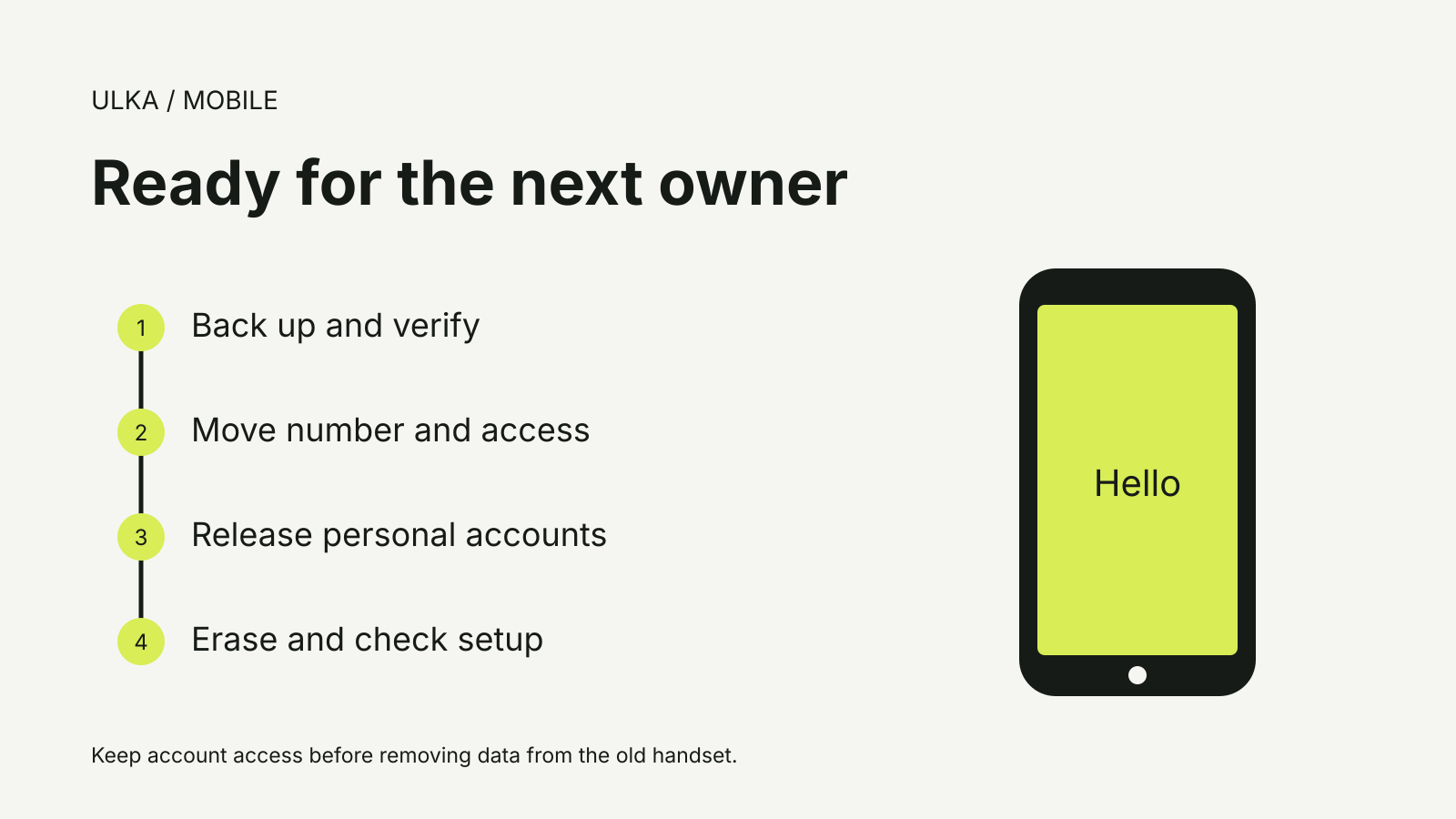
How to wipe a phone before selling starts with a working replacement and a verified backup. Erasing the old handset should be the last step, after your number, photos and account access have moved. Otherwise, a tidy-looking phone can leave you locked out of services or still contain information the buyer should never receive.
Apple and Google both publish reset instructions, but selling a phone adds another job: releasing the accounts that protect it from unauthorised reuse. The buyer needs a device that starts at the welcome screen without asking for your credentials.
Check the replacement before touching the old phone
Make a backup, then confirm the new phone has the information you actually need. Open recent photos, check contacts and try the apps you rely on. A successful transfer message is useful, but checking a few important files gives you something concrete to work with.
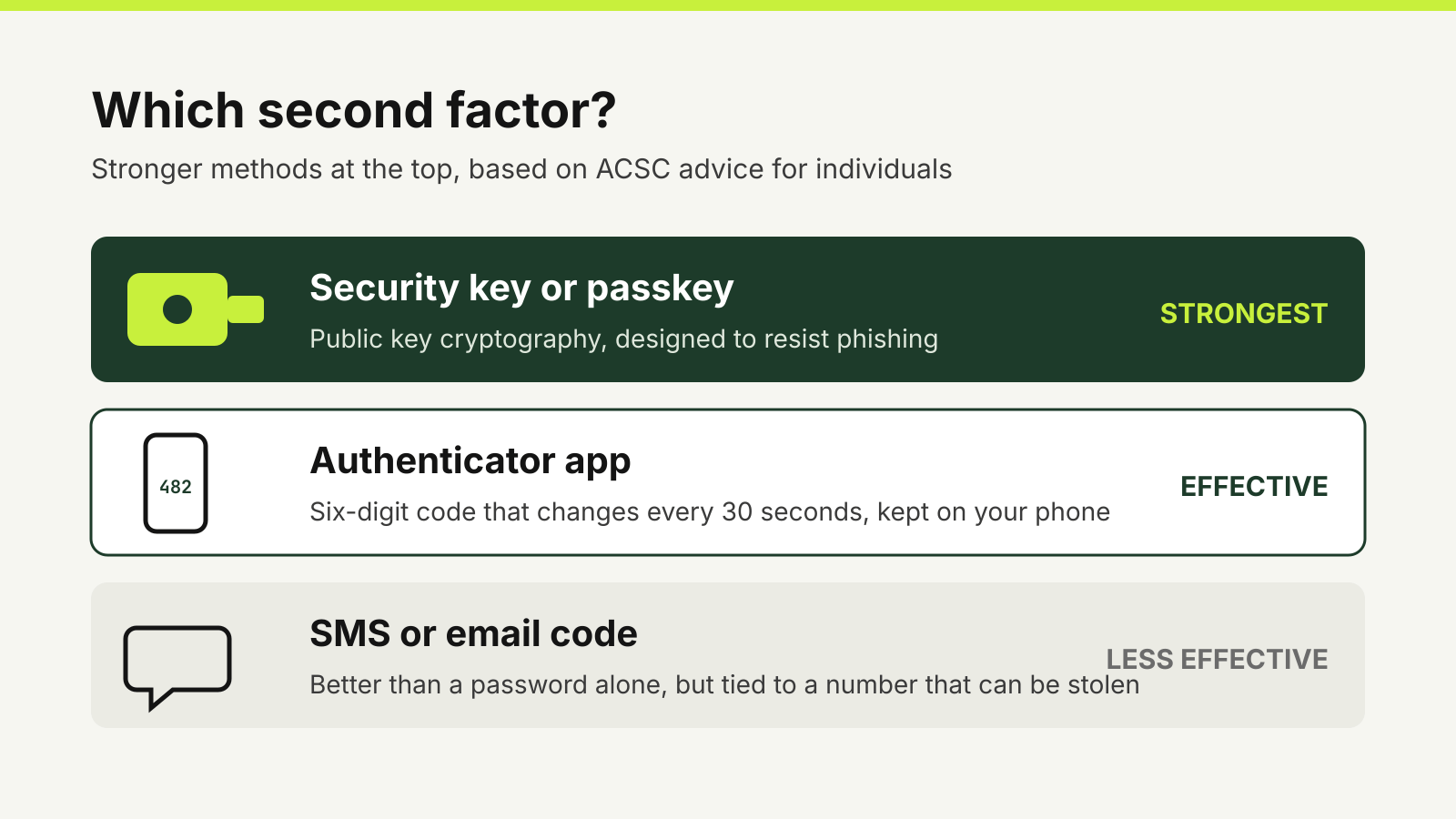
Treat access to accounts separately from copying files. Before erasing, make sure you can sign in to your main email account and password manager on the replacement. Check how your authenticator app transfers accounts, and keep recovery codes somewhere you can access without the old handset. Some apps need their own migration process.
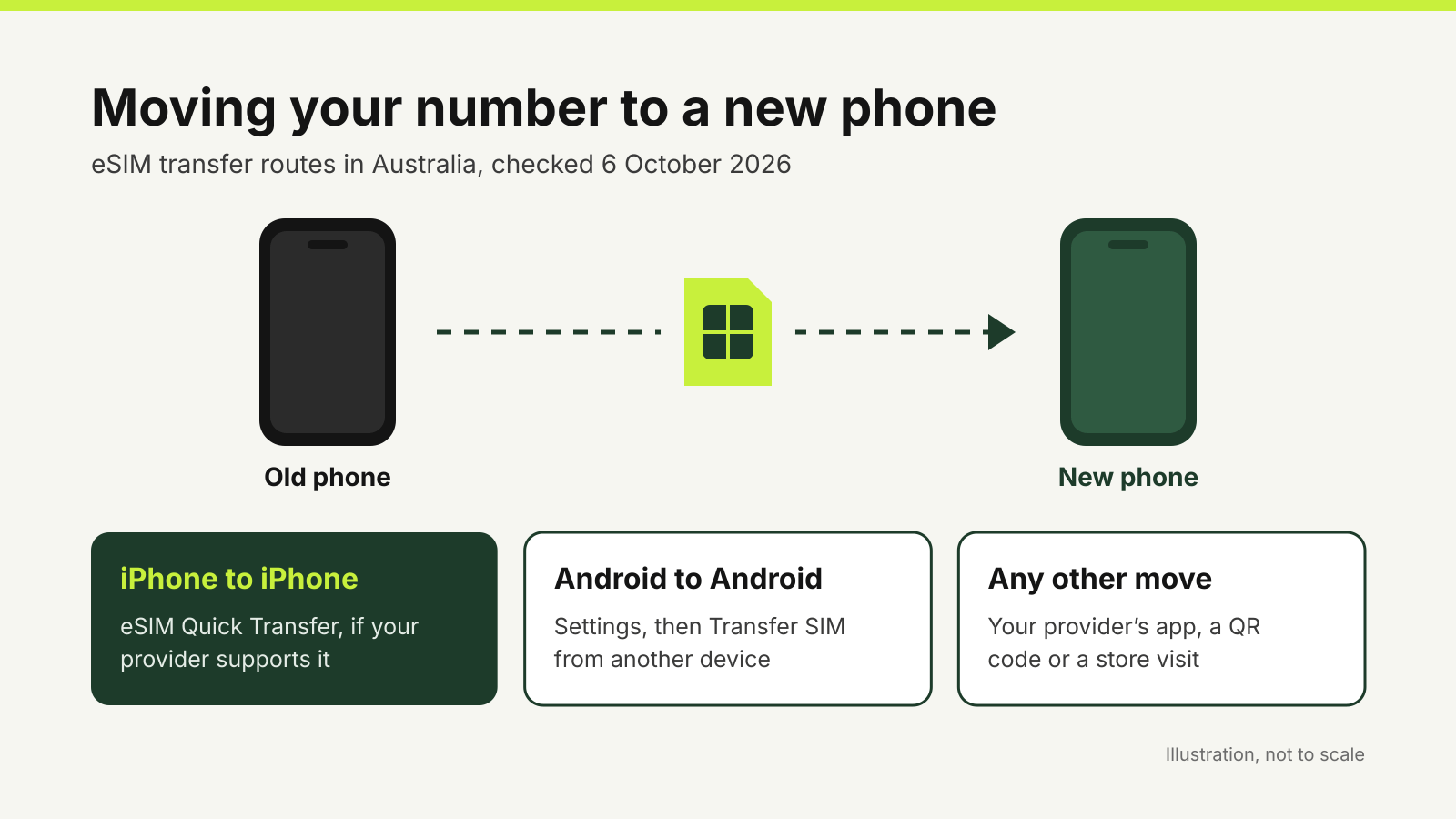
If your phone number is changing, Apple recommends adding another trusted number to your Apple Account before losing access to the old one. For an Australian eSIM plan, complete the carrier’s transfer process and check calls, texts and mobile data first. Our guide to transferring an eSIM in Australia explains why moving the service and erasing the handset are separate operations.
A phone used for work may also have an organisation’s management profile. Ask the administrator about releasing it before offering it for sale. A personal factory reset should not be assumed to remove an organisation’s ownership requirements.
Erasing an iPhone
Apple’s preparation guide begins with a backup and transfer. If an Apple Watch is paired with the phone, unpair it before proceeding. Check whether an AppleCare plan needs to be cancelled or transferred, and inspect Parts and Service History for a Finish Repair message if you intend to use Apple Trade In.
The account sign-out route depends on the software version. Apple’s instructions for iOS 26 include Settings, your name, then Sign Out, with an option to erase the device. Follow the prompts for your installed version and keep your Apple Account password available.
For the device erase, Apple’s documented route is Settings → General → Transfer or Reset iPhone → Erase All Content and Settings. Enter the requested passcode or account credentials. If you are selling an eSIM-equipped iPhone, choose the option that erases the eSIM profile as well as the device, after your service has moved.
Apple says this erase removes the phone’s content, including Wallet payment cards, and turns off Find My and Activation Lock. It does not delete the content stored in iCloud.
That distinction matters if you have started deleting photos or contacts by hand. While signed in to iCloud, manually deleting synced items can remove them from iCloud and other connected devices too. Use the documented device erase rather than trying to empty each app.
If you are moving to Android, Apple also advises deregistering iMessage. Remove the physical SIM, if present, and remove the old handset from your trusted-device list as directed by Apple.
Preparing an Android phone for its next owner
Google’s device protection can require a previous account or screen-lock credential after a protected phone is reset. Google documents removing the Google Account from the handset as the way to turn off that protection. Removing the account from the device is different from deleting the Google Account itself.
Back up first and verify the copy. Google’s reset guide warns that a factory reset removes apps and their local data; having some information in a Google Account does not establish that every app has backed up everything you need.
Check the handset manufacturer’s sale or trade-in instructions for any additional manufacturer account. Menu labels differ between phones, so use the instructions for the actual device rather than guessing from a different brand’s Settings screen.
Google recommends knowing the account password and screen-lock credentials before resetting. If you have recently changed the Google Account password, its guide says to wait 24 hours before the factory reset. It also recommends at least 70% battery charge and warns that the process can take up to an hour.
Use the manufacturer’s documented factory-reset route in Settings. Button-based recovery and remote erasure can trigger ownership verification, so they are not shortcuts for handing a protected handset to someone else. If the phone cannot be unlocked or account access is missing, resolve that before completing the sale.
Remove the physical SIM and any removable memory card. A card is a separate item that should not accidentally travel with the phone. For an eSIM, consult the handset and carrier instructions about removing the old profile after transfer.
What to check at handover
Let the reset finish, then check that the handset reaches its initial setup screen. Do not sign back in with your own account merely to show the buyer the phone works. If setup asks for your former credentials, stop and resolve the ownership lock before handing it over.
Keep a private record of the device identifiers and the agreed sale details. Provide the buyer with the accessories you promised, and check that no SIM, memory card or personal paperwork remains in the box.
If you have already handed over an iPhone, Apple advises contacting the new owner to request an erase. Changing your Apple Account password protects the account, but Apple explicitly says it does not remove personal information already stored on the old phone.