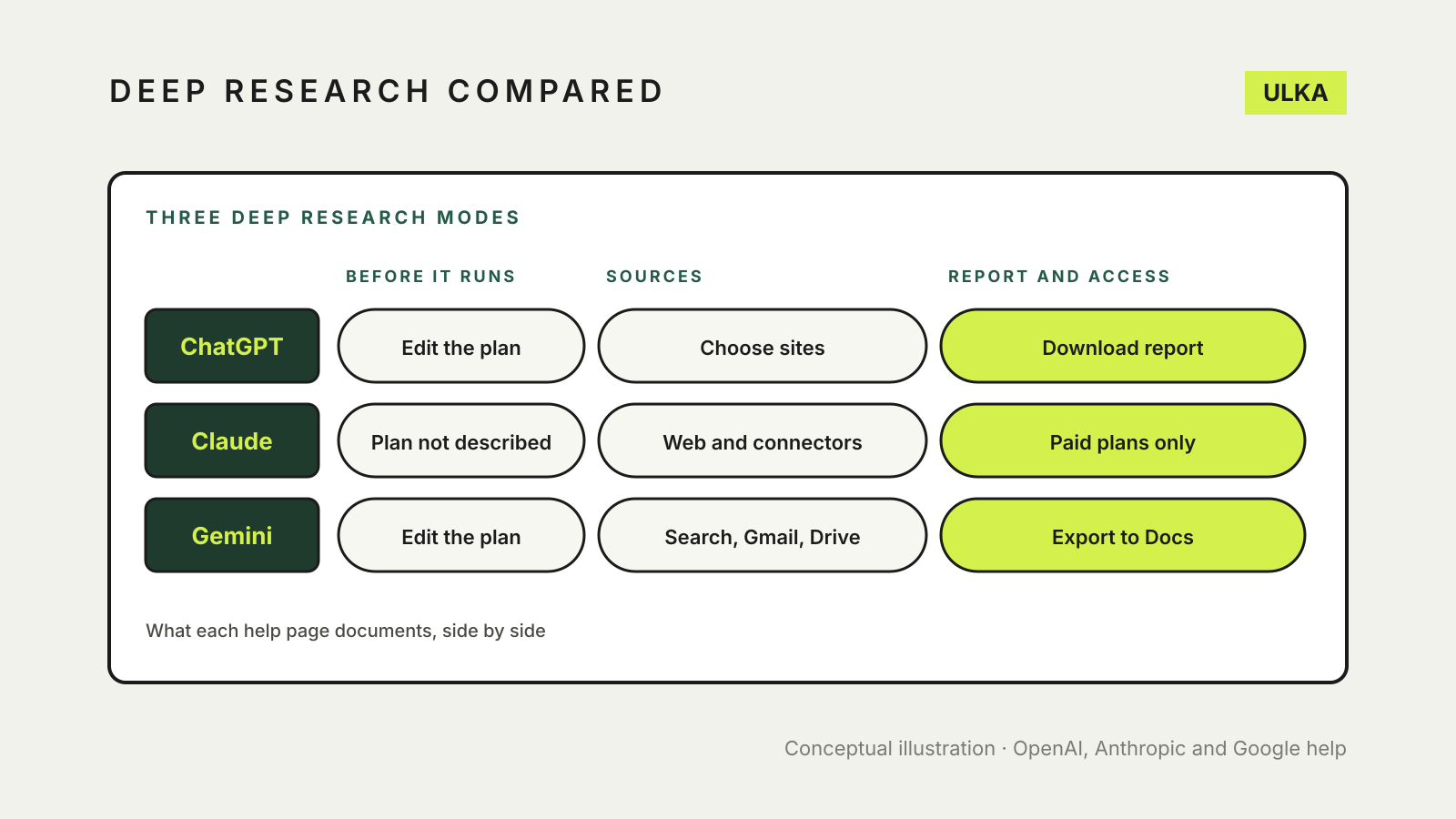
ChatGPT, Claude and Gemini all offer a deep research mode that runs many searches and writes a cited report, but they differ in control and access. ChatGPT lets you edit the plan, restrict sources to chosen sites and download the report. Gemini adds Google Search, Drive and Gmail sources, takes about 5 to 10 minutes and exports to Docs. Claude’s research needs a paid plan.
This guide compares how to start each one, what each can search, what you can control while it runs and what you get back. It follows OpenAI, Google and Anthropic help pages, checked on 21 November 2026. Limits and plan details change, so check your own account.
At a glance
| ChatGPT | Claude | Gemini | |
|---|---|---|---|
| Name | Deep research | Research | Deep Research |
| Start it | /Deepresearch, the + tools menu or the sidebar | + button, then Research | Add files > Deep Research |
| Plan review | Edit the proposed plan before it starts | Not described in Claude’s help | Edit plan, then Start research |
| Default sources | Public web, uploaded files, connected apps | Web and connected tools | Google Search |
| Restrict to chosen sites | Yes | Not described | Choose Sources; deselect Google Search |
| Output | Report with citations; download as Markdown, Word or PDF | Not described in Claude’s help | Report in Canvas; Export to Docs, share or copy |
| Who can use it | Varies by plan and country | Paid plans only | Aged 18 or over, signed in; limits vary by plan |
ChatGPT deep research
OpenAI describes deep research as a way to reason, research and synthesise information into a documented report. It can use uploaded files, search the public web or specific sites, and use enabled ChatGPT apps.
You start it by typing /Deepresearch, choosing Deep research from the tools menu (+) or choosing it from the sidebar. ChatGPT may ask clarifying questions, then proposes a research plan that you can review and change before it begins. While it runs you can follow progress and interrupt to refine the focus, including which sources it can use.
For sources, go to Sites > Manage sites in the prompt window. You can restrict research to the websites you enter, or choose Prioritize these sites while still allowing a full-web search. Connected apps can be used for reading only: OpenAI says deep research does not use write actions from apps, and that availability depends on your plan, region and workspace settings.
The result opens as a full-screen report with a table of contents, a sources-used section and an activity history. All outputs include citations or source links, and you can download a report as Markdown, Word or PDF. OpenAI says usage varies by plan, your in-product counter shows remaining tasks and a fixed monthly allowance resets every 30 days from your first use. Deep research does not work in every country.
Claude research
Anthropic says research makes Claude investigate your question in depth, running multiple searches that build on each other and deciding what to look into next. It is available on paid Claude plans (Pro, Max, Ultra, Team or Enterprise) on the web, in Claude Desktop and in the mobile apps.
Web search must be on. Select the + button at the bottom left of a chat, then Research; a blue indicator shows it is active, and selecting the indicator turns it off. Claude searches the web and your connected tools, including Gmail, Google Calendar and Google Docs if you have connected them, and Anthropic says it can use connector tools automatically without asking for approval each time.
Two limits matter. In the mobile apps, research searches only the web and skips your connectors, with no error or sign that they were skipped. Start it on the web or in Claude Desktop if you want connectors included. Research also cannot use tools from local MCP servers configured in Claude Desktop. Anthropic says research counts against the same limits as standard conversations but can use them up faster. Its help article does not describe a plan-review step or a download format, so treat those as not documented rather than missing.
Gemini Deep Research
Google says Deep Research lets you run in-depth research on almost any subject, and that Gemini includes Google Search as a source by default. You can add sources such as Gmail or Drive, upload files and add NotebookLM notebooks. Gmail and Drive are available only if the Google Workspace app is connected to Gemini. To limit research to other chosen sources, deselect Google Search.
You must be 18 or over and signed in. On a computer, go to gemini.google.com, select Add files > Deep Research, optionally choose Sources, enter your question and submit. Gemini creates a plan you can change with Edit plan, then you select Start research. Google says the report usually takes about 5 to 10 minutes, longer for complex topics, and you can leave the chat and be notified when it is ready.
Reports open in the Canvas panel, where you can create an Audio Overview, visualise the report, Share Canvas, Export to Docs or copy the text. With a Google AI Ultra plan, reports can include charts, diagrams and interactive simulators, though not when Google Workspace services such as Gmail and Drive are sources. Google applies limits on daily requests and on how many you can run at once, and says Google AI Pro and Ultra users get higher limits.
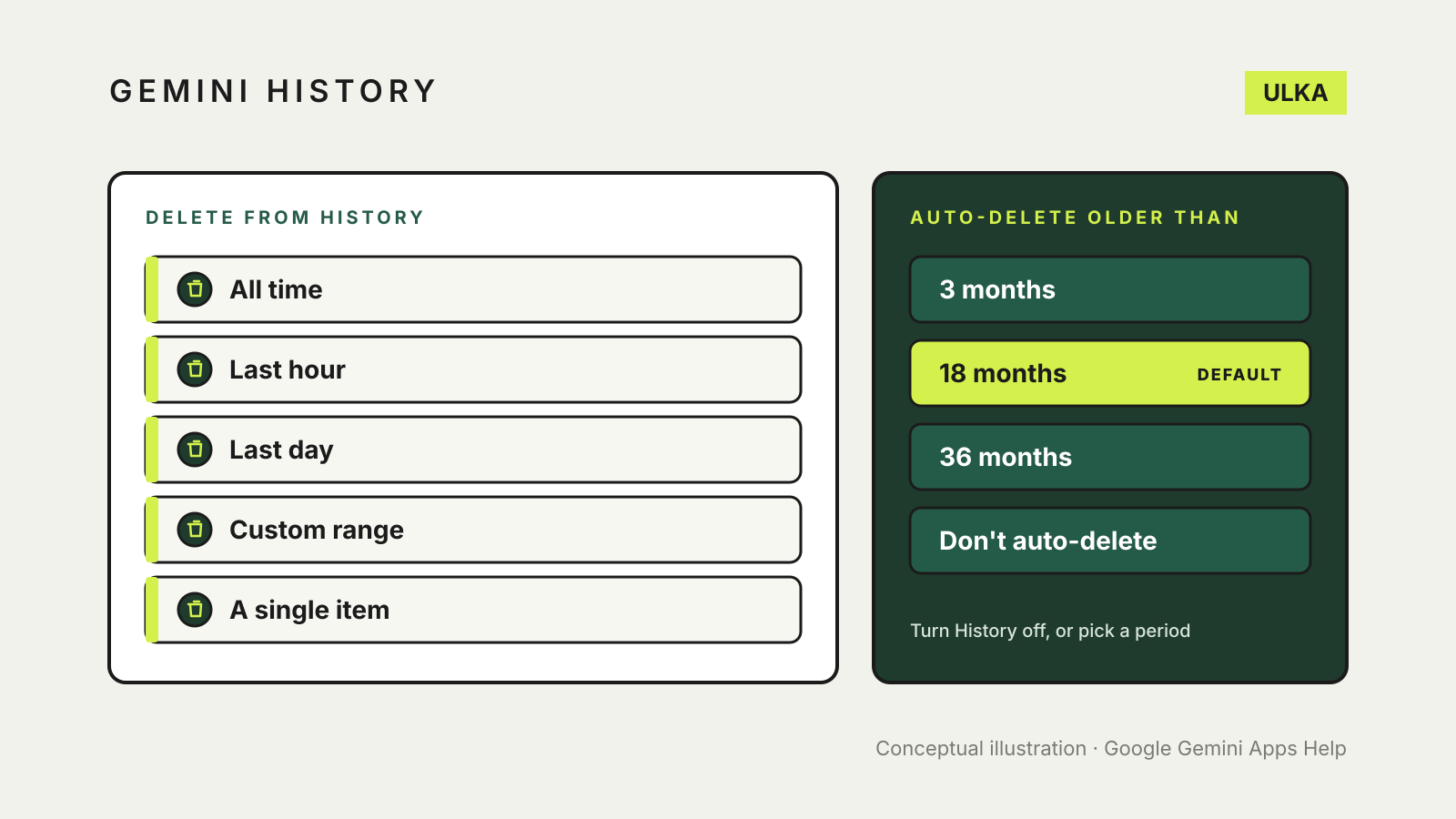
You can find past reports only while your History setting is on, which is covered in our guide to deleting Gemini history.
Which should you use?
This is our reading of the documentation, not a test of report quality.
- You want tight control over sources: ChatGPT documents the most direct controls, with a plan you can edit and a site list you can restrict to.
- Your files and mail are in Google Workspace: Gemini connects to Gmail and Drive and exports to Docs, as long as you accept that reports using those sources lose the Ultra visuals.
- You already use Claude on a paid plan and need connectors: run research on the web or desktop, not the mobile apps.
- You need a report you can take away: ChatGPT documents Markdown, Word and PDF downloads, and Gemini documents export to Docs.
None of these removes the need to check the answer. Open the cited sources, confirm the figures that matter and read our guide to fact-checking AI answers. For how each assistant handles ordinary web searches and links to Drive, see the comparison of web search and citations and the guide to connecting Google Drive to ChatGPT, Claude and Gemini.