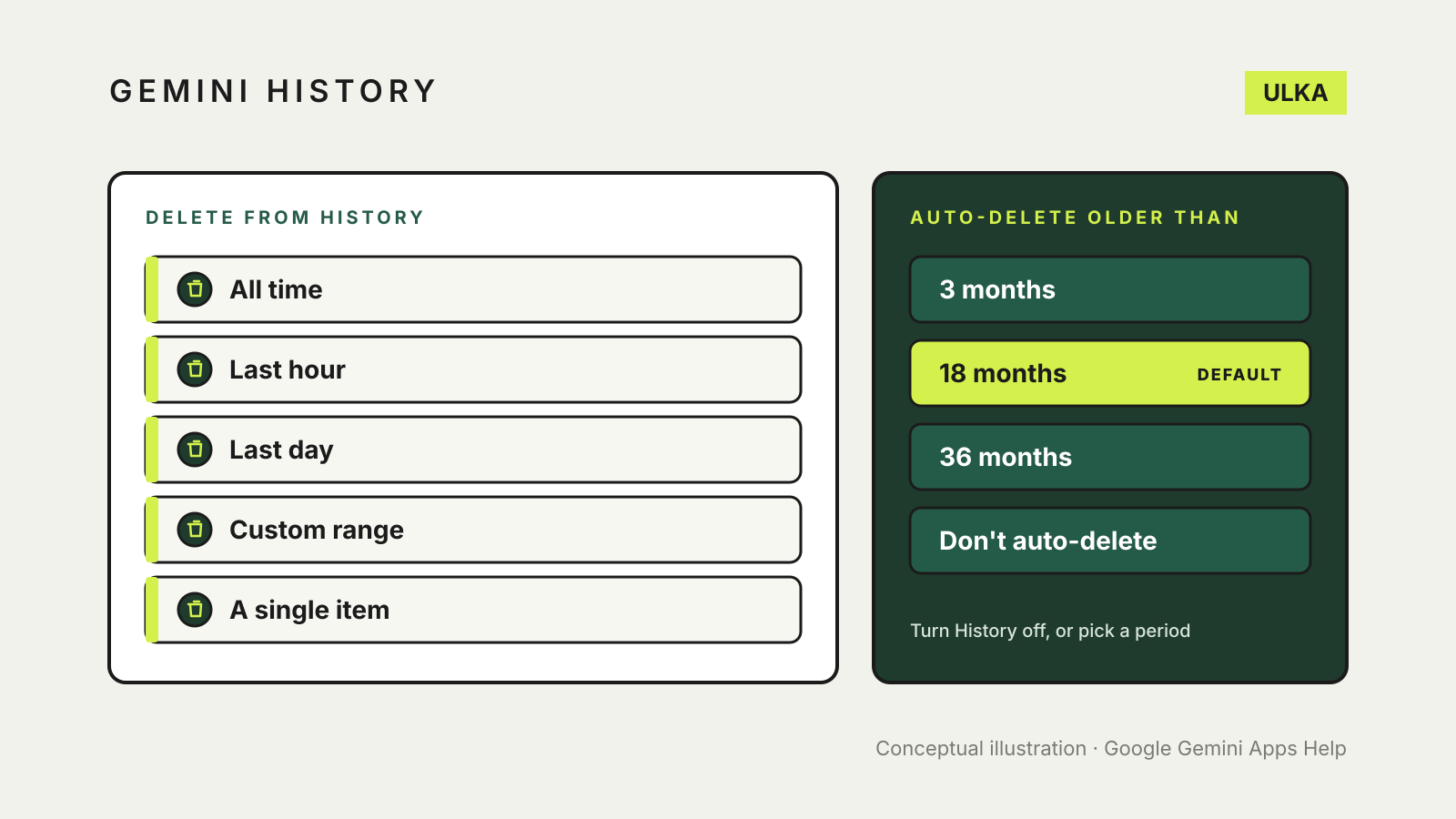
If you are 18 or over, Gemini saves your chats to your Google Account by default, and you can delete them at any time. On a computer, go to gemini.google.com, open Settings and help > History, then delete everything, a time range or a single item. The same page turns History off and changes auto-delete, which is set to 18 months unless you choose 3 or 36 months, or none.
This guide covers each setting, what History off really does, how temporary chats differ and what deleting does not remove. It follows Google’s Gemini Apps Help pages, checked on 21 November 2026.
Where to find your Gemini history
On a computer, go to gemini.google.com and select Settings and help > History. You can also open myactivity.google.com/product/gemini. Google says that when you are signed in and History is on, it stores your Gemini history in your Google Account, where you can review your prompts, delete them and turn the setting off.
If you use Gemini with a work or school account, your Workspace administrator controls the history settings. You may not be able to change retention or see how long chats are kept.
For Gemini Live chats, History can include the transcript, audio, files and images, and any video or screen share you chose to show Live. Select Details on an item to see or download that audio or video.
Delete Gemini history
In the History page, choose what to delete:
- Everything: above your history, select Delete > All time.
- A recent period: select Delete > Last hour or Last day.
- A range: select Delete > Custom range.
- One day: select Delete all history from next to that day.
- One item: select Delete history item next to it.
Google says it removes deleted history from view straight away, then begins a process to delete it from its storage systems. Two details are easy to miss. If you delete a shared chat, the public link is not deleted, so remove the link separately. If you delete a Gemini Live chat, its audio, transcript, video and screen shares go too.
Set Gemini to delete history automatically
Google’s default is to auto-delete Gemini history older than 18 months. To change it, open History, select the line near the top that begins Deleting history older than, and choose 3, 18 or 36 months, or Don’t auto-delete history. Follow the on-screen steps to confirm.
A shorter period limits how much a lost or shared account could reveal. A longer one keeps old chats searchable. Choose by how often you look back at old conversations.
Turn Gemini History off
Open History and select Turn off or Turn off and delete history. History is on by default for people aged 18 or over.
Turning it off does not mean Google keeps nothing. Google says chats you have while History is off are still saved with your account for around two months, so it can provide the service, process feedback and protect Google, its users and the public. They do not appear in your history.
Turning History off also limits what Gemini can reach. Google lists only these apps as available when History is off: device assistance, Gemini Notebook, Messages, Phone and WhatsApp. Other connected apps, such as Google Workspace, are unavailable until you turn History back on.
Training settings sit under History
Google says the settings that let your chats help train its generative AI models are off by default, and that you must have History on to turn them on. In History, the two options are Chat content including text and uploads and Improve Google services with your audio and Gemini Live videos and screenshares. If you want neither, leave both boxes clear.
Google also says these settings do not stop it using your chats to respond to you or to help protect Google and the public, including with the help of human reviewers.
Temporary chats and reviewed chats
A temporary chat is for information you do not want Gemini to remember or use to personalise your replies. Google says temporary chats are not used to train its AI models. They are still kept with your account for around two months, and Gemini uses the last 24 hours of the chat as context to answer you. Google’s help pages describe how to start one.
Some chats are reviewed by human reviewers, including trained staff at Google’s service providers. Google says those reviewed chats, and related data such as language, device type, location information or feedback, are not deleted when you delete your history. They are kept for up to three years, separated from your account. Google’s advice is not to enter confidential information you would not want a reviewer to see.
What deleting Gemini history does not delete
Google lists several things that stay:
- Settings in other Google services, such as Search history, Web & App Activity or Timeline, which may keep saving data as you use those services.
- Data saved by other services you use with Gemini, such as Wallet or YouTube, under their own policies.
- Remote browser data and remote code execution data.
- Texts or messages with Gemini in a messaging app or from your operator.
- Information Google keeps until you delete your account, such as how often you use Gemini.
Memory is separate from your chat list. If Gemini personalises replies using past chats, Google says deleting that chat stops it using the information from it. You can also view, edit and delete the memory summary.
Which setting to change first
If you only change one thing, set auto-delete to a period you will actually use. If you share a computer, delete the chats you no longer need and remove any public links to shared chats. If you want to compare what other assistants keep, read our guide to AI chatbot privacy settings and the comparison of what ChatGPT, Claude and Gemini remember. To close the account entirely, see how to delete your ChatGPT, Claude or Gemini account and data.