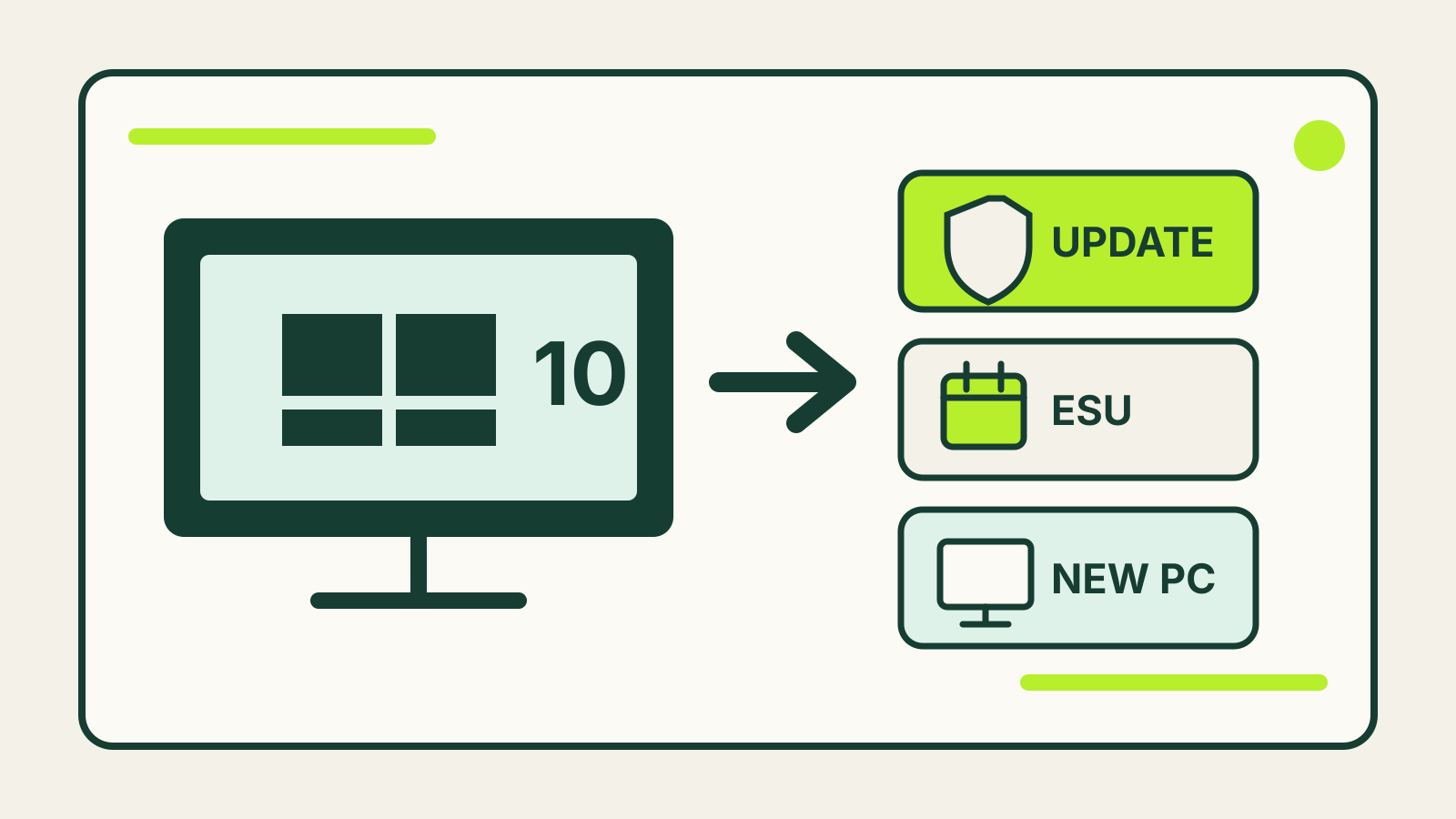
The main Windows 10 end of support options are to upgrade the same PC to Windows 11 if it qualifies, use Extended Security Updates (ESU) as a temporary bridge, or replace the computer. Windows 10 reached the end of support on 14 October 2025. The PC did not stop working that day, but ordinary Windows 10 security fixes, feature updates and technical support ended.
The right choice depends less on the age printed on the receipt than on hardware eligibility, the software you still need and how long you expect to keep the machine. Microsoft information and dates in this guide were checked on 18 October 2026.
First, confirm what the PC can run
Open Settings → Update & Security → Windows Update, then select Check for updates. Microsoft says an eligible Windows 10 version 22H2 PC can receive the Windows 11 upgrade at no charge. The offer still depends on the machine meeting Windows 11’s minimum hardware requirements.
Do not force the upgrade simply because the installer can be worked around. Unsupported hardware may leave you without the update path you were trying to regain.
Before changing anything:
- Back up documents, photos and browser data.
- Check that your printer, scanner and specialist software support Windows 11.
- Note any paid software licences that may need to be deactivated or transferred.
- Make sure you can sign in to the account used for Windows and device encryption.
- Leave enough time to test the machine before you need it for work or study.
If your current computer is otherwise capable, it may be worth comparing its memory and storage with the jobs you actually do. Our laptop RAM guide explains why a supported operating system does not automatically make a low-memory PC comfortable to use.
Option 1: upgrade the existing PC to Windows 11
This is the cleanest option when Windows Update confirms eligibility and your important applications and peripherals are compatible. You keep the same hardware, regain a supported Windows release and avoid buying a computer before you need one.
Treat the upgrade as a migration, not a routine restart. Make a current backup and check the recovery key for any encrypted drive. Give yourself time to reinstall a driver or sign back into a service.
A Windows 11 upgrade is not a hardware repair. If the battery is failing, the storage is nearly full or the fan constantly runs at high speed, those problems remain. Add the likely repair cost to the decision rather than looking only at the free upgrade.
Option 2: use Extended Security Updates as a bridge
Microsoft’s Consumer Extended Security Updates program is for people who need more time. The current Windows 10 support page says eligible consumer devices can be protected through 12 October 2027. Microsoft’s ESU overview describes the program as an annual subscription that supplies critical and important security updates.
ESU is not a second life cycle for Windows 10. It does not restore ordinary feature development or general technical support. Think of it as a safety bridge while you replace a machine, finish a project or move away from software that cannot yet run on Windows 11.
That bridge is most useful when:
- the PC remains reliable but does not qualify for Windows 11;
- one essential application or device still requires Windows 10;
- you need several months to budget for replacement; or
- you are coordinating several family or small-business computers.
Keep browsers and other applications updated separately. Microsoft also says Microsoft 365 security updates on Windows 10 continue until 10 October 2028, but support for Microsoft 365 Apps on Windows 10 ended with the operating system on 14 October 2025. Those are different promises: application security updates do not make Windows 10 a fully supported platform.
Option 3: replace the computer
Replacement makes sense when the machine cannot run Windows 11 and also has ageing hardware, weak performance or poor battery life. A new computer costs more than an ESU bridge, but it can be the cheaper choice if you would otherwise pay for temporary support and then repair or replace the device soon afterwards.
Write down the programs, ports and accessories you use before shopping. A thin new laptop may omit the Ethernet port, SD slot or number of USB ports your old one has. If the computer will spend most of its time at a desk, our home-office monitor guide covers the display and connection checks that are easy to miss.
Move files with a backup you control, then keep the old machine unchanged until you have opened the important documents on the new one. When you are finished, sign out of accounts, reset the old PC and use a responsible electronics recycling or trade-in service.
What not to do
Continuing indefinitely on ordinary, unenrolled Windows 10 is not the same as accepting a slower computer. The system may still boot and run familiar programs, but newly discovered operating-system vulnerabilities no longer receive normal Windows 10 fixes.
A paid antivirus package does not replace operating-system security updates. It can block some malicious files or websites, but it cannot repair an unpatched Windows component.
Likewise, changing a registry value or bypassing Windows 11’s hardware checks does not make unsupported hardware supported. It may create a system that installs today but has an uncertain update path later.
A practical decision rule
Choose the Windows 11 upgrade when Microsoft marks the PC eligible and the hardware still meets your needs. Choose ESU when you need a defined, temporary period to migrate. Choose replacement when the machine is both ineligible and already causing reliability or performance problems.
Whichever route you take, make the backup first. End of support turns an eventual upgrade into a security decision; it does not require a rushed purchase.