How to turn off Apple Intelligence on an iPhone depends on which part you want gone. In iOS 27, Apple’s own guide lists a separate switch for each feature: Siri AI, message and email summaries, notification summaries, priority notifications, smart replies and more. You can switch off one feature, several or all of them, and keep the rest of the phone exactly as it was.
This guide follows Apple’s iPhone User Guide and support pages for iOS 27, checked on 18 October 2026. Settings names can shift between updates, so look for the closest match if a label differs on your phone.
Which iPhones have Apple Intelligence
Apple says Apple Intelligence in iOS 27 runs on the iPhone 15 Pro, iPhone 15 Pro Max and iPhone 16 models or later, including iPhone Air. An older iPhone that runs iOS 27 does not get these features, so there is nothing to turn off.
Three more conditions apply:
- Language. The device language and Siri language must be set to the same supported language. English is on Apple’s list.
- Storage. Apple says the features can take up to 14 GB on the iPhone 17 Pro, iPhone 17 Pro Max and iPhone Air, and up to 8 GB on other supported iPhones.
- Region. Apple names exceptions for the European Union and mainland China, and notes that some features may not be available in every region or language. Siri AI is in beta and available in English to start.
Turn off Apple Intelligence features one by one
Apple’s page on turning off and restricting Apple Intelligence features gives these paths, all starting in the Settings app.
| Feature | Where to switch it off |
|---|---|
| Siri AI (Beta) | Siri > scroll down > Turn Off Siri, then confirm |
| Message summaries | Apps > Messages > Summarize Messages |
| Email summaries | Apps > Mail > Summarize Message Previews |
| Notification summaries | Notifications > Summarize Notifications |
| Priority notifications | Notifications > Prioritize Notifications |
| Personalised smart replies in Mail | Apps > Mail > Personalize Smart Replies |
| Voicemail suggestions | Apps > Phone > Suggestions in Voicemail |
| Call Context cards | Apps > Phone > Apple Intelligence & Siri > Show When Calling |
| Journal writing prompts | Apps > Journal > Get Writing Prompts |
The Siri entry needs a note. Turning off Siri AI does not have to leave you without Siri. Apple’s guide says you can turn Siri back on and choose Siri Classic, the older assistant, instead.
Which switches are worth changing
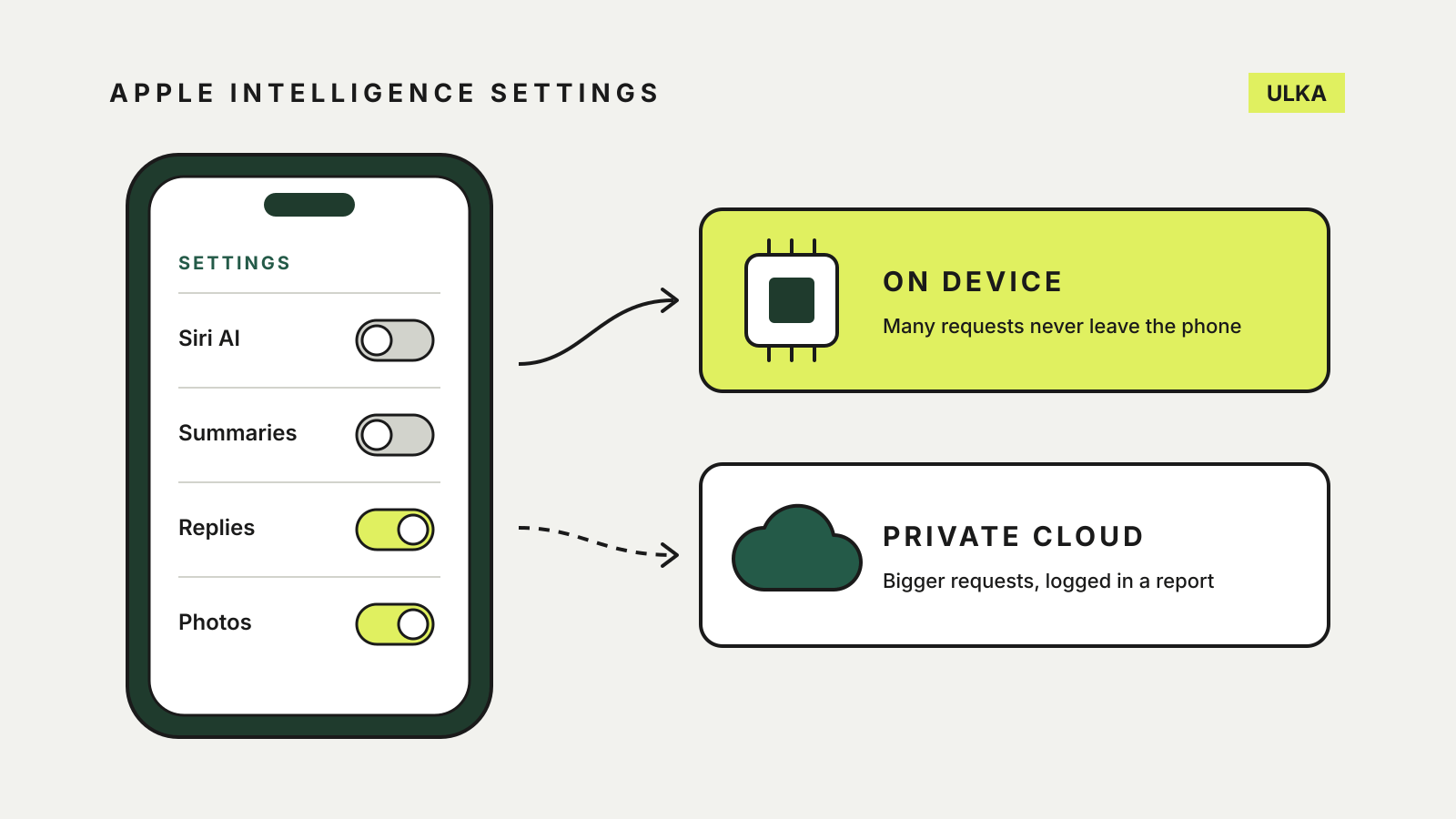
Summaries are the usual place to start. A summary of a group chat or a long email is convenient, but it is a shortened version of what someone wrote. If you would rather read messages in full, turn off Summarize Messages and Summarize Message Previews and leave the rest.
Notification summaries and priority notifications change what you see on the Lock Screen. Turn them off if you prefer notifications in the order they arrive.
Call Context and voicemail suggestions work inside the Phone app. Call Context shows information on screen during a call, which is worth knowing if you share the phone or take calls in front of other people.
Daily limits on some features
Apple’s support page says features that rely on server-side models have daily usage limits. It names Siri AI, the intelligent photo editing tools, Image Playground and its cloud models in Shortcuts, and says the limits vary with the request and system demand. Apple also says expanded access to these features “will be available for a fee in the future”. It has not published an Australian price, so none is given here.
What stays on the phone and what goes to Apple’s servers
Apple says that in many cases its models run entirely on the iPhone. For more complex requests, Apple Intelligence can use Private Cloud Compute, which runs larger models on Apple servers. Apple says data sent there is processed only to fulfil the request, is not stored or made accessible to Apple, and that independent researchers can inspect the server software to check that promise. Apple also notes Private Cloud Compute is not available in all regions.
You do not have to take that on trust alone. iOS 27 can keep a record of what your phone has sent:
- Open Settings and tap Privacy & Security.
- Tap Apple Intelligence Report and choose the last 15 minutes or the last 7 days.
- Tap Export Activity and save the file, named Apple_Intelligence_Report.json.
The report lists requests sent to Private Cloud Compute. Apple notes it may be empty if none have been sent since you changed the time range.
Restricting Apple Intelligence for a child
The switches above are easy to turn back on, which suits your own phone. For a child’s iPhone, Apple’s guide points to Screen Time, where you can block or allow Siri and Apple Intelligence features, and to its Apple Devices for Kids and Families guide.
For more on what assistants keep, our guide to AI chatbot privacy settings covers ChatGPT, Claude and Gemini. If storage is tight after the update, see how to free up iCloud storage and check what your phone is holding locally as well.