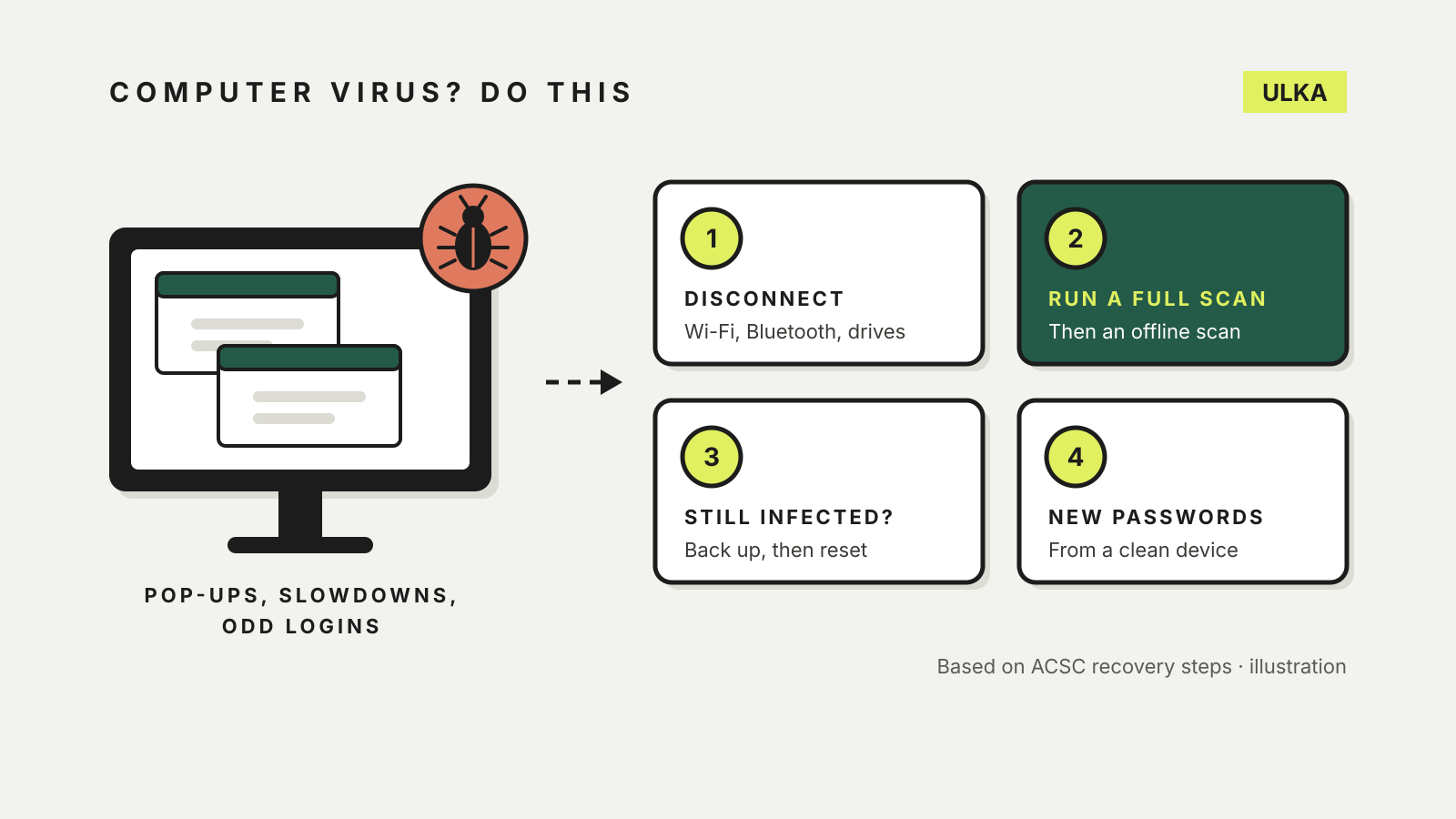
If you think your computer has a virus, disconnect it from the internet, run a full scan with up-to-date antivirus software, and change important passwords from a different, clean device. If the signs persist after scanning, back up what you need carefully and reset the computer. That order comes from the Australian Cyber Security Centre’s malware recovery guidance, and it matters: typing passwords into an infected machine can hand them straight to whoever is behind the malware.
This guide walks through those steps for Windows and Mac, explains the deeper offline scan built into Windows, and lists who to contact in Australia. Guidance pages were checked on 21 October 2026.
Signs it might be malware
“Virus” is the everyday word, but the ACSC uses malware for any program used for a malicious purpose, from info stealers and keyloggers to ransomware. Warning signs it lists include:
- unexpected slowdowns, error messages, crashes, battery drain or overheating
- a browser that opens pages you did not ask for
- pop-up ads pushing you to update or download software
- files and programs you do not recognise or cannot open
- unusual account activity, or passwords that have been changed without you
Microsoft’s scan guide adds an unexpected rise in data usage. None of these proves an infection on its own, but several together are worth acting on.
One warning before you search for help: the ACSC notes that some malware pretends to be antivirus or security software. Do not install a “cleaner” from a pop-up or an ad.
Before you start
The ACSC’s malware recovery guide sets out three checks first:
- A ransom note or locked files points to ransomware, which has its own recovery steps.
- Strange activity on an account, such as emails you did not send, means you should secure that account first, starting with email and banking.
- Avoid entering passwords or other sensitive details on the infected computer. Some malware records keystrokes.
If you need help at any point, the Australian Cyber Security Hotline is 1300 CYBER1 (1300 292 371).
Step 1: check your antivirus is on and updated
Windows 10 and 11 include Microsoft Defender, and Macs include XProtect, the ACSC notes. If you use paid antivirus, make sure the subscription has not lapsed: software on an expired plan may stop receiving the signature updates it needs to recognise new threats. Our guide to Windows Security settings shows where to confirm Defender is active.
Step 2: disconnect the computer
Turn off Wi-Fi and Bluetooth, unplug the network cable, and disconnect external drives and other devices. The ACSC says this reduces the risk of the malware spreading. Keep any backup drive well away from the computer for now.
Step 3: run a full scan
On Windows, Microsoft’s Windows Security guide describes four scan types. For a suspected infection, use Full scan, which checks every file and program. It can take a long time.
- Open Windows Security.
- Select Virus & threat protection, then Scan options.
- Choose Full scan and select Scan now.
If you use third-party antivirus, follow its own instructions for a full device scan.
On a Mac with no third-party antivirus, the ACSC’s advice is blunt: if you are seeing signs of malware, assume XProtect has missed it and go to step 5. Our guide to whether Macs need antivirus explains what macOS checks on its own.
Step 4: run Microsoft Defender’s offline scan
Windows also has a deeper option. Microsoft says the Microsoft Defender Antivirus (offline scan) runs after a restart, without loading Windows, so persistent malware has a harder time hiding. Microsoft recommends it when you are worried the device has been exposed to malware.
- Save your work and close apps.
- In Windows Security, go to Virus & threat protection > Scan options.
- Select Microsoft Defender Antivirus (offline scan), then Scan now.
Microsoft’s technical documentation says the scan takes about 15 minutes and restarts the computer when it finishes. Two catches: it does not run on Windows computers with ARM processors, and if BitLocker is on, you may be asked for your BitLocker recovery key when the PC restarts, so have that ready or suspend BitLocker first. Results appear under Protection history.
Step 5: still seeing signs? Back up, then reset
If problems continue after scanning, the ACSC’s next step is a reset: wipe the drive and reinstall the operating system. That deletes everything, so back up first, carefully.
The ACSC warns that a backup stored on the infected computer, or connected to it at any point since the infection, may itself be infected. If that applies to you, consider professional help to make a safe copy. If you have a clean backup, do not connect it to the infected computer or network until the reset is done. The ACSC also recommends wiping drives and devices that were on the same network as the infected computer since the infection. Our backup and recovery plan covers keeping a copy that stays out of reach.
For phones and tablets, the ACSC says a factory reset is the best way for most people to remove malware, after backing up photos, contacts and messages to the device’s cloud service.
Step 6: change passwords from a clean device
Using a different computer or phone you trust, change the passwords for every account you used on the infected computer. Start with email, banking, cloud storage and social media. Turn on multi-factor authentication where it is offered. A password manager makes it practical to give each account a different password.
Step 7: report it and watch your accounts
- ReportCyber at cyber.gov.au takes reports of cybercrime and security incidents.
- Scamwatch takes reports if the infection came from a scam. Our guide to spotting scam texts covers the usual routes in.
- Your bank, straight away, if financial details may have been stolen.
- IDCARE, the national identity and cyber support service, if your personal information is at risk.
After that, keep watching your accounts for unfamiliar sign-ins or transactions. The ACSC notes it can be hard to know what the malware accessed.