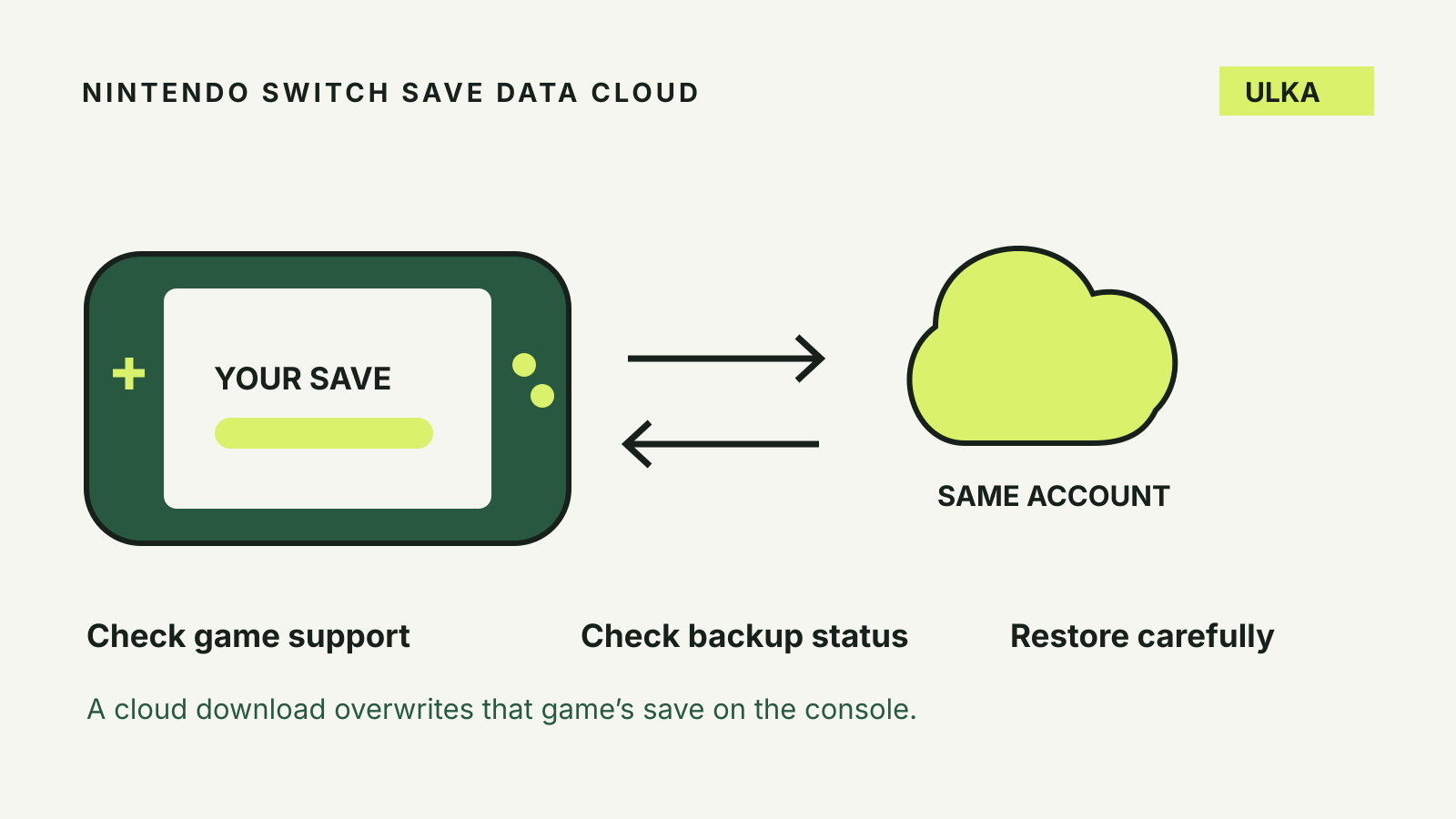
Nintendo Switch cloud saves back up progress for supported games through Nintendo Switch Online. Check the game, user and backup status separately: downloading a cloud copy replaces that game’s existing save on the console.
This is not the same as moving a game installation to a memory card. Start with the progress you want to protect, then decide whether you need a backup, a download to another console or a different game-specific transfer method.
Separate the game from your progress
Nintendo’s data-management guidance says Switch game saves are held in system memory, whether the game itself is downloaded or played from a game card. Those saves cannot be copied to a microSD card.
Archiving downloaded software frees installation space without deleting its save data. Deleting a user account is a different action: Nintendo warns that it removes the saves associated with that account.
That distinction matters when preparing a console for a repair or replacement. A copied memory card or a shelf of physical games does not establish that progress exists somewhere else. Write down which games and users matter before making changes.
The same separation appears on other consoles, but the rules are platform-specific. Our PS5 USB storage guide explains why storing an installation is not automatically a saved-progress backup.
Confirm support for the actual game
Save Data Cloud requires a Nintendo Switch Online membership and compatible software. Do not infer compatibility from a game supporting online multiplayer or being sold digitally.
Nintendo’s Australian support page points buyers to the game’s Nintendo Store details. Look for the Save Data Cloud support information. If the game is already installed, open its software options from HOME and select the cloud-save section.
A message that the software does not support cloud backup is a real limitation, not something a larger storage card fixes. Follow the game’s own official support instructions before relying on another transfer or recovery method.
Check each user’s membership and save separately. Nintendo says save data is unique to the user and cannot be transferred between users. A backup belonging to one household member is not another person’s progress.
Create a backup and verify what happened
For a supported game, highlight its icon on HOME, open the software menu with the plus or minus button, then choose Save Data Cloud. Select the intended user and choose Back Up Save Data.
You can also reach the game’s backup through System Settings > Data Management > Save Data Cloud. Select the user, then the software you want to back up.
Nintendo says automatic backup is enabled for compatible software when you become a member, and can be adjusted by game and user. Still inspect the status before a consequential action such as handing over the console. Having enabled a setting is not the same as confirming the latest session has been uploaded.
If the displayed status does not establish a current backup, leave the original save intact while you investigate. Avoid a factory reset as a troubleshooting shortcut when that console may hold the only copy.
Download carefully: this is an overwrite
Nintendo warns that a cloud download replaces the existing save for that game on the destination console. The overwritten data cannot be recovered through that operation.
Before selecting Download Save Data, compare the available local and cloud information. Decide which progress you want to retain. Downloading is not a merge that automatically combines two separate play sessions.
On Switch, use the game’s software menu or open the cloud section in Data Management, select the user and game, then request the download. On Switch 2, Nintendo documents the same two routes.
A practical household precaution is to stop playing that game on the second console until you have resolved which copy to use. Otherwise you add another session to a decision that was already unclear.
Automatic download needs its own check
Upload and download settings are separate. On Switch 2, automatic downloading is controlled under System Settings > Data Management > Save Data Cloud, then the user’s settings. Per-game controls are available through the advanced save-data settings.
Nintendo says newer cloud data can download while the console is in Sleep Mode when automatic download is enabled. Keep the console in that mode until the download completes rather than assuming an immediate update.
The original Switch instructions also note that automatic download does not occur if there is no save for that software on the console. A first manual download may therefore be a separate step. Check the instructions for the console you are using.
Between Switch and Switch 2
Nintendo says saves for compatible Nintendo Switch software can be backed up and downloaded between Switch and Switch 2 using the same Nintendo Account.
That does not turn the original Switch into a Switch 2. Features and content exclusive to a Switch 2 Edition are not available when the save is used on the older console. Nor does this rule establish cloud compatibility for every Switch 2-only game.
If membership expires, cloud backups cannot be accessed. Nintendo says resubscribing within 180 days restores access to previous backups. Do not treat an expired subscription as an indefinite accessible archive.