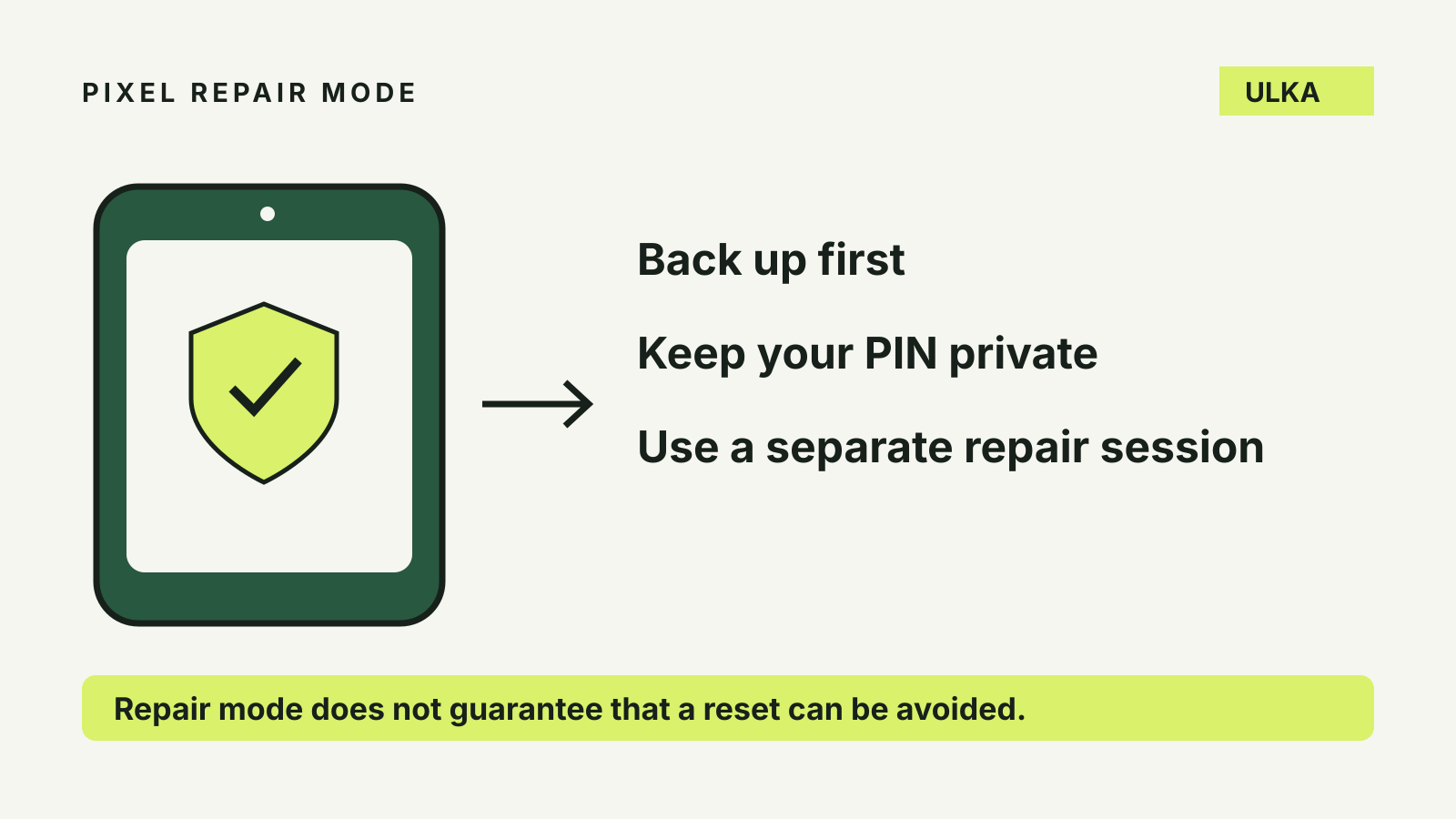
Pixel repair mode gives a technician a separate Android session without normal access to your personal data. Back up first: Google says some repairs still require a factory reset, even when repair mode is enabled.
The useful distinction is between privacy during diagnosis and recovery after a repair. Repair mode addresses the first problem. A checked backup addresses the second. Neither should be treated as a substitute for understanding the repair centre’s instructions.
Check whether your phone can use it
Google lists Pixel phones running the Android 14 December 2023 update or later, with at least 2 GB of free space, as eligible. Check your installed software and available storage before assuming the option will appear.
The feature can be used for a walk-in or mail-in repair. It does not establish that a particular fault is covered by warranty or that every repair can be completed without replacing storage.
If your phone will not start, do not assume these menu steps remain possible. Describe its condition to the repair provider. A guide to a working settings screen cannot promise to protect data on a device you cannot unlock or operate.
Make the backup useful before you hand over the phone
Google’s preparation guidance says to back up and remove the physical SIM card before sending the phone for service. Keep that card with you rather than leaving it in the repair parcel.
Open the backup settings and review what is included, which account holds the backup and whether the important information is recent. Google’s current instructions put the backup details under Settings > Google services > Backup.
Photos, videos and contacts use their respective synchronisation services separately from the device backup. Check those separately rather than treating one completed backup indicator as proof that every file is recoverable.
For example, a document downloaded locally and a photo already visible in your online photo library raise different recovery questions. List the items you cannot afford to lose and confirm how each would return. Do not erase the only copy while trying to tidy the phone.
Our guide to Google Takeout explains another kind of export. An account archive and the device backup used during phone setup are different jobs.
Turn on Pixel repair mode yourself
Use Google’s documented entry sequence:
- Open Settings, then System > Repair mode.
- Follow the instructions to enable the mode.
- Confirm using the existing screen-lock PIN, password or pattern.
- Let the phone restart into the repair session.
If no screen lock exists, Google says you will be asked to create and verify one during setup. It separately warns against creating a new PIN once already inside repair mode.
Do not give your screen-lock credential to the technician. Enter it yourself when the phone requests it. If a provider’s request seems inconsistent with the documented process, ask them to explain the specific diagnostic need before proceeding.
What the technician can work with
Google describes a clean Android environment in a dedicated secure partition, with limited functionality. Some first-party apps remain available for troubleshooting; the session is not simply a completely empty phone.
That is why a visible app icon in repair mode does not, by itself, demonstrate that the technician has access to your normal app history. The feature is designed to separate the service environment from personal data.
Avoid signing into personal services or using the temporary session as your everyday phone. Google says files and other changes created there are removed when the mode is exited. A test photo taken during diagnosis is therefore not a new permanent copy of your normal photo library.
Why a reset may still be necessary
The repair partner decides whether the work requires a reset after assessing the fault. Google specifically warns that replacing parts which affect storage can require deletion of device data.
Ask what happens if the initial assessment changes. A screen repair and a storage-affecting repair need not have the same recovery consequences. Keep the backup available until the returned phone has been checked, rather than discarding it when the job is booked.
Do not interpret repair mode as a guarantee that data cannot be lost. It is also not the same as preparing a phone for a permanent change of owner. For a sale or trade-in, use the separate phone-wiping guide.
Exit the temporary session and check the result
After the device returns, open System > Repair mode and start the exit process, or use the repair-mode notification. Authenticate with your existing screen lock and allow the phone to restart.
Then check the original issue and the information you expected to retain. Confirm that the phone is back in your normal environment before treating the repair as finished. Keep the repair paperwork and describe any remaining symptom precisely.