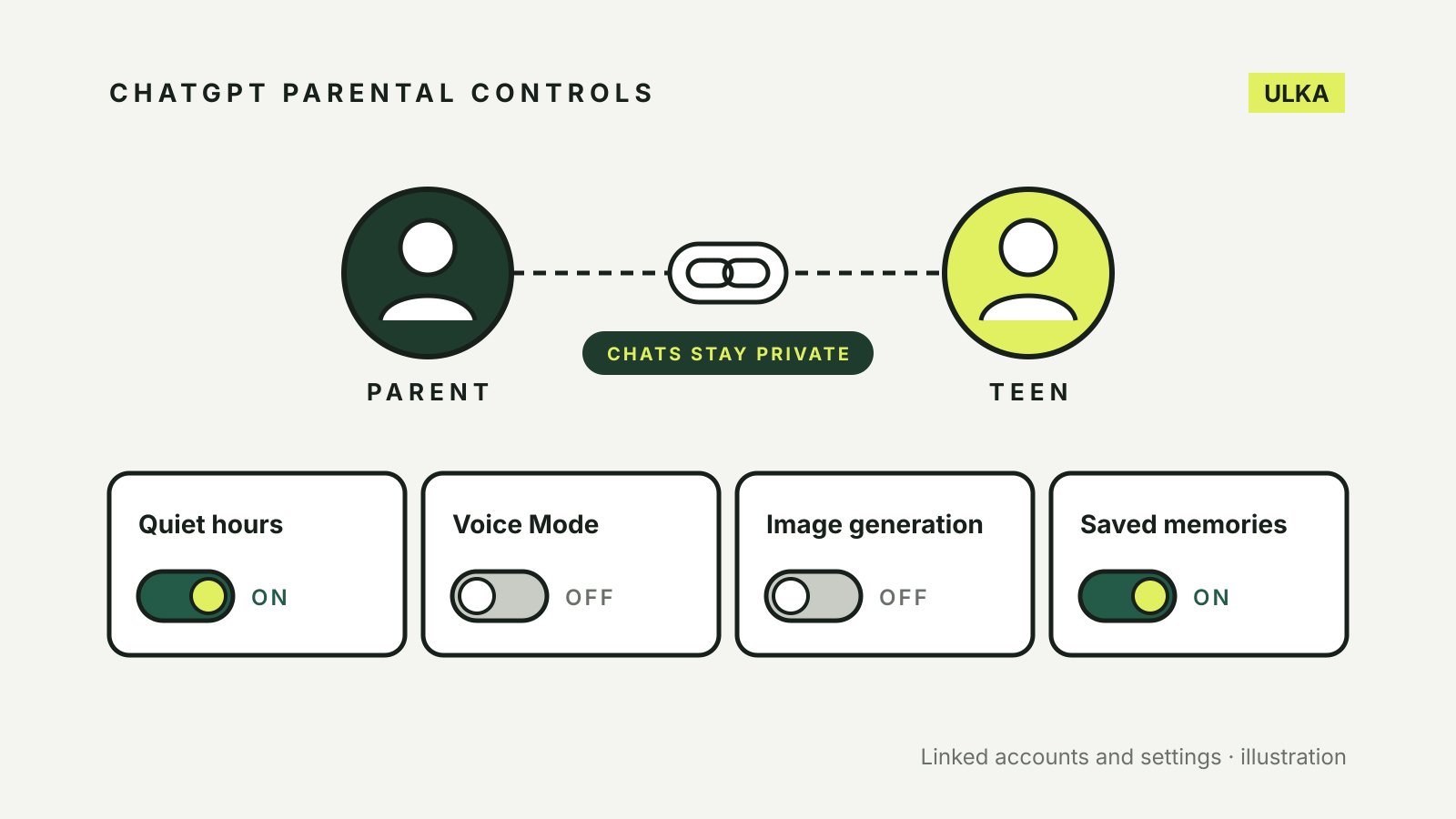
ChatGPT parental controls let a parent or guardian link their account to a teen’s account, then manage a short list of settings from their own profile: quiet hours, Voice Mode, image generation, memory, model training and an extra content filter. They do not let a parent read the teen’s chats, and either person can unlink at any time.
This guide walks through linking the accounts, what each setting changes, what the safety notifications cover and where the controls stop. OpenAI’s help pages and terms were checked on 26 October 2026.
Who can use ChatGPT, and who parental controls are for
OpenAI’s Terms of Use say you must be at least 13, or the minimum age required in your country, to use ChatGPT, and that anyone under 18 needs a parent or legal guardian’s permission. Parental controls are designed for teens in that age range and their parents or guardians.
OpenAI introduced parental controls on 29 September 2025 for all ChatGPT users. They work through two linked accounts: the teen keeps their own login, and the parent manages selected settings from theirs.
How to link a teen account
According to OpenAI’s parental controls help page, a parent starts the link like this:
- In ChatGPT on the web, open Settings from your profile menu.
- Select Parental controls, then Add family member.
- Choose Use phone or Use email, enter your teen’s number or address, and select Send.
- Your teen gets a text or email with a link to connect their account, and may also see a notification in ChatGPT.
- Once they accept, select their name under Family members to review or change settings.
A teen can start the process instead from Settings > Parental controls > Invite a parent. One parent can link with several teens, but each teen can be linked to only one parent or guardian at a time.
Nothing is linked until the teen accepts. That makes the set-up a conversation rather than something done quietly in the background.
What each setting does
After linking, the parent sees these settings for the teen. Defaults are as OpenAI lists them:
| Setting | What it controls | Default |
|---|---|---|
| Reduce sensitive content | Extra safeguards against graphic content, viral challenges, sexual, romantic or violent roleplay and extreme beauty ideals | On |
| Improve the model for everyone | Whether the teen’s conversations can be used to improve ChatGPT models | Off |
| Reference saved memories | Whether ChatGPT uses saved memories to personalise answers | On |
| Voice Mode | Whether the teen can use Voice Mode | On |
| Image generation | Whether the teen can create and edit images | On |
| Study Mode | Whether new main chats start in Study Mode | Off |
| Quiet hours | A time window when the teen account cannot use ChatGPT | Off |
The help page also lists two controls for ChatGPT Work, Codex network access and Cloud browser, which govern whether code and the built-in browser can reach the internet. Both are on by default.
A few details are easy to miss. The teen cannot change these settings while the accounts are linked. Quiet hours allow only one time window at a time. Turning on Study Mode here only makes new main chats start in it; it does not apply to GPT or Project conversations. OpenAI also says some changes apply only to conversations started after you update a setting.
If memory is a concern, our comparison of what ChatGPT, Claude and Gemini remember explains how saved memories work. For training and chat history settings on an adult account, see our guide to AI chatbot privacy settings.
Safety notifications
When accounts are linked, OpenAI may send the parent a safety notification in limited situations. Its help page names two: activity that may indicate a serious self-harm concern, and a linked teen account being banned for conversations relating to acts of violence. OpenAI says trained reviewers assess flagged activity before a notification is sent, and parents can choose to receive alerts by email, SMS or push notification.
OpenAI is clear that these alerts are not a substitute for professional care or emergency services, and that the parent receives only the information needed to support the teen’s safety, not the conversation itself.
What parental controls do not do
- They do not show you the chats. OpenAI says parental controls give no access to the teen’s conversations and no real-time monitoring.
- They are not a lock. Either the teen or the parent can unlink the accounts. OpenAI says the parent is notified if the teen unlinks.
- They end at 18. When a teen account is identified as 18 or older, it moves out of the teen experience, parental controls are removed and teen safety notifications stop. ChatGPT notifies both the account holder and the linked parent.
- They are not foolproof. OpenAI’s announcement says guardrails help but can be bypassed by someone deliberately trying to get around them, and recommends parents talk with their teens about healthy AI use.
They also cover only ChatGPT. If your teen uses other chatbots, those services have their own rules and settings. For consoles, our guide to parental controls on Xbox, PlayStation and Switch covers the gaming side.
A sensible set-up for most families
Start by linking the accounts together, so your teen knows what you can and cannot see. Leave Reduce sensitive content on. Decide on quiet hours that match school nights, and consider turning on Study Mode if ChatGPT is mainly used for homework. Keep Improve the model for everyone off unless you and your teen are comfortable with conversations being used for training. Then revisit the settings every few months, as OpenAI says it expects to refine and expand the controls over time.