A NAS can hold the main copy of your household or small-business files, but the extra drives inside it do not automatically make those files backed up. RAID can keep a storage pool running after some drive failures. It does not protect you from accidental deletion, ransomware, theft, fire or a bad change that is copied across the array.
A useful NAS backup plan keeps separate, versioned copies and proves that you can restore them.
Use the 3-2-1 rule as a design check
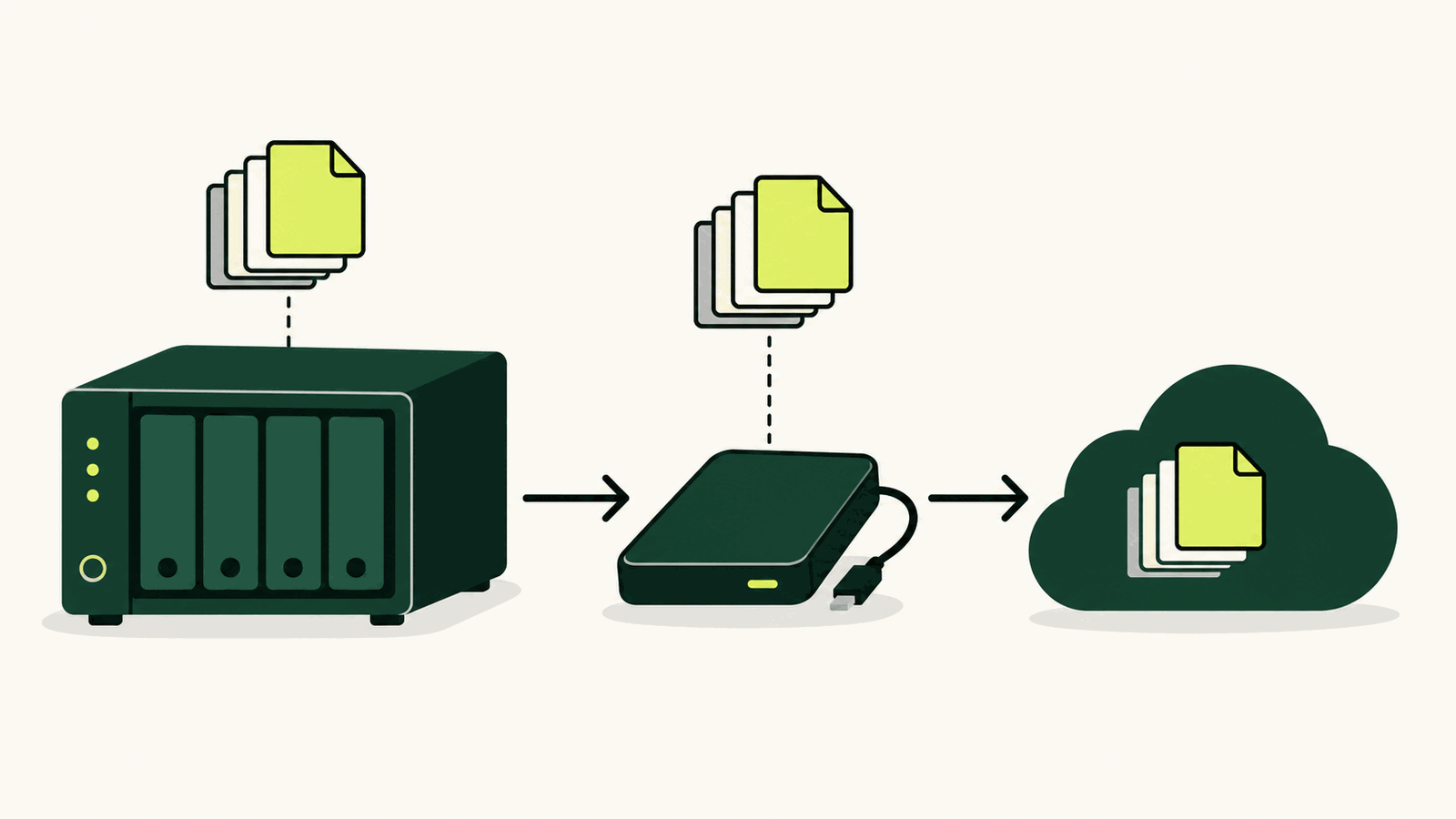
Synology’s backup guide describes the 3-2-1 approach as at least three copies of the data, on two different media, with at least one copy offsite.
For a home NAS, that could mean:
- the working files on the NAS;
- a versioned backup on an external USB hard drive; and
- another versioned backup on a remote NAS or supported cloud destination.
The exact products matter less than the separation. A USB drive that stays connected and writable all year can be damaged by the same power event or ransomware attack as the NAS. A second NAS in the same room is not an offsite copy. A cloud sync that mirrors deletions immediately may not preserve the version you need.
Backup is not the same as synchronisation
Synchronisation keeps locations aligned. That is convenient when you want the latest file on several devices, but a deletion or unwanted edit can travel to every synced location.
A backup creates a recoverable copy according to a schedule or event. Versioning lets you return to an earlier state. Retention rules decide how many versions remain and for how long. Those are the features to check when the goal is recovery, not just access.
Synology’s own solution guide distinguishes backup from sync and lists Hyper Backup for versioned backup tasks. Its current Hyper Backup specifications support folders, files, packages, system configurations and, on supported models, entire-system backups. Destinations include local shared folders, external devices, remote Synology NAS systems, rsync servers and several cloud services.
Decide what you need to restore
Before creating a task, list the failure you are planning for. If a folder is deleted, do you need individual file recovery? If the NAS fails, do you need only documents and photos, or also package settings and system configuration? If the building is unavailable, where will the offsite copy be restored?
This decision affects the source selection and destination. A folder backup can be portable and quick to browse. A system backup may simplify a larger recovery but can have model and storage-layout requirements. Synology notes that entire-system restore support is limited to specific models, and the destination must meet stated requirements.
Do not select every folder by habit. Temporary downloads, caches and replaceable media can consume space and extend backup windows. Conversely, remember application databases and configuration that may sit outside an obvious shared folder.
Set up a local backup without making it your only backup
An external drive is a practical first destination. Give the backup its own disk, use a versioned task and choose a schedule that matches how often the files change. Encryption can protect a drive that may leave the house, but the encryption password and key must be stored somewhere you can recover.
After the first backup, disconnect or eject the drive if your routine allows it. Rotating two drives gives one copy time away from the NAS. Label them, record the last successful run and avoid using the same drives as ordinary shared storage.
An external SSD is compact and fast, while a hard drive often provides more capacity for the price. Either can fail. Choose the medium based on capacity, handling and backup time, then keep more than one copy rather than treating the device type as a guarantee.
Add an offsite destination
Hyper Backup supports a remote Synology NAS, rsync destinations, Synology C2 Storage and several public-cloud services. Check the current destination list for your DSM and Hyper Backup version before paying for storage.
Estimate the initial upload separately from daily changes. A multi-terabyte first backup can take days or weeks on a typical upstream connection. Some destinations charge for stored data, requests or downloads. Encryption, compression and deduplication can change the amount stored and the way recovery works.
The offsite copy should use credentials that are not casually shared with normal NAS users. Enable multi-factor authentication where the destination offers it. Keep recovery codes and encryption keys outside the NAS itself.
Choose versions and retention deliberately
Hyper Backup supports multiple versions and configurable rotation. Synology’s specifications describe Smart Recycle as keeping selected hourly, daily and weekly versions while older ones are removed according to the policy.
More versions are not always better. A long history can consume space, while a short history may expire before a slow problem is noticed. A simple household plan might keep dense recent versions and thinner monthly history. Business records may need a policy based on legal and operational requirements.
Snapshots can complement backups by creating frequent recovery points on compatible storage, but a snapshot on the same NAS is still exposed to loss of that NAS. Treat snapshots as one recovery layer, not the offsite copy.
Test a restore before you need one
A green “successful” status confirms that a task ran. It does not confirm that the right data was selected, the encryption key is available or the restored files open correctly.
Run a small restore after setup. Recover a folder to a different location, open several files and note how long the process takes. Then test from the offsite destination. Repeat after major DSM, package or storage changes.
If you also use Microsoft cloud storage on a Windows PC, OneDrive Files On-Demand can reduce local disk use. It is still an access and synchronisation feature, so decide separately which cloud files require an independent backup.
A compact NAS backup checklist
- Identify the files, packages and settings that must be recoverable.
- Keep a versioned local backup on separate storage.
- Keep another versioned copy offsite.
- Protect destination accounts and store encryption keys safely.
- Review failed tasks and capacity warnings.
- Restore sample files on a schedule and record the result.
The test is simple: could you recover yesterday’s version if the NAS and everything beside it disappeared today? If the answer depends on the same box, the plan still has a single point of failure.