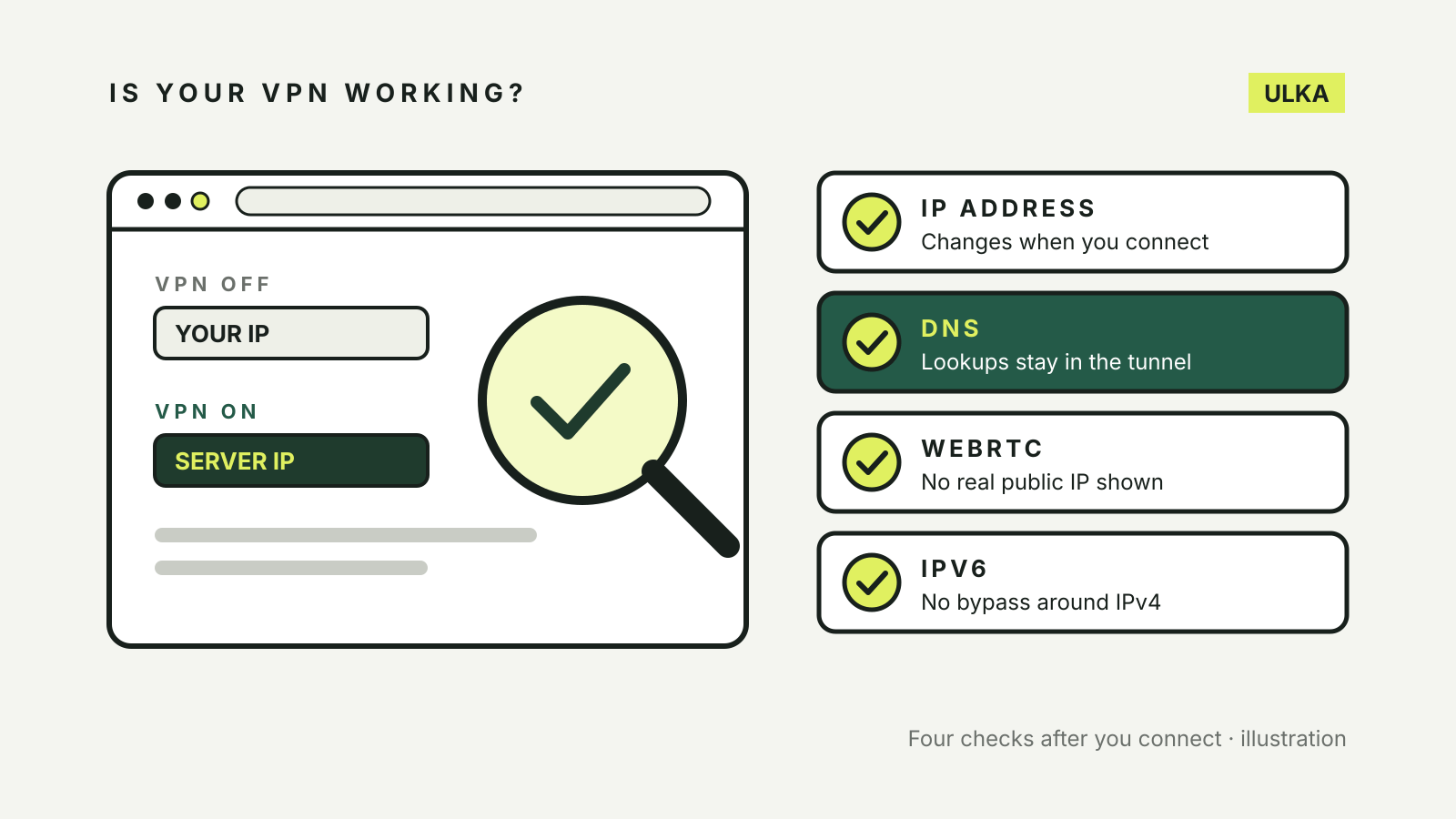
A VPN app that says “Connected” has set up its tunnel, but that alone does not prove your traffic is going through it. To check if your VPN is working, compare your public IP address with the VPN off and on, then run three leak tests: DNS, WebRTC and IPv6. The whole check takes a few minutes in a browser and needs no extra software.
This guide follows the test steps that VPN providers publish themselves, from Proton VPN, NordVPN, CyberGhost and ExpressVPN, checked on 25 October 2026. Menu names and test pages change, so use your own provider’s help page if a step differs.
The four tests at a glance
| Test | What it catches | A pass looks like |
|---|---|---|
| IP address | The VPN not working at all | A different IP address, belonging to the VPN server |
| DNS leak | Website lookups going to your internet provider | Only DNS servers run by or for your VPN |
| WebRTC leak | Your browser revealing your real IP | No public IP address except the VPN’s |
| IPv6 leak | IPv6 traffic bypassing a tunnel that only covers IPv4 | No sign of your normal IPv6 address |
NordVPN suggests running these checks after software or settings changes, when you are on public Wi-Fi, or when you notice connection problems, rather than every time you connect.
1. Compare your IP address
This is the basic test. Proton VPN’s guide, Is my VPN working?, sets it out in two steps:
- Disconnect the VPN, open an IP address checker, and note your public IP address.
- Connect to a VPN server, reload the checker, and compare.
If the address has changed, the VPN is working. Proton suggests connecting to a server in another country so the change is easy to see. If the address is the same as before, the VPN is not working, and Proton’s advice is to contact your provider or change provider.
NordVPN’s VPN test guide adds a few likely causes of an unchanged address: split tunnelling, the VPN protocol you have chosen, or another VPN, proxy or network tool interfering. Disconnecting and reconnecting, or trying another server, is the first thing to try.
2. Test for a DNS leak
Every time you open a website, your device asks a DNS server to turn the name into an address. Without a VPN, those requests normally go to your internet provider. A DNS leak happens when the VPN fails to route them through its tunnel, so your provider can still see which sites you look up, even though your IP address is hidden.
Proton’s steps: connect the VPN, open a DNS leak test page such as dnsleaktest.com, and run the Basic or Extended test. The results should show servers belonging to your VPN service. If they belong to your internet provider, or to a third-party DNS service you set up yourself, you have a leak.
Proton also warns that manually changing your DNS provider makes leaks more likely while you use a VPN. The reliable fix, it says, is a VPN app with built-in DNS leak protection. Several providers run their own test pages too; Mullvad’s connection check page, for example, explains both DNS and WebRTC leaks.
3. Test for a WebRTC leak
WebRTC is the browser feature behind video and voice calls on websites. Proton explains that, to get through firewalls, the browser shares your real IP address with special servers, so a website can learn it even while a VPN hides your address elsewhere.
To test, connect the VPN and open a WebRTC leak test page, such as the one on BrowserLeaks. Only the VPN server’s address should appear. ExpressVPN’s WebRTC leak test page makes a useful distinction: a public IP address in the results matters, but a local address, the kind your router assigns, is reused on home networks everywhere and cannot identify you on its own.
If your real public address shows up, Proton gives two browser fixes:
- Firefox: type
about:configin the address bar, accept the warning, search formedia.peerconnection.enabledand set it tofalse. - Chrome, Edge and other Chromium browsers: install Google’s WebRTC Network Limiter extension from the Chrome Web Store.
NordVPN notes that turning WebRTC off can affect video calls, voice calls and other features in the browser, so you may prefer a VPN app or extension that blocks the leak instead.
4. Test for an IPv6 leak
Where an internet provider supports IPv6, a connection usually has both an older IPv4 address and a newer IPv6 one. Proton describes an IPv6 leak as a VPN that routes your IPv4 traffic but lets IPv6 connections go around the tunnel, exposing your real IPv6 address to sites that support it.
The simplest test is NordVPN’s: check your IPv6 address before connecting, connect the VPN, then check again. If your normal IPv6 address is still visible, you may have a leak. If no IPv6 address appears at all once connected, that is usually fine: NordVPN explains that some VPNs route IPv6 through the tunnel, while others block it so only IPv4 is used.
On a computer, Proton suggests a command-line check. In Command Prompt on Windows or Terminal on a Mac, run curl -4 icanhazip.com for your IPv4 address and curl -6 icanhazip.com for your IPv6 address, once with the VPN off and once with it on.
The fix is a VPN app with IPv6 leak protection. Proton and NordVPN both say you can also turn off IPv6 on your device.
If a test fails
Work through these in order:
- Reconnect. Disconnect, reconnect, and try a different server. CyberGhost’s connection check guide lists this first.
- Check the app’s settings. Look for DNS leak protection, IPv6 leak protection and WebRTC blocking, and switch them on. CyberGhost also suggests disabling IPv6 on the device and turning on WebRTC leak prevention.
- Review split tunnelling. Apps or sites you have excluded from the VPN will show your real address by design.
- Remove conflicts. Another VPN, a proxy or some security software can change how traffic is routed.
- Turn on the kill switch. It stops traffic leaving your device if the tunnel drops; our guide to the VPN kill switch shows where to find it.
- Update the app, and contact the provider if a leak persists.
If your VPN keeps failing these checks, it may be time for another service. Our comparison of VPN services and the guide to whether a free VPN is safe cover what to look for, and using a VPN on public Wi-Fi explains when a working VPN matters most.