Most Android phone owners do not need to buy antivirus software. The Australian Cyber Security Centre (ACSC) says Android phones come with antivirus protection, and most include Google Play Protect, which checks apps for malware. That protection works best when the phone still gets security updates and you install apps from Google Play, and a paid app still has a place in a few situations.
This guide explains what Android does on its own, where it stops, and which settings to check before paying for anything. Google and ACSC guidance was checked on 26 October 2026.
What an Android phone already includes
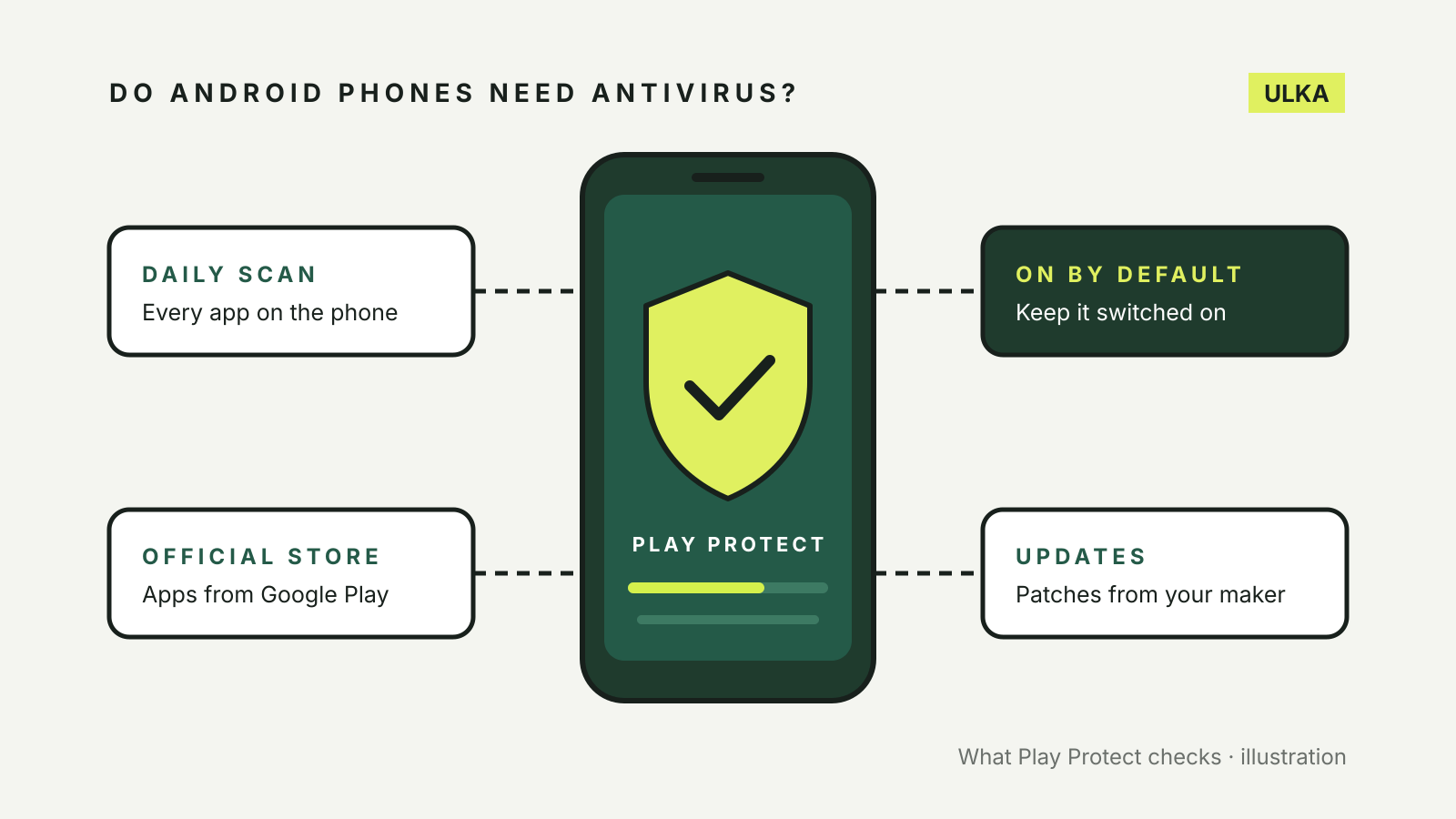
The ACSC’s antivirus guidance says Android devices have security features that run in the background and, in most cases, include Google Play Protect, which scans apps for malware before you install them. It adds that the best way to keep an Android device secure is to keep it updated.
Google’s Play Protect help page and its developer documentation describe what Play Protect does:
| Check | What Google says it does |
|---|---|
| Before you download from Google Play | Runs a safety check on the app |
| Daily scan | Scans the apps on your phone once a day, wherever they came from |
| On-demand scan | Lets you start a full scan, which first fetches the latest information from Google |
| Apps from outside Google Play | Checks the app in real time when you install it, and can warn you or block it |
| Harmful app found | Sends a notification, disables the app until you remove it, or removes it automatically |
Google says the most harmful apps are removed automatically, while less severe ones are disabled. A disabled app stays on the phone, with its data, until you choose to remove it or switch it back on. Play Protect is on by default.
Where the built-in protection stops
Play Protect is a useful baseline, not a guarantee. The ACSC notes that antivirus does not protect against every threat and works best with good security habits. Three gaps matter most on Android.
Updates depend on your phone maker. The ACSC’s guide to updates says only some Android devices receive timely updates and patches, depending on the manufacturer. Google’s Android update help confirms that update schedules vary by device, manufacturer and mobile carrier, and that older devices cannot always run newer Android versions. The ACSC says a phone that is too old to receive updates puts your information at risk, and recommends upgrading as soon as possible. Our guide to phone security update periods explains how to check how long your model is supported.
You can switch it off or install around it. Google lets you turn off Scan apps with Play Protect, and apps from outside Google Play are checked rather than banned. Google recommends keeping Play Protect on.
It looks for harmful apps, not scams. A text that leads to a fake bank login page, or a caller who talks you into sharing a code, is not malware. Our guide to spotting scam texts in Australia covers the messages that start most of these.
Settings worth checking
- Confirm Play Protect is on. Open the Google Play Store app, tap your profile icon, then Play Protect > Settings, and check that Scan apps with Play Protect is turned on. From the Play Protect screen you can also start a scan.
- Check that your phone is certified. In the Play Store, tap your profile icon > Settings > About and look for Play Protect certification. Google treats a “Device is not certified” message as a separate problem from Play Protect itself.
- Check your security update date. Open Settings > About phone > Android version to see the date of your latest Android security update, then Settings > System > Software updates to look for a newer one. Menu names can differ on some brands.
- Get apps from an official store. The ACSC’s advice to secure your mobile phone says to download apps only from an official app store, check that the developer is reputable, and remove apps you no longer need.
- Review app permissions. The same ACSC page suggests removing apps that ask for excessive or suspicious permissions, such as access to photos or the microphone when an app does not need it.
When a paid security app makes sense
The ACSC says third-party antivirus can offer more features than the free, built-in option, and suggests weighing your security needs, situation and budget. Situations where an Android owner might reasonably pay:
- You manage several devices or a small business. The ACSC says an endpoint security product may help manage different devices and operating systems, and that organisations handling sensitive data such as medical or financial information may benefit from extra protection.
- You want features Play Protect does not offer. The ACSC lists extras such as anti-theft protection, monitoring of several devices and live support. It also says suites that bundle a VPN or password manager should have those features researched separately.
If you buy, the ACSC warns that malware can pose as a fake antivirus product, so download security apps only through the provider’s official channels, such as Google Play or its own website. It also cautions that some free antivirus is funded through advertising or by collecting and selling your data. Our antivirus comparison looks at device coverage and renewal terms for the main paid suites.
If you think your phone is infected
The ACSC’s malware removal steps start with checking that your antivirus is on and up to date, then disconnecting from Wi-Fi and Bluetooth and running a full scan. For phones and tablets, it says removing malware requires a factory reset, after backing up only files you are confident are clean. Then change the passwords of accounts you used on the phone, starting with email and banking, using a device that is free from malware. Our step-by-step guide on what to do if your computer has a virus covers the same steps for computers.
The short answer
For a personal Android phone that still receives security updates, keeps Play Protect switched on and gets its apps from Google Play, the built-in protection is usually enough. Consider a paid app when you need to manage several devices or want extras that Play Protect does not provide. If your phone no longer gets security updates, the ACSC recommends upgrading to a newer one rather than relying on an app.