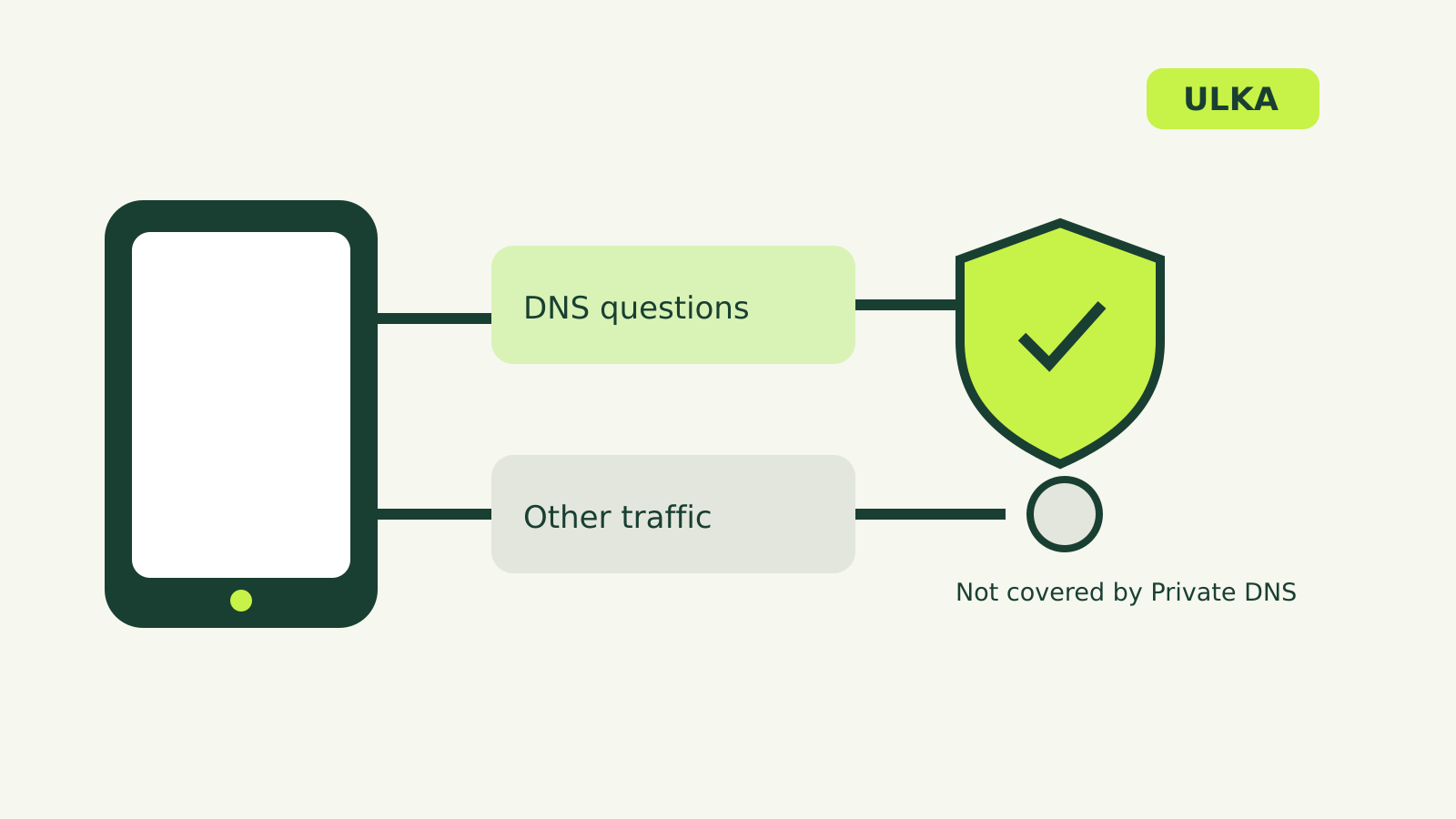
Android Private DNS helps secure the questions your phone asks when it looks up internet addresses. It is a useful setting to check when a phone cannot find a website or when you want to use a particular DNS provider. It does not protect all the traffic leaving your phone.
Google says Android uses Private DNS by default on networks that support it and recommends keeping it turned on. The options and menu labels can differ between phone makers and Android versions. Some steps in Google’s network-settings guide apply only to Android 12 or later.
What Private DNS does
When you enter a website name, your device needs to find the address associated with that name. DNS handles that lookup. Private DNS helps secure those questions and the answers to them; it does not, by itself, make everything you do online private.
That distinction matters on public Wi-Fi. Turning the setting on is not a promise that a website, app or network cannot learn anything about your activity. The privacy policy and practices of the DNS provider also matter, because you are choosing a service to handle those lookups.
Find the setting on your Android phone
Google’s Android network settings guide gives these steps:
- Open Settings.
- Tap Network & internet, then Private DNS.
- Choose Off, Automatic, or Private DNS provider hostname.
- Tap Save.
If you cannot see the setting, search for “Private DNS” within Settings. On a phone with a different menu layout, the manufacturer’s support pages may have the correct path for your model.
Before changing anything, note the option currently selected and any hostname already entered. That gives you a way back if the new setting causes a connection problem.
Automatic or a provider hostname?
Automatic is the straightforward choice if you do not need to specify a provider. Google says the device uses Private DNS on networks that can support it by default. You do not have to type a server name for this option.
The Private DNS provider hostname option is for a provider that gives you a hostname to enter. Use the exact hostname in that provider’s own setup instructions. A hostname is not a full website address: do not add a browser prefix such as https:// unless the provider explicitly tells you to do so.
Check the provider’s current documentation and privacy policy before switching. Look for what information it retains and any conditions attached to the service. A provider name appearing in a tutorial is not, on its own, a reason to trust it with your DNS requests.
Off disables the Private DNS setting. Google recommends leaving it enabled, so switching it off is best treated as a troubleshooting step rather than a default solution.
If websites stop loading after a change
First check the hostname for typing errors. Copy it from the provider’s instructions and make sure it is the hostname intended for Android Private DNS. A web page URL, an extra space or a misspelled character can make the setting unusable.
If you still cannot connect, return to the same menu and select Automatic. Save the change, then try the affected site or app again. If it works afterwards, check the provider’s support information before re-entering the hostname. If it still does not work, the cause may lie elsewhere, such as the Wi-Fi connection or the service you are trying to reach.
Avoid changing several settings at once. A single change followed by a check gives you a clearer idea of what affected the connection.
Private DNS and your other security settings
Private DNS is one part of a phone’s network configuration. It does not replace screen locks, security updates or care with links and app permissions. It also does not secure the rest of your traffic simply because DNS is protected.
For a broader look at Android’s built-in protection, read what Google Play Protect does. If you use a separate VPN, consult that provider’s instructions about how its app handles DNS; behaviour can depend on the app and its settings.