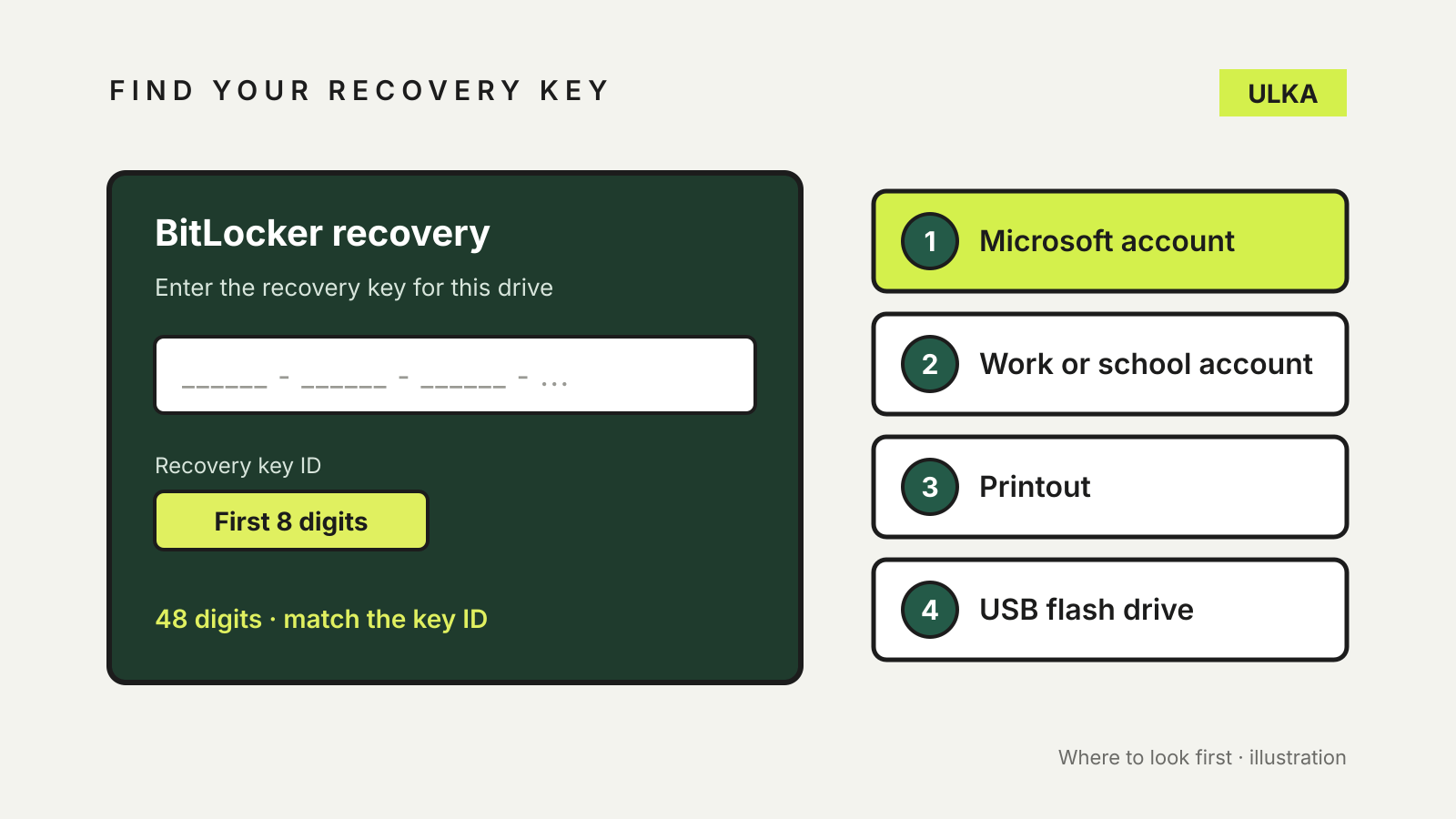
To find your BitLocker recovery key, start with the account that set up the PC: a Microsoft account, a work or school account, a printout or a USB drive. Windows asks for this 48-digit number when it can’t unlock an encrypted drive on its own, often after a hardware or firmware change. Microsoft says its support staff can’t retrieve, provide or recreate a lost key, so it is worth locating it before you need it.
This guide follows Microsoft’s current support and Windows documentation for Windows 11 and Windows 10. It was checked on 29 October 2026.
Why Windows asks for the recovery key
BitLocker encrypts a drive so its contents can’t be read without the right unlock method. On most home PCs that unlock happens quietly at startup. When Windows sees something that looks like tampering, or a change it can’t verify, it stops and asks for the recovery key instead.
Microsoft’s BitLocker recovery documentation lists common triggers, including:
- entering the wrong PIN too many times
- turning off, clearing or disabling the TPM security chip
- a BIOS or UEFI firmware upgrade
- docking or undocking a laptop
- changes to the boot manager or disk partition table
- moving a BitLocker-protected drive into another computer
- replacing the motherboard
You can also be asked for a recovery key for a data drive or an external drive, for example if you have forgotten its unlock password.
Many Home PCs are encrypted without you noticing
BitLocker Drive Encryption is a feature of Windows Pro, Enterprise and Education. Windows Home has a related feature called Device Encryption. Microsoft says Device Encryption turns on when you first sign in or set up a device with a Microsoft account, or a work or school account, and attaches the recovery key to that account. If you set the PC up with a local account, it isn’t turned on automatically.
So a laptop you have never consciously encrypted may still be protected, and its key may already be sitting in an online account. To check, go to Settings > Privacy & security > Device encryption. If that option is missing, your device may not support it, or you may be signed in with a standard rather than an administrator account.
Step 1: note the recovery key ID
The recovery screen shows a recovery key ID. Write down its first eight characters. If you have more than one key saved, perhaps from an older PC or an external drive, the ID tells you which one matches this drive.
From Windows 11 version 24H2, the recovery screen also shows a hint of the Microsoft account linked to the key. That is useful when a family member or the shop that sold the PC set it up.
Step 2: check your Microsoft account
On another device, such as your phone, open a browser and go to aka.ms/myrecoverykey. Sign in with the Microsoft account used on the locked PC, find the entry whose key ID matches, and type the 48-digit key into the recovery screen.
If someone else set up the device or turned on BitLocker, Microsoft notes the key may be stored in that person’s account rather than yours.
Step 3: check a work or school account
If the PC was ever signed in to a work or school account, the key may be held by that organisation. On another device, go to aka.ms/aadrecoverykey, sign in, choose Devices, expand the locked device and select View BitLocker Keys. Some organisations don’t let staff view keys themselves; in that case, contact the IT team.
Step 4: check printouts and USB drives
When BitLocker was first turned on, you may have been offered the choice to print the key or save it to a USB flash drive.
- Printout: look where you keep paperwork for the computer. The page shows the key ID and the matching key.
- USB flash drive: plug it into the locked PC and follow the prompts. If the key was saved as a text file, open that file on another device and read the number from it.
If you can’t find the key
Microsoft’s guidance is blunt. If the device is managed by an organisation, ask its IT department. Otherwise, if you can’t find the key and can’t undo the change that triggered recovery, you will need to reset the device using a Windows recovery option. Resetting removes all of your files.
That is why the next section matters more than the rest of this guide.
Back up your recovery key now
Microsoft says the key is usually backed up automatically when BitLocker or Device Encryption is first turned on, but recommends confirming that backup exists or creating your own. To make a backup:
- Open Start, type BitLocker and choose Manage BitLocker.
- Select Back up your recovery key next to the drive.
- Choose where to save it: your Microsoft account, a USB flash drive, a file, or a printout.
- Select Finish.
You can make as many backups as you like, and Microsoft suggests having more than one. A few precautions from its documentation:
- Don’t keep the USB drive or printout with the computer. Anyone who steals both can bypass the encryption.
- You can’t save the key file to the encrypted drive itself. Use a USB drive or another storage location.
- A saved text file can be copied to OneDrive Personal Vault, where you can reach it from another device.
A secure note in a password manager is another place to keep a copy. Our guide to password manager emergency access explains how to make sure someone you trust can reach those notes too.
Before planned changes, suspend BitLocker
If you know a firmware update or hardware change is coming, Microsoft’s documentation says suspending BitLocker protection can avoid a recovery prompt. Suspending leaves the drive encrypted, and protection resumes automatically after the device restarts. Have the recovery key on hand before you start anyway.
Selling or wiping the PC
If you’re preparing a laptop for sale, check which account holds its recovery key before you hand it over. Our guide on how to wipe a laptop before selling covers the full reset and sign-out process for Windows and Mac.