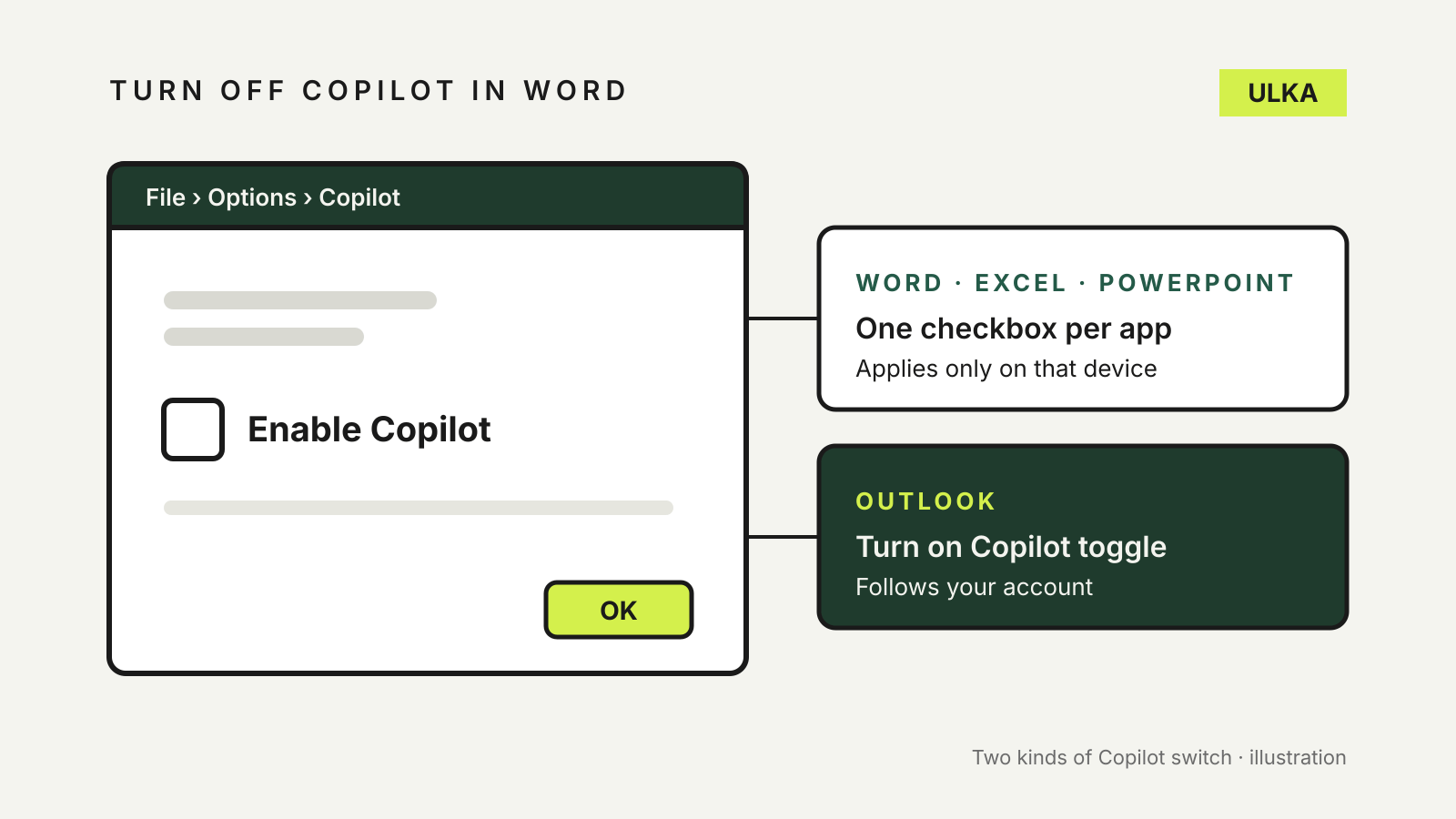
To turn off Copilot in Word, you clear a checkbox called Enable Copilot in Word’s own settings. Excel, PowerPoint and OneNote have the same checkbox, but each one only affects that app on that computer. Outlook uses a different switch that follows your account instead. Knowing which is which saves a lot of hunting through menus.
This guide follows Microsoft’s support pages for people signed in with a personal Microsoft account, such as an Outlook.com address, on a Microsoft 365 Personal, Family or similar home plan. It was checked on 28 October 2026. On a work or school account these settings aren’t available, and your IT administrator decides.
Where each switch lives
| App | Setting | Where | What it covers |
|---|---|---|---|
| Word, Excel, PowerPoint on Windows | Enable Copilot | File > Options > Copilot | That app, on that device |
| OneNote on Windows | Enable Copilot | File > Options > Copilot | That app, on that device |
| Word, Excel, PowerPoint on Mac | Enable Copilot | App menu > Preferences > Authoring and Proofing Tools > Copilot | That app, on that device |
| Outlook | Turn on Copilot | Quick Settings or Settings > Copilot | Outlook on all your devices with that account |
Turn off Copilot in Word on Windows
Microsoft’s page on turning off Copilot in Microsoft 365 apps gives these steps:
- Open Word and go to File > Options > Copilot.
- Clear the Enable Copilot checkbox.
- Select OK, then close and restart Word.
Repeat the same steps in Excel, PowerPoint and OneNote if you want Copilot gone from those too. Microsoft says that when you turn Copilot off in an app, the Copilot icon on the ribbon is disabled and you can’t use any Copilot features in that app.
If you can’t find the checkbox, your version may be too old. Microsoft lists Word version 2412, Excel and PowerPoint version 2501 and OneNote version 2502 as the first Windows versions with the setting. Update Office and look again.
Turn off Copilot in Word on a Mac
- Open Word, select Word in the menu bar, then go to Preferences > Authoring and Proofing Tools > Copilot.
- Clear the Enable Copilot checkbox.
- Close and restart Word.
Microsoft lists Word 16.93 and Excel and PowerPoint 16.93.2 as the first Mac versions with this checkbox.
Each app, each computer, everyone on it
The checkbox is narrower than it looks. Microsoft says there is a separate Enable Copilot checkbox in each app, and it only applies to that app on that device. If you use Word on a desktop and a laptop, you need to clear the box on both.
It also works the other way. Microsoft notes that turning off Copilot on a device turns it off for anybody using that device. On a shared family computer, check with the others before you switch it off for everyone.
Turn off Copilot in Outlook
Outlook has a Turn on Copilot toggle instead of a checkbox. Microsoft lists it in these places:
- New Outlook for Windows and Outlook on the web: Settings > Copilot
- Outlook for Mac, iPhone and Android: Quick Settings > Copilot
Unlike Word, the Outlook choice follows your account. Turn it off on a Mac and Copilot is also off in Outlook on your iPhone, as long as you are signed in with the same account. Microsoft says there is no estimated date for the toggle in classic Outlook for Windows.
Phones, tablets and the web
Microsoft says you can’t turn off Copilot in the iOS, Android or web versions of Word, Excel or PowerPoint. The only option there is the broader privacy setting below.
The broader option: connected experiences
If an app doesn’t have the Enable Copilot checkbox yet, Microsoft suggests changing your account privacy settings instead. This switch is much blunter.
On Windows, go to File > Account > Account Privacy > Manage Settings, clear Turn on experiences that analyze your content, then select OK and restart the app. On a Mac, go to the app menu, then Preferences > Personal Settings > Privacy > Manage Connected Experiences, and clear the same box. You only need to change it in one app; the others pick it up the next time they open.
Microsoft warns that this also turns off other features you may rely on, including suggested replies in Outlook, text predictions in Word, PowerPoint Designer and automatic alt text for images. Use it only if the per-app checkbox isn’t available.
Hiding the button is not turning it off
You can remove the Copilot icon from the ribbon by customising it. Microsoft points out that this doesn’t turn Copilot off, and you can still reach it in other ways, such as the shortcut menu. Clear the Enable Copilot checkbox if you want it switched off.
What you can’t switch off
Microsoft’s Copilot subscription FAQ says you can’t turn off Copilot features in Designer, Notepad or Paint. For children’s accounts, Microsoft says AI features in the Microsoft 365 apps are disabled below age limits that depend on the account’s birth date, and points parents to Windows Family Safety for apps such as Paint and Notepad.
Microsoft is not the only company tucking an assistant into everyday apps. We have similar guides on turning off Gemini in Gmail and turning off Apple Intelligence on iPhone.