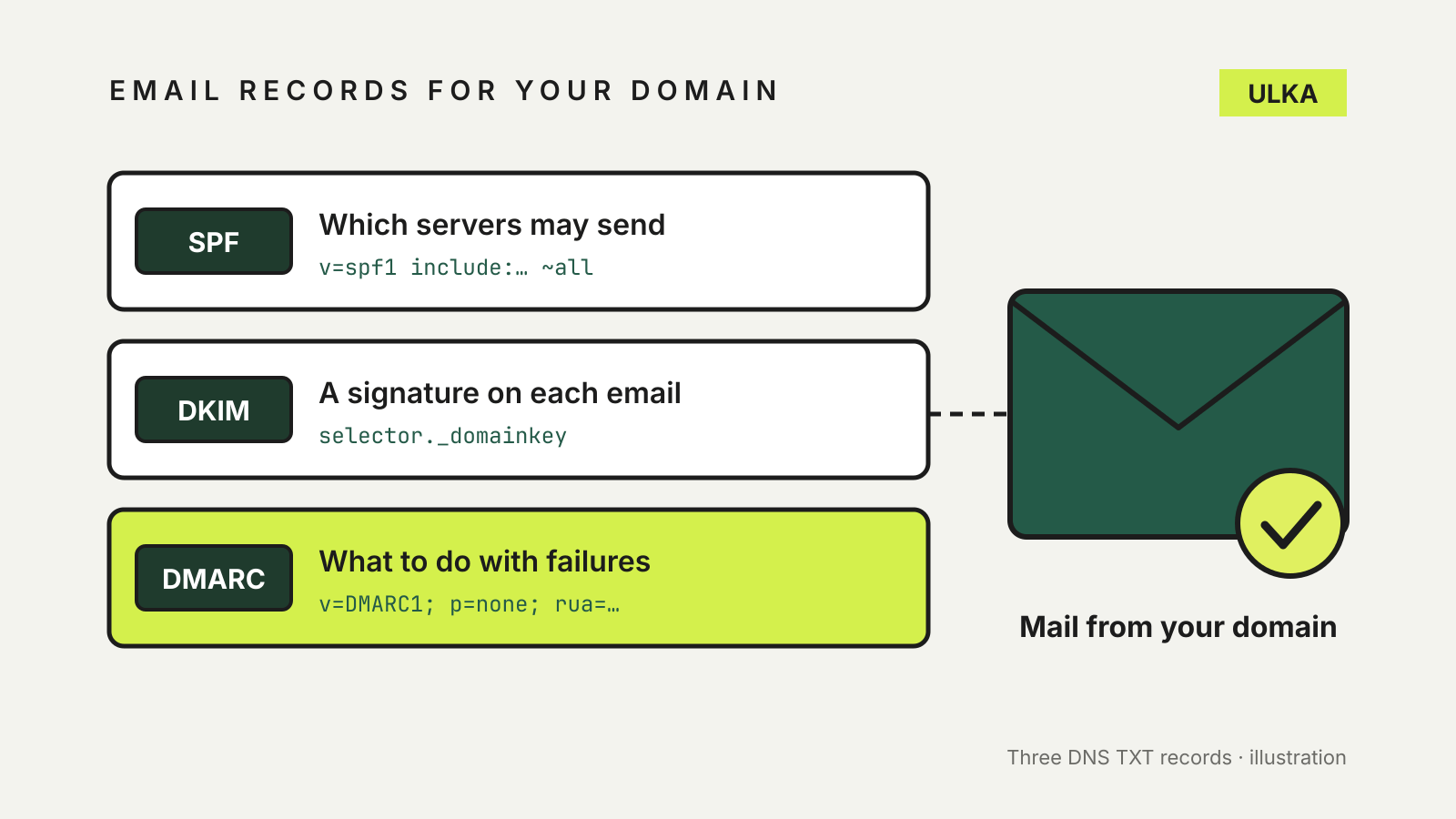
SPF, DKIM and DMARC are three DNS records that tell other mail servers which email really comes from your domain. Together they make it harder for someone to send a fake invoice “from” your business address, and they help your genuine messages avoid the spam folder. If you run a small business site with email on your own domain, these records sit with your domain or DNS host, usually beside the records that point your website to its hosting.
This guide follows guidance from the Australian Signals Directorate’s Australian Cyber Security Centre (ASD’s ACSC) and Google’s sender documentation. It was checked on 29 October 2026.
Why your domain needs them
Anyone can type any address into the “From” line of an email, much as anyone can write a return address on an envelope. ASD’s ACSC calls this email spoofing and notes that criminals use it in business email compromise scams, often to trick customers into paying money into a scammer’s bank account.
The ACSC advises organisations to publish SPF and DMARC records, and to use DKIM to sign their email, so receiving servers can spot messages that falsely claim to be from their domain. Its small business guidance suggests talking to your email provider about adding all three, and also to your DNS host if that is a separate company.
There is a delivery benefit too. Google says that since 1 February 2024, anyone sending to personal Gmail accounts must set up SPF or DKIM, and that unauthenticated messages may be marked as spam or rejected.
SPF: which servers may send for you
Sender Policy Framework (SPF) is a TXT record listing the mail servers allowed to send email for your domain. A receiving server checks the sending server against that list.
For a domain that only sends through Google Workspace, Google’s example record is:
v=spf1 include:_spf.google.com ~all
Points to watch:
- One SPF record per domain. Google says SPF won’t authenticate correctly if the same domain has several SPF records, even if your DNS host lets you add them. Combine every sender into a single record.
- Include every service that sends as you. Your mailbox provider, newsletter tool, online shop and booking system may all send from your address. Google warns that senders left out of the record are more likely to land in spam.
- Update it when you add a service. Each new sender means an edit to the existing record.
- Allow time. Google says SPF can take up to 48 hours to start working after the record is added.
The ACSC notes a weakness: SPF checks a hidden “envelope” sender address, not the From address your customers see. DMARC closes that gap.
DKIM: a signature on each message
DomainKeys Identified Mail (DKIM) adds a digital signature to every outgoing email. Your email service holds a private key and you publish the matching public key in DNS. The receiving server uses that public key to confirm the message really came from your domain and wasn’t changed on the way.
You don’t usually create DKIM keys yourself. Your email provider generates them and gives you a DNS record to add. Google requires a DKIM key of at least 1024 bits for sending to personal Gmail accounts and recommends 2048 bits where your provider supports it.
The ACSC describes DKIM as arguably the stronger of the two checks, because the signature travels with the message through every server it passes. SPF is simpler and more widely supported, which is why most domains use both.
DMARC: what to do with failures
Domain-based Message Authentication, Reporting and Conformance (DMARC) ties SPF and DKIM to the From address people see, and tells receiving servers what to do when a message fails. It is a TXT record at _dmarc.yourdomain.com.au.
Google’s starting example looks like this:
v=DMARC1; p=none; rua=mailto:dmarc-reports@yourdomain.com.au
The p tag sets the policy:
- none: deliver the message and report on it. This is monitoring only.
- quarantine: send failing messages to spam.
- reject: refuse failing messages.
The rua address receives aggregate reports from other mail servers, showing which services are sending as your domain and whether they pass. The ACSC says reports make it easier to find every legitimate sender and spot configuration mistakes.
The ACSC’s advice is to implement DMARC immediately, even if only in monitoring mode with p=none. Monitoring alone doesn’t stop fake email, though, so plan to move to quarantine or reject once the reports look clean. Subdomains inherit the parent domain’s DMARC policy unless you set a separate one.
A safe order to set them up
- List every service that sends email as your domain. Check your mailbox provider, website forms, newsletter tool, invoicing and booking software.
- Find out who hosts your DNS. It may be your registrar, your web host or a separate service. If you recently moved registrars, our guide to transferring a .au domain explains why DNS records need checking afterwards.
- Add or update one SPF record that covers every sender.
- Turn on DKIM in each sending service and add the records it gives you.
- Wait. Google recommends that SPF and DKIM have been authenticating for at least 48 hours before you turn on DMARC.
- Publish DMARC with
p=noneand a reporting address. - Read the reports, fix any legitimate sender that fails, then move to
quarantineand laterreject.
Some DNS hosts automatically add your domain name to the end of the record name. Google warns this can turn _dmarc.yourdomain.com.au into a broken name with the domain repeated. Check the saved record afterwards with a DNS lookup tool.
Common mistakes
Two SPF records. Merge them into one; a second record breaks SPF authentication.
Forgetting a sender. A newsletter or shop that isn’t in SPF and isn’t signing with DKIM will fail once DMARC is enforced.
Jumping straight to reject. Start with p=none so reports reveal problems before real email is blocked.
Letting the domain lapse. The ACSC warns that an expired domain can be bought by someone else and used to impersonate you. Keep renewal details current with your registrar.