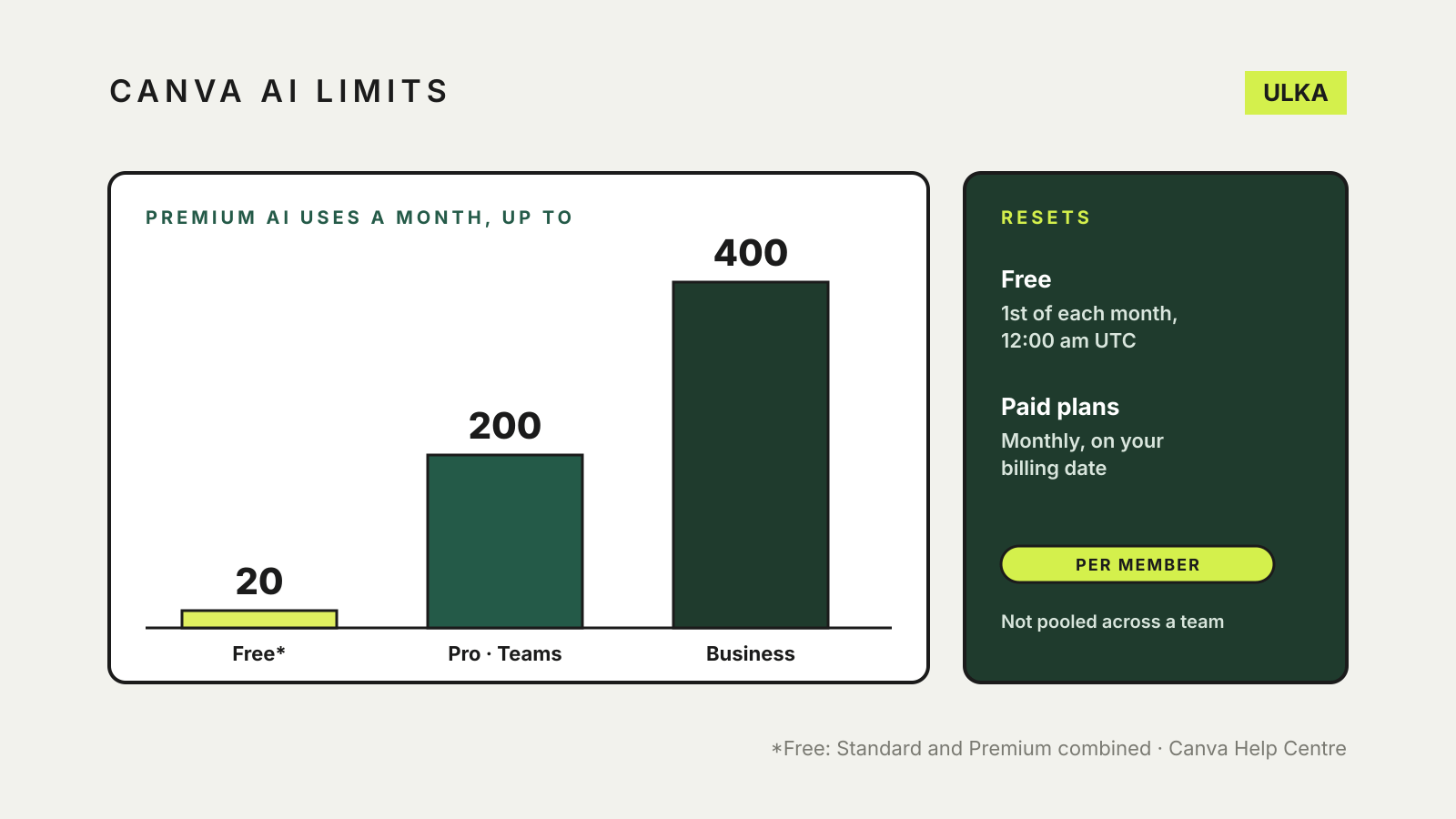
Canva AI limits depend on your plan and the tool. Canva’s help centre says Free accounts get up to 20 uses a month across its Standard and Premium AI tools, Pro and Teams members get up to 200 Premium uses (or up to 20 Ultra uses), and Business and Enterprise members get up to 400 Premium uses (or up to 40 Ultra uses). To see what you have left, go to your profile icon, then Settings > Billing, and look under AI usage.
This guide explains how Canva sorts its AI tools into tiers, which tools draw on the allowance, when it resets and what happens when you run out. It follows Canva’s own help pages, checked on 15 November 2026. Canva describes its figures as approximate, based on simple prompts using the lightest tool in each category, so treat them as a guide rather than an exact count.
Three tiers of AI tools
Canva groups its AI features into three tiers that cost different amounts of allowance.
| Tier | Examples Canva lists | Who can use them |
|---|---|---|
| Standard | Canva AI (text), Magic Write, Photo and Video Animations, AI Voice, Image Upscaler, Magic Formulas | All plans |
| Premium | Create an image with Canva AI, Generate a design with Canva AI, Generate elements with Canva AI, Magic Layers, Canva Code interactives, Music and Sound Effect Generator, Form generator | Paid plans; Free gets a small shared allowance |
| Ultra | Conversational design with Canva AI 2.0, Create a video clip with Canva AI | Paid plans only, not Free or trials |
For image work, the tool that matters most is Create an image with Canva AI, which sits in the Premium tier. Premium and Ultra tools draw from one shared allowance, which is why Canva quotes either a number of Premium uses or a smaller number of Ultra uses for each plan.
Allowance by plan
| Plan | Standard tools | Premium or Ultra |
|---|---|---|
| Free and Pro Lite | Count towards the shared allowance | Up to 20 uses of Standard or Premium; no Ultra |
| Pro trial and Business trial | Count towards the shared allowance | Up to 20 uses of Standard or Premium; no Ultra |
| Pro, Teams, Nonprofit | Do not count | Up to 200 Premium or up to 20 Ultra |
| Business, Enterprise | As much as you like, subject to fair use | Up to 400 Premium or up to 40 Ultra |
| Education | As much as you like, subject to fair use | Up to 200 Premium or up to 20 Ultra |
On Teams, Business, Nonprofit, Education and Enterprise plans, each member has their own allowance. Canva says allowances are not pooled, so a quiet colleague’s unused generations cannot be passed to the person making all the social graphics.
Canva AI 2.0 uses more allowance for larger designs, more complex tasks, several tools at once and more advanced models. A single request that builds a full design can cost more than one simple image.
When the allowance resets
- Paid and Nonprofit plans: monthly, on your billing date, including yearly plans.
- Free: at 12:00 am UTC on the first of each month. In Sydney that is 11 am on the 1st during daylight saving time and 10 am the rest of the year.
- Daily or weekly plans: a prorated monthly allowance that resets on your billing date.
What happens when you run out
Canva says it notifies you as you approach your limit. On Free, once you reach it, you get short pauses between generations, and Ultra tools are not available until the monthly reset. Paid plans do not pause Standard tools.
Depending on your plan, Canva offers more access by upgrading, buying an AI Pass or buying an AI top-up. Otherwise you wait for the reset. Check the price in your own account before buying; we have not listed one here.
Two other points from Canva’s help page are easy to miss. Generations from third-party apps in the Canva Marketplace are not counted in your allowance. And designs you create in Canva through a connected AI assistant, such as ChatGPT or Claude, do use it.
Making the allowance last
Canva’s own advice is to write clear prompts so you need fewer re-generations. For images, it suggests stating the purpose first, then the style, colours and mood. In practice that means one considered prompt, such as “flyer header for a school fete, flat illustration, warm yellow and green, cheerful”, rather than five quick variations.
Other habits help too:
- draft the wording elsewhere and use Canva’s AI only for the image or layout step;
- use ordinary editing tools, such as cropping or recolouring, before asking for a new generation;
- check Settings > Billing > AI usage before a big job, so you are not stopped halfway.
If you plan to use the images commercially, read what AI image terms allow as well. For a wider comparison of image tools, see our guide to AI image generators for different creative jobs.