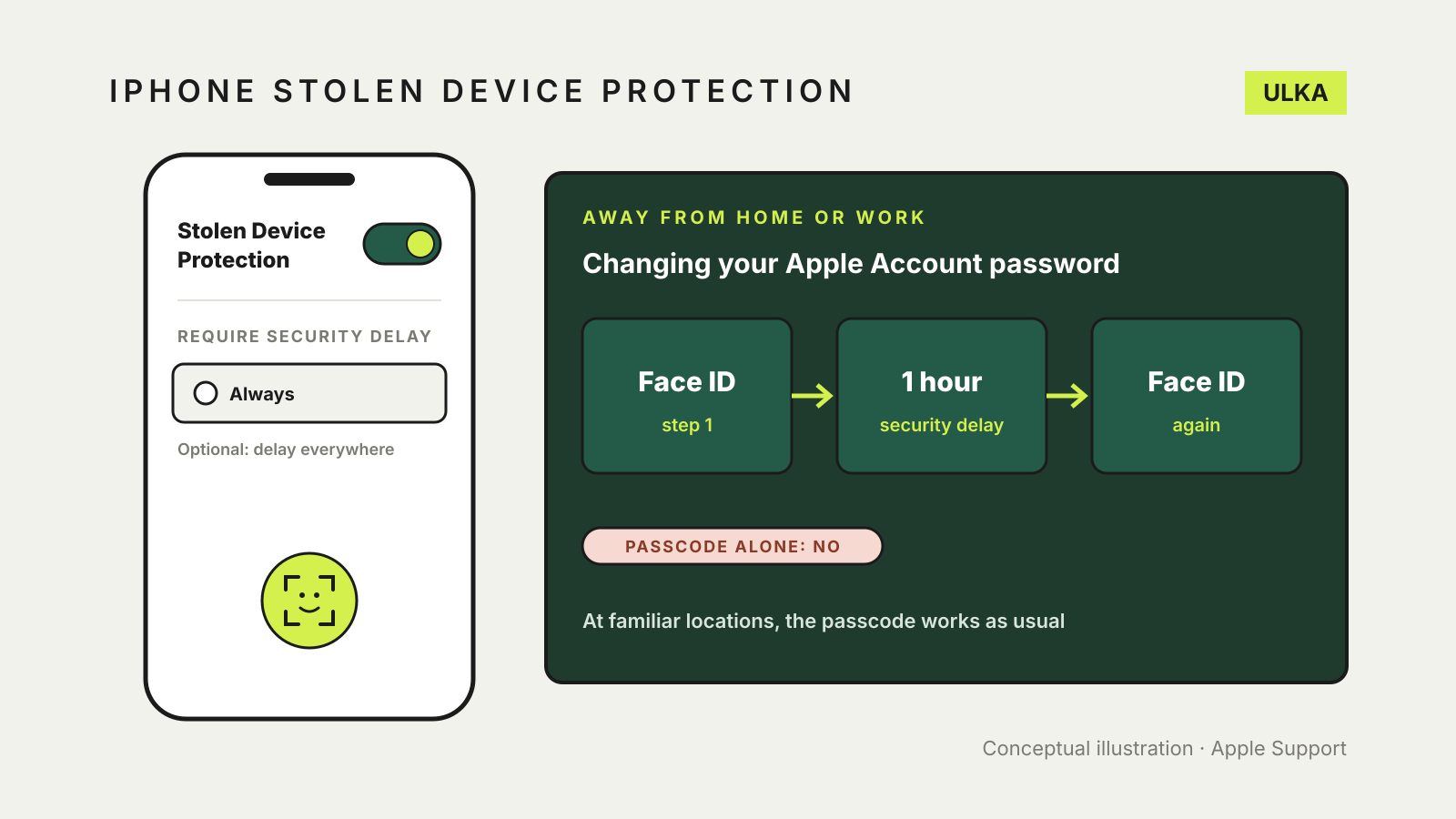
iPhone Stolen Device Protection stops a thief who has watched you type your passcode from taking over your phone and Apple Account. Away from familiar places such as home or work, it demands Face ID or Touch ID for sensitive actions and adds a one-hour security delay before the most critical changes. It needs iOS 17.3 or later. Check it in Settings > Face ID & Passcode > Stolen Device Protection, and turn it on before your phone goes missing.
This guide explains what Stolen Device Protection blocks, what it does not change, how to turn it on and when to switch it off. It follows Apple’s support documentation, checked on 15 November 2026.
The problem it solves
A phone passcode is easy to see over someone’s shoulder in a pub or on a train. Without extra protection, a thief who has your phone and that passcode can change your Apple Account password, switch off Find My and lock you out of your own photos, passwords and backups.
Stolen Device Protection removes the passcode as the only key for those actions when the iPhone is somewhere unfamiliar. Your face or fingerprint becomes the requirement, and for the most damaging changes there is a wait as well.
What needs Face ID or Touch ID
Away from familiar locations, Apple says these actions need Face ID or Touch ID, with no passcode fallback:
- using passwords or passkeys saved in your Keychain;
- using payment methods saved for AutoFill in Safari;
- turning off Lost Mode;
- opening a locked app;
- erasing all content and settings;
- applying for a new Apple Card, or viewing an Apple Card or Apple Cash virtual card number;
- certain Apple Cash and Savings actions in Wallet;
- using your iPhone to set up a new device;
- setting up or transferring an eSIM.
What triggers the one-hour delay
For a second group of changes, Apple requires Face ID or Touch ID, a one-hour security delay, then Face ID or Touch ID again:
- changing your Apple Account password;
- signing out of your Apple Account;
- updating Apple Account security settings, such as trusted devices, a Recovery Key or a Recovery Contact;
- adding or removing Face ID or Touch ID;
- changing your passcode;
- Reset All Settings;
- enrolling in Mobile Device Management;
- turning off Stolen Device Protection.
The hour gives you time to mark the phone as lost in Find My before a thief can change anything that would lock you out. Apple says the delay may end early if the iPhone detects that you have arrived at a familiar location.
What it does not change
Apple says you can still use your passcode for Apple Pay purchases. Stolen Device Protection also does nothing about the phone being unlocked when it is snatched from your hand, so a short auto-lock time still helps.
At familiar locations, which Apple says typically include home, work and other places you regularly use your phone, the extra steps do not apply and your passcode works as usual.
Before you turn it on
Apple lists these requirements:
- iOS 17.3 or later;
- two-factor authentication on your Apple Account;
- a device passcode;
- Face ID or Touch ID;
- Location Services, with Significant Locations turned on;
- Find My turned on.
While Stolen Device Protection is on, you cannot turn Find My off. Apple also says it must be turned on before the device is lost or stolen, so it only helps if you set it up now.
How to turn it on or off
- Open Settings and tap Face ID & Passcode (or Touch ID & Passcode).
- Enter your passcode.
- Tap Stolen Device Protection and turn it on or off.
Apple says the feature might already be on by default, so check rather than assume. On the same screen, Require Security Delay can be set to Always if you want the delay everywhere, not only away from familiar places. That suits people who travel often or whose regular places include crowded venues.
When to switch it off
Apple says to turn Stolen Device Protection off before you sell, give away or trade in your iPhone. If you do this away from a familiar location, the one-hour delay applies, so do it at home a day before handing the phone over. Our guide to wiping a phone before selling it covers the rest of the process.
If you restore a new iPhone from an iCloud backup or transfer directly, Apple says the settings carry over, although familiar locations may take time to be recognised.
If your phone is stolen
Stolen Device Protection buys time; it does not recover the phone, and Apple still says to act quickly. Put it in Lost Mode at iCloud.com/find, leave it in Find My so Activation Lock stays on, report it to police and ask your mobile provider to suspend the service. Apple adds that with Stolen Device Protection, Face ID or Touch ID is required to turn off Lost Mode, so a passcode alone will not undo it. Our guide to a lost or stolen phone in Australia sets out each step in order.