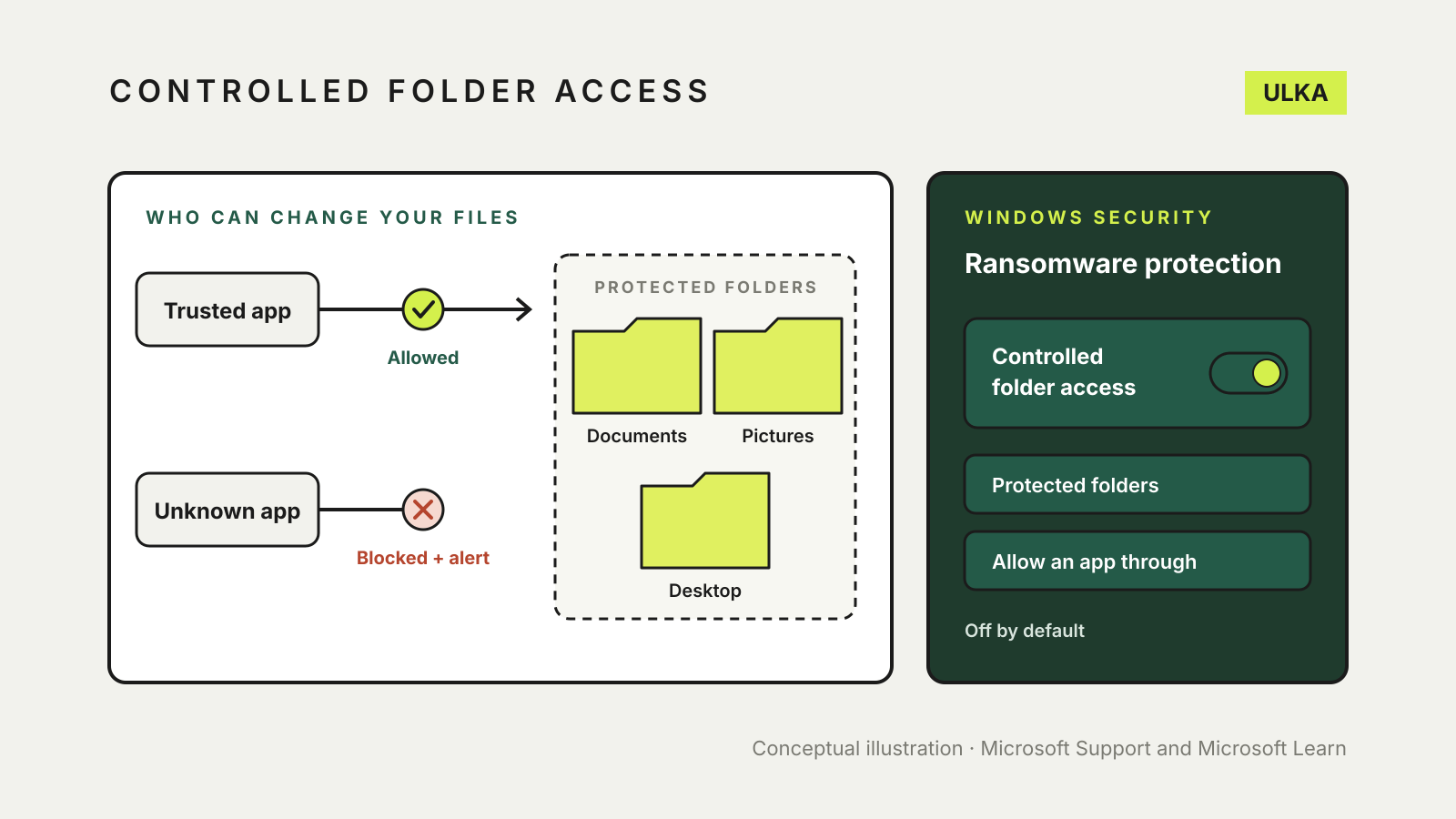
Controlled folder access is a ransomware defence built into Windows Security. When it is on, only apps Windows trusts can change files in protected folders such as Documents, Pictures and Desktop; anything else is blocked and you get a notification. It is off by default. To turn it on, open Windows Security > Virus & threat protection > Manage ransomware protection and switch Controlled folder access to On.
This guide explains what the feature protects, how to switch it on, how to let a blocked app through safely and why it may not work if you use another antivirus product. It follows Microsoft’s support and Learn documentation, checked on 15 November 2026.
What controlled folder access does
Ransomware works by encrypting your files and demanding payment for the key. Microsoft describes controlled folder access as a counter to that: it allows only trusted apps to change files in protected folders. When an untrusted app tries, the change is blocked and Windows tells you.
Windows decides which apps are trusted on its own. Microsoft says Defender Antivirus assesses executable files and automatically trusts most apps based on how common they are and their reputation. That list is not shown in Windows Security, so you will not see every app that has been allowed. You can add your own trusted apps if a program you rely on gets blocked.
The important limit: this is about changing files. It does not stop an app reading or uploading your documents, and it is not a backup. It is one layer, alongside real-time protection and a copy of your files somewhere else.
Which folders it protects
Microsoft’s support page lists Documents, Pictures, Videos, Music and Desktop as protected by default. Its Learn documentation adds the Favorites folder, the matching Public folders and hard drive boot sectors, and says the default list cannot be changed.
You can add more folders, for example a separate work folder or a second drive where you keep photos. You cannot remove the defaults.
How to turn it on
- Open Windows Security from the Start menu.
- Select Virus & threat protection.
- Select Manage ransomware protection.
- Switch Controlled folder access to On and select Yes at the User Account Control prompt.
Microsoft also gives a longer route through Virus & threat protection settings > Manage settings, then Manage controlled folder access; both lead to the same Ransomware protection screen. Two more options appear only once the feature is on: Protected folders and Allow an app through Controlled folder access.
To add a folder, select Protected folders, approve the prompt, choose + Add a protected folder and pick the folder.
When it blocks an app you use
The most common complaint is an everyday program that suddenly cannot save into Documents. Microsoft’s advice for a familiar app that shows an “App is blocked” message is:
- Note the path of the blocked app shown in the notification.
- Select the message, then Add an allowed app.
- Choose the program from Recently blocked apps, or select Browse all apps and pick its .exe file.
If a save has already failed, Microsoft suggests saving the file somewhere else first, allowing the app, then saving it to the original folder.
Be selective. Microsoft warns that any app you add can access your protected files, and if that app is ever compromised your data could be at risk. Allow programs you installed yourself from their publisher, not a tool that arrived through an email link or a download you cannot explain. If something unexpected was blocked, run a scan first; our guide to what to do if your computer has a virus covers the steps.
Why it may not work on your PC
Controlled folder access is part of Microsoft Defender Antivirus, not a separate tool. Microsoft says Defender must be on, in active mode, with real-time protection turned on. If you install a compatible non-Microsoft antivirus product, Microsoft says Defender Antivirus turns itself off, and controlled folder access stops working with it. In that case, check what ransomware protection your own security suite provides.
It is available on any edition of Windows that includes Defender Antivirus, including Windows 11 Home. It is not available on macOS.
Pair it with ransomware data recovery
The same Ransomware protection screen has a second section, Ransomware data recovery. Microsoft says it works with OneDrive: if ransomware affects files backed up there, Windows Security guides you through restoring them, and you get a notification if there is a problem with the OneDrive backup. Microsoft’s ransomware advice also points to OneDrive’s version history, which lets you go back to an earlier copy of a file.
A cloud copy and a local backup on a drive you disconnect are what get your files back. Controlled folder access reduces the chance you will need them.
Who should turn it on
It suits most home PCs that run Defender and a fairly stable set of mainstream apps. The cost is occasional blocked saves from older utilities or scripts you run yourself, each of which needs allowing once.
If you rarely change your software, turning it on takes a minute. If you install new tools every week, expect more prompts and be careful about what you allow. For other settings on the same screen, see Windows Security settings worth checking.