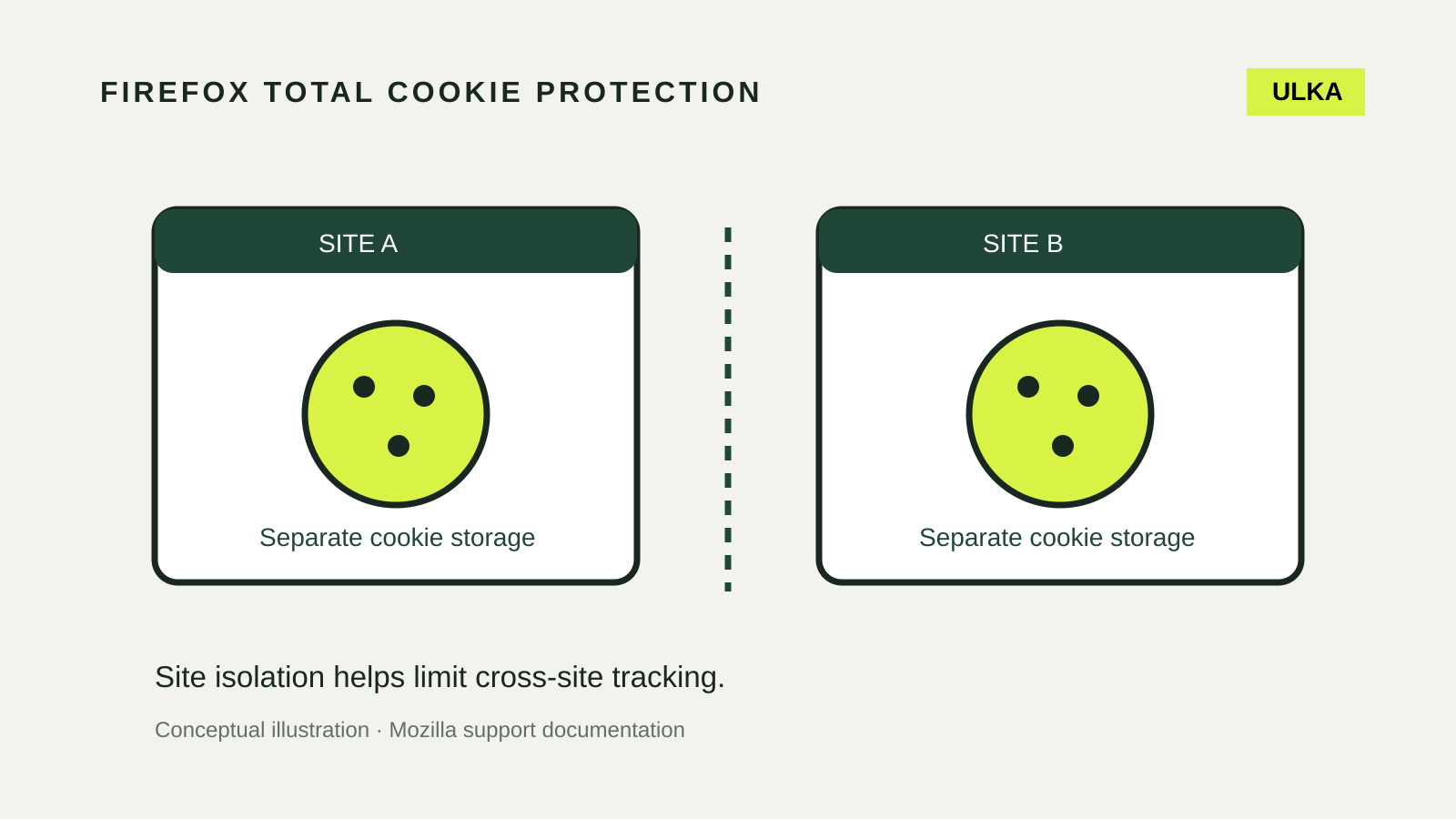
Firefox Total Cookie Protection separates cookie storage by website to make cross-site tracking harder. It is built into Enhanced Tracking Protection, but it can also affect sign-ins or embedded content that depends on shared storage.
For an everyday browser setup, the useful approach is to keep protection enabled, recognise the symptoms of a compatibility problem and make any troubleshooting change as narrow as possible. A broken login is a reason to investigate, not a reason to switch off privacy controls everywhere.
Documentation checked: 1 November 2026. This guide covers Firefox desktop using Mozilla’s support instructions. It is a documentation-based explanation, not a measured privacy or performance test.
What Total Cookie Protection changes
Mozilla describes the feature as giving each website its own cookie jar. Cookies deposited by a site or its embedded third-party content stay in that site’s partition rather than becoming a shared identifier across unrelated sites. The feature is enabled by default.
Enhanced Tracking Protection is the broader protection system. Total Cookie Protection is one part of it. These terms are related, but changing one setting can affect more than the individual cookie behaviour you were trying to diagnose.
This is also a different job from a VPN. A VPN changes the network path and the IP address a destination sees; cookie controls concern browser storage. Our VPN checks guide covers network tests separately. Neither is a substitute for recognising a fraudulent sign-in page.
Check the existing setting before changing it
Open Firefox’s menu, choose Settings, then Privacy & Security. Find Enhanced Tracking Protection and note the selected mode before making a change.
Keep a short record if you are troubleshooting:
- the Firefox version and operating system;
- the site and the specific action that fails;
- whether the problem occurs before or after sign-in;
- the protection mode currently selected;
- any recent extension or settings change; and
- the time you tested it.
Do not include passwords, session cookies or payment details in a support note. Describe the failed action rather than copying private information from the page.
A useful symptom is specific: “the sign-in button returns to the signed-out page” gives you a repeatable test. “The site does not work” makes it difficult to tell whether a later change actually helped.
When cookie isolation can affect a site
Mozilla identifies failed logins, errors involving embedded content and missing features after sign-in as possible symptoms. It also cautions that website failures can have other causes.
That distinction matters. A browser extension, a service problem or an expired session can produce a similar result. Avoid attributing every fault to Total Cookie Protection merely because Firefox is the browser involved.
Before repeating a purchase or submission, inspect the site’s own status or transaction history. A page that failed to update does not prove that the action was never received.
Test a single-site exception carefully
Mozilla documents a site-specific test through the shield beside the address bar. Turning off Enhanced Tracking Protection there allows a comparison on that website. Restore protection afterwards if the change does not resolve the issue.
Use a controlled sequence:
- Open the genuine website directly.
- Reproduce one harmless action that fails.
- Record what happened.
- Change only the site’s protection switch.
- Reload and repeat the same action.
- Restore the switch and check whether the symptom returns.
Choose a low-risk test where possible. Do not repeatedly submit a payment, application or order just to see whether the page behaves differently.
If the exception changes the outcome, report the specific behaviour. It is evidence that the protection configuration is involved; it does not identify the exact script or cookie responsible. Keep that limitation in your explanation.
Compatibility exceptions are a separate mechanism
Mozilla also maintains targeted web-compatibility exceptions. These permit selected resources needed for a site to function while retaining other protections. They are different from you turning off Enhanced Tracking Protection for an entire site.
The current desktop documentation places the relevant controls in the advanced Enhanced Tracking Protection settings for Strict or Custom modes. Major-site and minor-site issues have separate options. If you changed those controls before a problem began, restore the previous configuration and retest before adding a broader site exception.
Do not treat every exception as equivalent. A targeted compatibility rule and a site-wide switch permit different things. Read the label of the setting you are changing and note its scope.
A practical troubleshooting log
| Test | What to record |
|---|---|
| Baseline | The exact failed action and selected mode |
| One change | The single setting changed |
| Repeat | Whether the same action behaves differently |
| Restore | Whether the original symptom returns |
| Report | Browser version, site and reproducible steps |
This log is useful even if the cause turns out to be unrelated to cookies. It stops a sequence of unrelated adjustments from leaving you with a browser configuration you cannot explain.
For a support report, use a clean description without private account data. If a screenshot is needed, remove personal information before sending it. Never share a raw browser profile or exported session data simply because a page asks for it.
What this feature does not establish
Cookie isolation does not prove that a website is trustworthy, that every form of tracking has stopped, or that information you submit cannot be associated with your account. Keep the claim specific to the control.
Continue maintaining the browser, operating system and account security. Our password-breach guide explains what to do when credentials may have escaped; cookie isolation is not a replacement for changing a compromised password.
If the site only functions with a lasting exception, make a deliberate choice about using it in that configuration. Keep the exception limited to the necessary site and revisit it when the site’s behaviour changes.