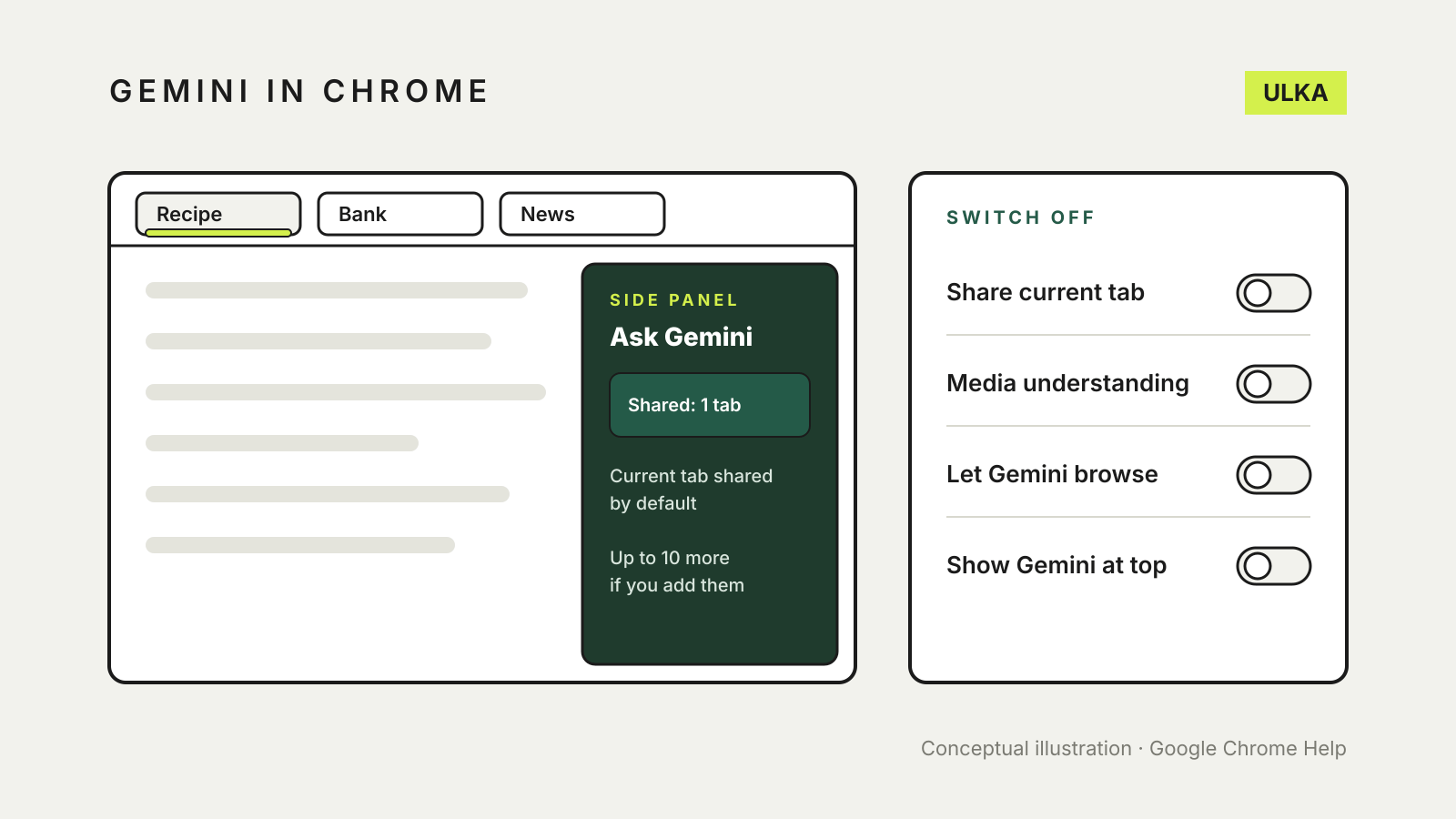
Gemini in Chrome reads the page in your current tab by default, and you can add up to 10 more open tabs to the same chat. To turn it off on a computer, open Chrome Settings > AI innovations > Gemini in Chrome, switch off Share current tab by default and the other permissions you don’t use, then turn off Show Gemini at the top of the browser so the button disappears.
Google is releasing Gemini in Chrome gradually and only in supported regions, so the Ask Gemini button may not appear on your computer yet. This guide explains what Google says the feature collects and where each switch sits, using Google’s Chrome and Gemini help pages checked on 8 November 2026.
What Gemini in Chrome can see
Gemini in Chrome is opt-in. Google’s Use Gemini in Chrome page says you have to accept it the first time you click Ask Gemini. After that, it works with what you give it:
- The current tab. “By default, Gemini in Chrome uses content from your current tab for its response.” Each new chat shares the current tab again unless you change the setting.
- Up to 10 other open tabs, if you add them with Add tabs or by typing
@and picking a tab. Tabs opened from a chat or from a shared tab are shared too. A shared tab shows a glowing underline while Gemini is using it. - Audio and video you have already played on media sites, through a setting called Media understanding. Google says this is on by default.
- Whole Google Docs and other Workspace files. If you share a page such as docs.google.com, Gemini may open the file in your account directly, so it can refer to the entire document, not only the part on screen.
- Your location, microphone and the ability to act on websites, if you allow them. These are separate permissions, listed below.
The Gemini Apps Privacy Hub adds two details worth knowing. Gemini collects the page content and URL of each shared tab, and “some of the page content Gemini uses might not be visible to you”. If you ask it to find pages you visited before, it also collects the matching URLs from your Chrome history.
Where that information is stored
According to the Privacy Hub, information from websites you visit with Gemini in Chrome, plus audio and files you share, is saved in your Gemini Apps Activity when Keep Activity is on. The page content itself is logged to your Google Account temporarily and does not appear in that activity list. Google does not give a retention period for that temporary log.
Keep Activity is a Gemini setting, not a Chrome one. Our guide to AI chatbot privacy settings covers how to turn it off and delete past chats.
How to turn off Gemini in Chrome on a computer
All the switches are on one Chrome settings page. You can also paste chrome://settings/ai/gemini into the address bar to go straight there.
- Open Chrome and click More (the three dots) at the top right, then Settings.
- Click AI innovations, then Gemini in Chrome. If you can’t see the menu, click Menu first.
- Under Permissions, turn off the ones you don’t want:
- Share current tab by default: new chats no longer start with your open page attached.
- Precise location: Google says Gemini then estimates your location from your IP address only.
- Microphone.
- Let Gemini browse for you: stops Gemini carrying out multi-step tasks on websites.
- Turn off Media understanding if you don’t want Gemini answering questions about audio or video you have played.
- Under Preferences, turn off Show Gemini at the top of the browser. On Windows also turn off Show Gemini in system tray and turn on keyboard shortcut; on a Mac, Show Gemini in Mac menu bar and turn on keyboard shortcut.
To remove just the button, right-click the top of the browser and choose Unpin Gemini.
Turning off tab sharing by default does not stop you sharing a tab by hand later. It only changes what happens when a chat starts.
Stop sharing a tab in a chat that’s already open
- In the Gemini panel, click Show shared tabs above the text box.
- Click Remove tab next to the tab you want to take out.
The glowing underline on that tab disappears when it’s no longer shared.
Work, school and family accounts
- Work or school Google Accounts: Google says an administrator must enable Gemini in Chrome for users over 18. Its Chrome Enterprise help lists policies that control the feature, including separate policies for the auto browse feature. If your work laptop shows it and you’d rather it didn’t, ask your IT team.
- Teenagers: Gemini in Chrome needs users to be 13 or older, or the applicable age in their country. Parents who supervise a teen’s account can turn off their access with Family Link. Google says users under 18 can’t use Gemini Live, the microphone or auto browse in Chrome.
- Incognito: the feature isn’t available in Incognito windows or in Chrome profiles that aren’t signed in.
Should you turn it off?
Gemini in Chrome is useful for summarising a long article or comparing several open pages. The trade-off is that the page you’re on goes to Google with your question. A sensible middle ground is to keep Gemini but switch off Share current tab by default, then add a tab only when you want help with it. Keep sensitive pages, such as banking, medical or myGov portals, out of shared tabs.
If you also use Gemini in other Google apps, see our guide to turning off Gemini in Gmail and Google Workspace.