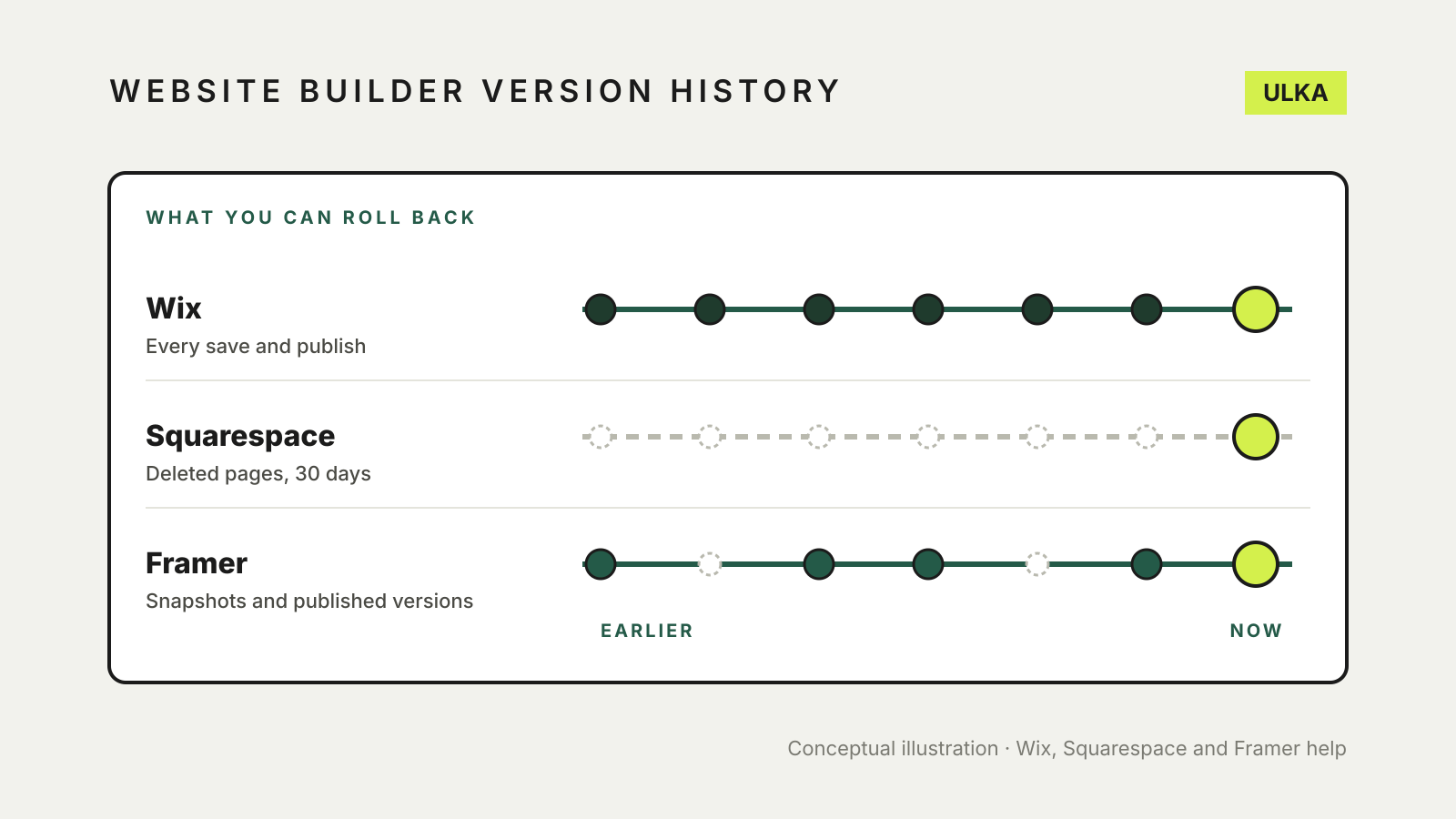
Website builder version history varies a lot between platforms. Wix keeps a site history of every save and publish, and you can restore the whole site to an earlier version. Framer keeps snapshots of your project and lets you copy old sections back or redeploy an earlier published version. Squarespace documents no version history: once you leave the editor, earlier text and layouts are gone, although deleted pages and blog posts can be restored for 30 days.
Knowing which situation you’re in before a redesign saves a lot of rebuilding. This guide covers what each builder can roll back, what it can’t, and how to make your own safety copy first, using Wix, Squarespace and Framer help pages checked on 8 November 2026.
At a glance
| Wix | Squarespace | Framer | |
|---|---|---|---|
| Version history | Site History: every save and publish | None after you exit the editor | Version History snapshots, plus published versions |
| Restore the whole site | Yes, from Site History | No | Redeploy an earlier published version |
| Restore part of a page | No, whole site only | Undo within the editing session | Copy a section from an old snapshot |
| Deleted pages | Restore an earlier version | Deleted Pages panel, 30 days | Copy back from an old snapshot |
| Make a full copy | Duplicate the site | Duplicate the site (new trial site) | Staging copy of the live site |
Wix: Site History
Wix’s site history article says a version is recorded “every time that you (or someone working on your site) has saved or published”. Each entry shows the date, time and the email address of the person who made it.
To restore an earlier version:
- In the editor, click Site at the top, then Site History. From the dashboard, click Go to Site History.
- Click the arrow next to the version you want and review it.
- Click Restore.
Restoring erases every change made after that version, so check the date carefully. You can filter the list to saved, published or starred versions, and rename a version with a memorable label before a big change. In Wix Studio, Site History sits under the Wix Studio icon > Site.
Not everything rolls back. Wix’s list of restore limitations says content in apps such as Wix Stores, Wix Blog, Wix Events and Wix Bookings stays as it is now. So do contacts, inbox messages and site-wide SEO settings. CMS collection content also stays current; Wix points to item history and CMS backups for that. Media galleries always show the latest saved version.
Wix also says you can’t back up a site outside Wix. Its suggested manual backup is to duplicate the site inside your account. The copy does not update when you change the original.
Squarespace: undo, deleted pages and duplicates
Squarespace’s undo and redo article says that in version 7.1 you can undo changes while you’re editing a page, even after clicking Save. Once you exit the page, the editing session ends and those changes can’t be undone. There is no site-wide history to go back to.
What you can recover, according to its restoring deleted pages article:
- Open the Pages panel and scroll to the bottom.
- Click Deleted Pages. If it isn’t there, nothing can be restored.
- Hover over the page, click Restore and confirm.
The page comes back in the Not linked section, so drag it back into your navigation. Deleted blog posts are restored from the blog’s Deleted Posts list and return as drafts. After 30 days, both are gone for good.
Squarespace lists what can’t be recovered: deleted text and blocks after you close the editor, deleted page sections, most collection items other than blog posts (products, events and portfolio sub-pages included), and code removed from code blocks, code injection or custom CSS. It recommends keeping a copy of custom code on your computer.
Before a redesign, the closest thing to a backup is duplicating the site from your account dashboard: click … on the site, then Duplicate Website. Pages, layouts, style settings, collection items and code injection copy across. Domains, selling settings, analytics and contributor permissions don’t. The copy is a new trial site that needs its own plan, and sites with more than 150 pages can’t be duplicated.
Framer: snapshots and published versions
Framer’s help article on reverting describes Version History as view-only snapshots: every five minutes for the past four hours, hourly for the last 24 hours, and daily after that.
To bring something back:
- Open Version History from the Framer menu under File, or press Shift-Command-H on a Mac or Shift-Ctrl-H on Windows.
- Find the version with the content you need and copy the section or layer.
- Return to the latest version and paste it. Framer brings the section’s breakpoints with it and can offer to replace the existing copy.
For the live site, Framer’s Versions update adds a list of published versions under site settings > Staging & Versions. You can see what changed in each one and choose which version to deploy. Framer also recommends turning on staging, a copy of the live site where you can test a fix before publishing it.
Before any big change
- Wix: rename the current version in Site History, or duplicate the site.
- Squarespace: duplicate the site or the page, and save custom code in a text file.
- Framer: turn on staging and note which published version is live.
- All three: keep your own copies of images and text. If you change page addresses, set up redirects so old links still work; our guide to website builder 301 redirects shows how.
If you’re thinking of leaving a builder altogether, see how to move a website off a website builder.