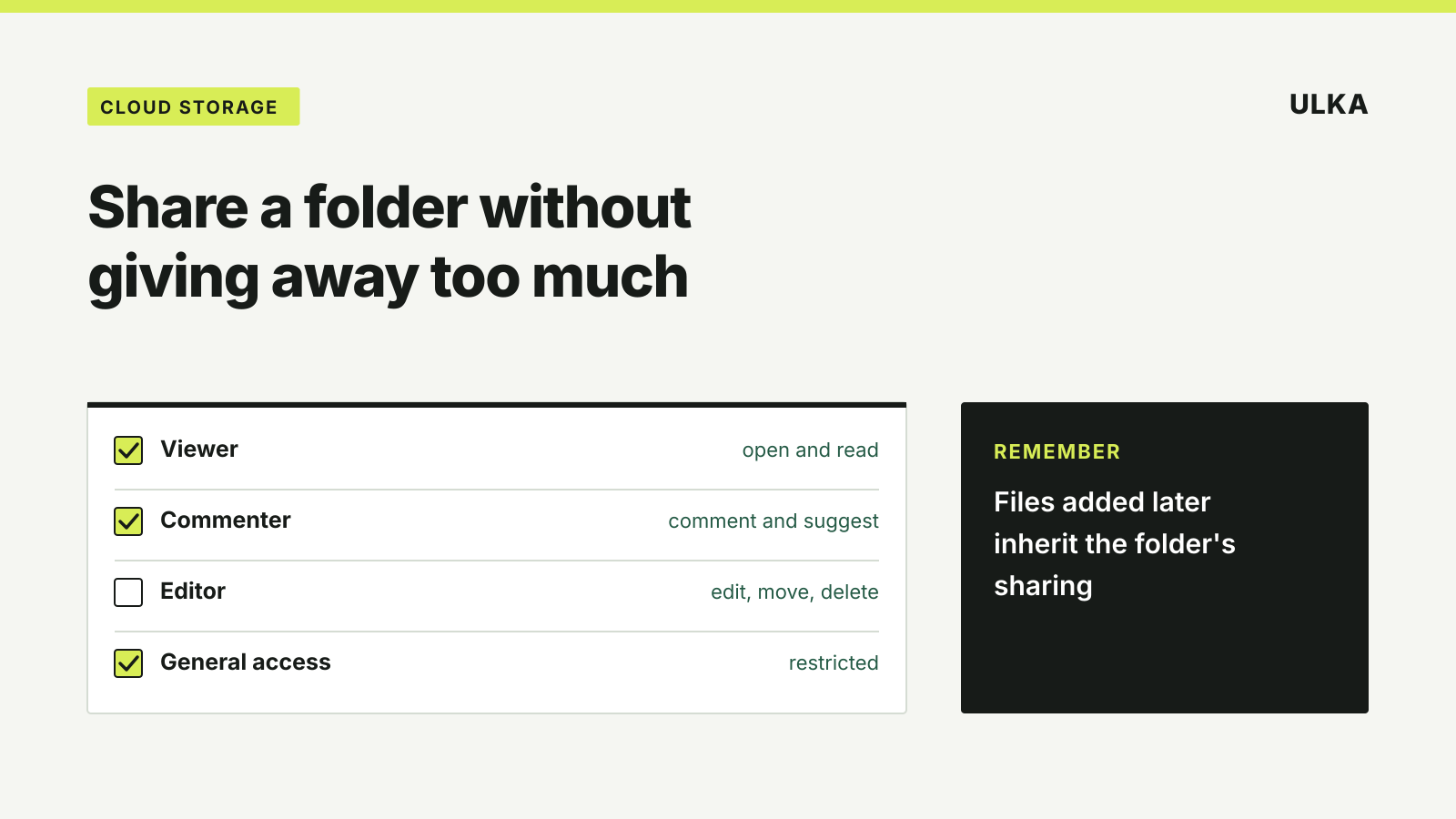
When you share a Google Drive folder, the role you choose applies to every file inside it, including files added later. Choose Viewer for people who only need to read, Commenter for feedback, and Editor only for people you trust to change, move and delete files, because Google says editors can “open, edit, delete or move any files within the folder.” Keep General access restricted unless the folder really needs to open for anyone with the link.
This guide explains each Google Drive folder role, how inherited access works, how to take access back and the matching settings in OneDrive. It follows Google’s and Microsoft’s support pages, checked on 18 November 2026.
What each Google Drive folder role allows
| Role | What they can do in the folder | Good for |
|---|---|---|
| Viewer | See the folder and open every file, but not change anything | Sending documents, photos or records to read |
| Commenter | Comment on and suggest changes to files, but not change or share items | Getting feedback on a draft |
| Editor | Open, edit, delete or move any file, and add new files | People working on the files with you |
The Editor role is wider than many people expect. An editor can delete or move files that you created, not just their own. If someone only needs to drop files in, it’s often safer to give them their own folder than to make them an editor of yours.
How to share a folder in Google Drive
- Go to Google Drive and select the folder.
- Click Share.
- Enter the person’s email address or a Google Group.
- Choose Viewer, Commenter or Editor.
- Choose whether to notify people, then click Send or Share.
On a work or school account you may also see Add expiry, which ends access on a set date. For folders, Google says expiry dates work for the Viewer role only.
You need edit access to a folder to share it with others.
Files inherit the folder’s access
Anything you add to a shared folder takes on that folder’s sharing. That’s convenient for a family photo folder, and risky if you later drop a tax return into a folder shared with a whole sports club.
Google also notes that a file inside a shared folder can’t have less access than the folder itself. If you try to reduce one file’s access, Drive prompts you to change the whole parent folder. To keep a sensitive file private, move it to a folder that isn’t shared.
Two more things change how access works:
- Higher access on a single file wins. If you remove someone from a folder but they were given edit access to one file directly, they keep that access to that file.
- Groups follow membership. If you share with a Google Group, people gain or lose access as they join or leave the group.
Link sharing: General access
Under General access in the share window you decide whether the folder is limited to the people you added, or open to anyone with the link. Google points out that once a folder is open to anyone with the link, it no longer restricts who can access it. A forwarded link works for whoever receives it.
Use link access for material you’d be comfortable seeing passed around. For anything personal, add people by email instead.
Take access back
To reduce or remove someone’s access, open the folder’s share window and change their role or remove them. The change applies to every file and subfolder inside, except files where they have higher access of their own.
If you’re handing a folder over, for example to a family member, you can make them the owner: in the share window, click the arrow next to their name, choose Transfer ownership, then Yes. The files inside keep their original owners, and you can keep editing the folder until the new owner changes your access.
If someone deletes a file from a shared folder, only its owner can still reach it. The owner can find it with Drive search, right-click it and choose Add to my Drive. Our guide to recovering deleted files from cloud storage covers the bin and other recovery routes.
The same checks in OneDrive
Microsoft’s sharing guide for OneDrive work or school accounts uses similar roles:
- Can edit lets people view and change items, and in a shared folder also copy, move, rename, share and delete items they can access.
- Can view lets people look without changing anything.
- Can’t download lets people view a file without downloading it.
Link options decide who a link works for: Only people added, People in your organisation, or Anyone, which works without signing in. For extra links you can use Set expiration date and Set password, and send the password separately. Folder permissions apply to items inside, and Microsoft notes a person keeps the highest permission they have from any source, so check direct access, groups, parent folders and links when you tighten access.
To review it, select the item, then Share, change a permission from the menu next to a name, or select the X to remove a person or link. Options on personal OneDrive accounts can differ, so check the share window you actually see.
A quick sharing checklist
- Smallest role that works. Viewer first; Editor only for collaborators.
- Restricted general access for anything personal.
- Nothing sensitive in a folder shared with a group or a link.
- An expiry date where your account offers one.
- A review of who has access when a project or school term ends.