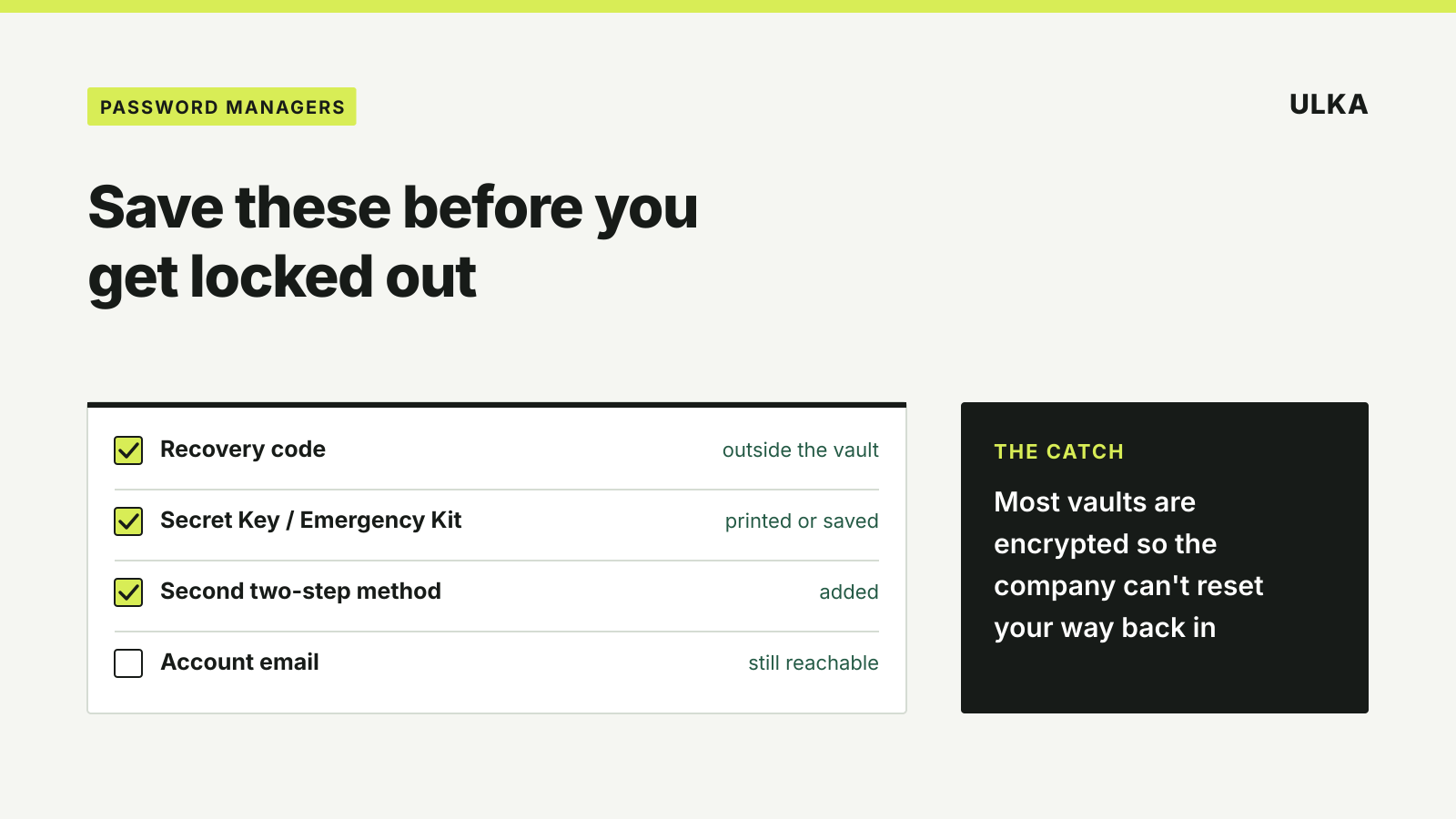
Password manager account recovery only works if you set it up before something goes wrong. Most password managers encrypt your vault so the company can’t read it, which also means it usually can’t reset your way back in. Before you need it, save your recovery code or key somewhere outside the vault, add a second sign-in method or trusted contact, and check that you can still reach the email address on the account.
This guide uses 1Password and Bitwarden as examples, because both publish clear recovery rules. It follows their support pages, checked on 18 November 2026.
Why a password manager can’t simply reset your password
With most online accounts, a forgotten password is fixed with an email link. A password manager is different, because the company is designed not to hold the keys to your vault.
1Password says of the Secret Key that protects every account: “We don’t have a copy of your Secret Key or any way to recover or reset it for you.” Bitwarden says that if none of its recovery options work, “There is no way for Bitwarden to recover the account or its data”, and you would have to delete the account and start again.
So recovery is something you prepare, not something you request.
What to save, by password manager
| Item | What it does | Where you find it |
|---|---|---|
| 1Password Emergency Kit | A PDF holding your Secret Key and Setup Code, used to sign in on a new device | Saved when you created the account; check Downloads for “1Password Emergency Kit” |
| 1Password recovery code | Lets you regain access if you can’t sign in with your account password and Secret Key | Sign-in & Recovery > Set up recovery code in the app |
| Bitwarden two-step recovery code | Turns off all two-step login methods if you lose your authentication device | Web app: Settings > Security > Two-step login > View recovery code |
| Trusted contact or family organiser | Someone who can start recovery or emergency access for you | Set up in each service’s sharing or emergency access settings |
Whatever you save, keep it outside the password manager it unlocks. A recovery code stored only in your vault is no help when the vault is the thing you can’t open. Bitwarden suggests a printed copy kept somewhere safe.
1Password: Secret Key, Emergency Kit and recovery code
Find your Secret Key. On a device where you’re still signed in, open Manage Accounts, select Your Details and reveal the Secret Key field. On 1Password.com, select your name, choose Manage account and select Show. The Emergency Kit PDF also contains it, along with your Setup Code. Some business organisations turn Emergency Kits off, and people who sign in with single sign-on don’t have one.
Set up a recovery code. Individual and family accounts can create one. In the app, open Manage Accounts, choose your account, select Sign-in & Recovery, then Set up recovery code. On 1Password.com, select your name, then Manage Account, then Set up recovery code. Team and business accounts can’t use recovery codes; their administrators handle recovery instead.
Points from 1Password’s page worth knowing:
- Wait at least an hour after creating a code before using it.
- To use it, you need access to the email address on the account. You then get a new Secret Key and create a new account password, and your data stays available.
- The code stays valid after use. Replacing it invalidates the old one, and deleting it means you can’t recover the account this way.
- If you unlock 1Password with a passkey, you must always have a recovery code.
- If a family organiser starts recovery for you, your recovery code is deactivated until that recovery finishes.
If you can’t reach the email address on your account, 1Password says to contact its support team.
Bitwarden: the two-step recovery code and other routes
Bitwarden’s recovery code is for a lost second factor, such as a phone with your authenticator app. Using it disconnects all two-step login methods so you can sign in with your master password alone.
To find it in the web app, go to Settings > Security > Two-step login, select View recovery code, enter your master password and select Continue. Save it as soon as you turn on any two-step method. Bitwarden can’t retrieve the code for you, and using it generates a new one, so save the replacement too.
If you have lost the code as well, Bitwarden lists a few other routes:
- Another two-step method. If you set up more than one, select Use another two-step login method on the sign-in screen.
- A trusted emergency contact. A contact with takeover access can start emergency access. After their wait time, two-step login is turned off and they can change the master password.
- Another signed-in device. If you’re still signed in to a Bitwarden app, you can export your vault, create a new account and import the data.
- Your organisation. Members of an organisation enrolled in account recovery can ask an administrator to reset two-step login.
Our guide to password manager emergency access explains how to choose a trusted contact and set the wait time.
A ten-minute recovery check
Run through this once, then again whenever you change phones or your master password:
- Recovery code or key saved, printed or stored outside the vault, and labelled so someone else would understand it.
- A second two-step method added, such as a hardware security key or a second device.
- Account email still works, and is protected with its own strong password and two-step login.
- Trusted contact set up if your password manager offers emergency access or family recovery.
- Master password memorable. Our guide to choosing a master password covers how to make one you won’t forget.