To restore a previous version of a file in OneDrive, right-click the file on onedrive.com or in File Explorer, select Version history, then select the three dots (…) next to the version you want and choose Restore. Google Drive works differently for uploaded files and for Google Docs, Sheets and Slides, and both services only keep old versions for a limited time.
This guide covers OneDrive, uploaded files in Google Drive and Google’s own file types, plus what to do when a whole folder has gone wrong. It follows Microsoft’s and Google’s support pages, checked on 18 November 2026.
How long old versions are kept
Check this first, because an old version you need may already be gone.
| Service and file type | How long versions are kept | How to keep one longer |
|---|---|---|
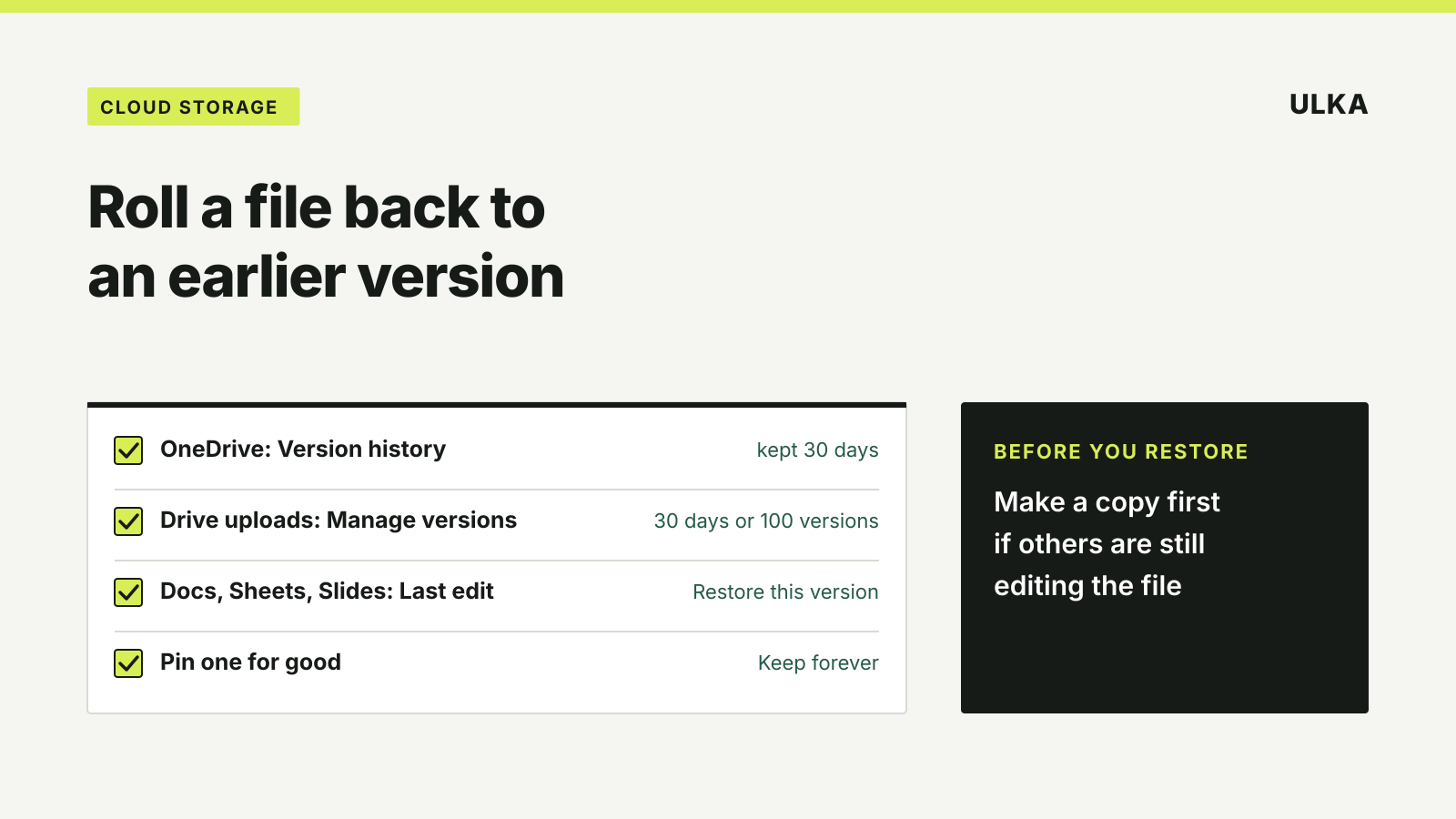
| OneDrive, any file type | 30 days | Download the version you need |
| Google Drive, uploaded files (PDF, Word, photos) | Until 30 days pass or there are 100 newer versions | Keep forever on that version |
| Google Docs, Sheets and Slides | Kept in the file’s version history; revisions may occasionally be merged | Name the version or make a copy |
Microsoft says OneDrive version history works with all file types, including Microsoft 365 files, PDFs, CAD files, photos and videos.
Restore a previous version in OneDrive
On the OneDrive website
- Sign in at onedrive.com with your personal Microsoft account or your work or school account.
- Right-click the file and select Version history. You can restore one file at a time.
- In the Version History pane, select the three dots (…) next to the version you want, then select Restore.
In File Explorer on Windows
If the OneDrive sync app is installed, right-click the file in File Explorer, select Version history, then select the three dots next to the version you want and choose Restore.
The restored version becomes the current one, and the version you replaced moves into the list of previous versions. That means a restore can be undone the same way if you picked the wrong one.
On a work or school account, your administrator may have turned off versioning. If Version history is missing or empty, ask them before assuming the file can’t be recovered.
Restore a previous version of an uploaded file in Google Drive
For files you uploaded to Drive, such as PDFs, images and Office documents, Google keeps the most recent versions. A version may be permanently deleted after 30 days or once there are 100 newer versions, unless you pin it.
- Go to drive.google.com and select the file.
- At the top right, click More, then File information, then Manage versions.
- Next to the version you want, click More, then Download to save a copy of it.
To make sure a version is never removed, open Manage versions, click More next to it and choose Keep forever. A tick confirms it is pinned.
To replace the current file with a version from your computer, open Manage versions and click Upload new version. If the file belongs to someone else, they stay the owner.
Restore a version in Google Docs, Sheets and Slides
Google’s own file types keep a full version history inside the file.
- Open the document, spreadsheet or presentation.
- At the top right, click Last edit.
- Choose an earlier version in the right-hand panel to see who changed what.
- Click Restore this version, then Restore.
To go back to the current version without restoring, click Back at the top left.
Two options are worth knowing before you restore:
- Make a copy. Next to a version, click More, then Make a copy. This leaves the current file untouched, which is the safer choice when other people are still working in it.
- Name a version. Click More, then Name this version to mark a milestone. You can name up to 40 versions in a document and 15 in a spreadsheet, and turn on Only show named versions to filter the list.
In Sheets, restoring a version clears the cell-by-cell edit history for earlier changes. Make a copy instead if you want to keep that history. You also need edit permission to see version history at all.
When a whole folder needs rolling back
Version history fixes one file at a time. If ransomware, a bad sync or a mass deletion has damaged many files in OneDrive, Restore your OneDrive can roll the whole account back to any point in the last 30 days. It needs an active Microsoft 365 subscription; personal accounts without one can restore individual files only.
On onedrive.com, select the Settings gear, then Options, then Restore your OneDrive (work or school accounts use Settings > Restore OneDrive). Choose a date such as Yesterday or a Custom date and time, check the activity chart and select Restore.
Microsoft notes that files created after the restore date go to the recycle bin, and files already permanently deleted from the recycle bin can’t be brought back. For deleted rather than changed files, see our guide to recovering deleted files from OneDrive, Google Drive and iCloud Drive.
Version history is a safety net, not a backup. Keeping a separate copy on a drive you control covers the cases it misses; our comparison of SSD and HDD drives for backup can help.