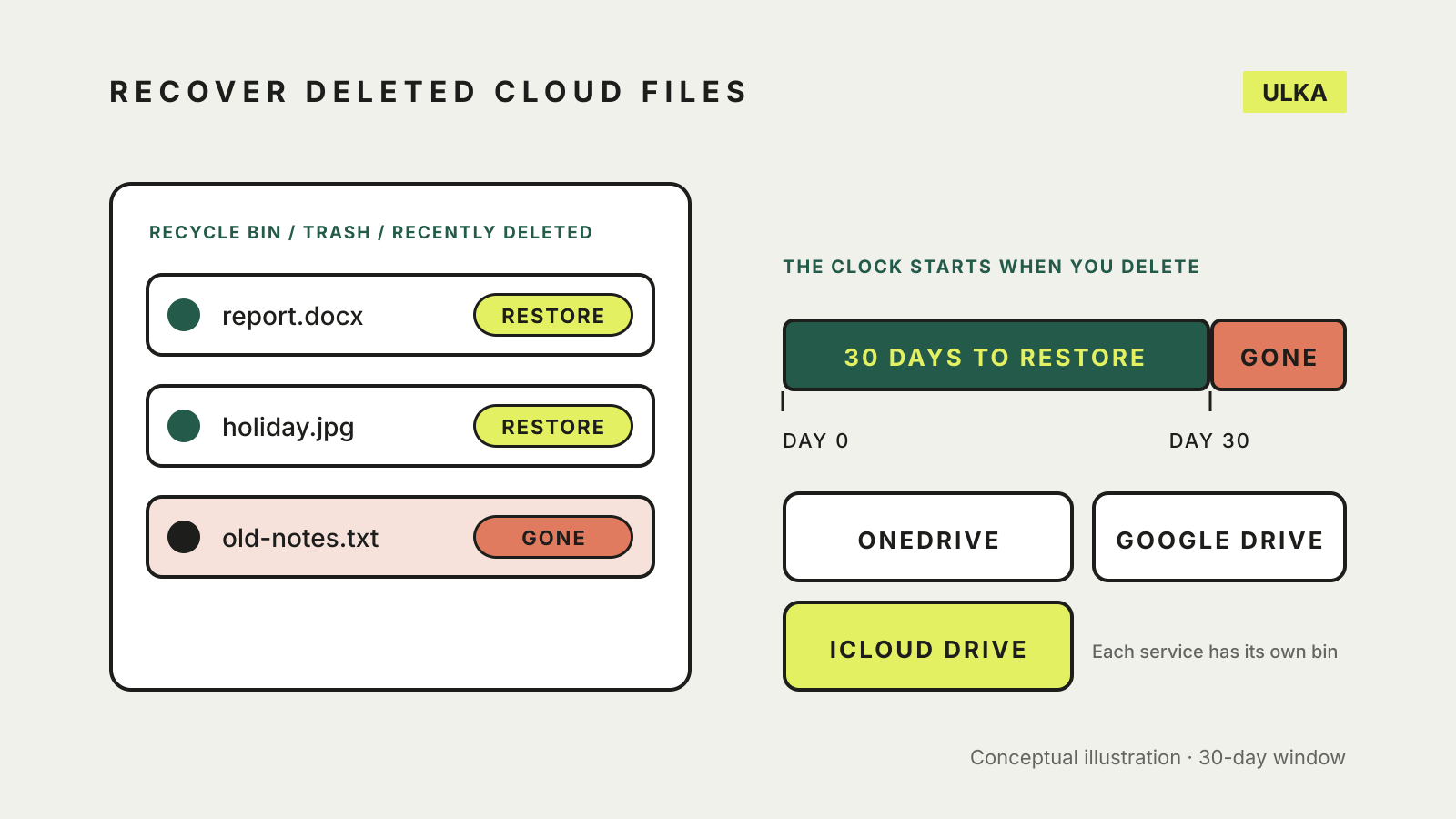
To recover deleted files from cloud storage, open the service’s own bin first: the Recycle bin on onedrive.com, Trash in Google Drive, or Recently Deleted in iCloud Drive. Each one keeps deleted files for 30 days (OneDrive work and school accounts keep them for 93 days by default), and a file you delete again from the bin is gone for good in OneDrive and iCloud. Google adds a narrow second chance for owners.
This guide gives the steps for OneDrive, Google Drive and iCloud Drive, and explains what each service says it can and cannot bring back. Menu names come from each provider’s support pages, checked on 2 November 2026. The clock starts when you delete the file, so check sooner rather than later.
Why deleting in the cloud is different
Cloud storage that syncs to your computer mirrors deletions. Google’s help page says that if you mirror or stream files between Google Drive and your computer, any file you put in the trash is put in the trash everywhere. Apple says the same for iCloud Drive: deleting a file on one device removes it from every device signed in with the same Apple Account.
That is convenient until a deletion is a mistake. Sync is not a backup, which is why the last section links to our guide on building a recovery plan.
OneDrive: use the web Recycle bin
- Go to onedrive.com and sign in with your Microsoft account.
- In the left pane, select Recycle bin.
- Point to each file or folder, tick its circle and select Restore.
Microsoft’s restore guide says items in a personal account’s Recycle bin are deleted automatically after 30 days. For a work or school account the period is 93 days, unless an administrator has changed the setting.
Three details trip people up:
- The computer’s bin is not the cloud bin. Microsoft says files deleted from the cloud do not appear in the Windows Recycle Bin or the Mac Trash, and deleted online-only files do not appear there either. If you deleted a file in File Explorer, check both places. Our guide to OneDrive Files On-Demand explains online-only files.
- Shared folders cannot be restored. If you see a message that a folder was removed from your OneDrive, it means a shared folder was deleted. You cannot restore a folder that was shared with you. If you shared a folder and others deleted its contents, those contents are in your Recycle bin.
- Personal Vault files need unlocking. Files deleted from your Personal Vault only show in the Recycle bin if the vault is unlocked. Use Show Personal Vault items to unlock it.
If a whole folder tree has gone wrong, Microsoft 365 subscribers can use Restore your OneDrive, which undoes actions on files and folders from the last 30 days. Microsoft says a file permanently deleted from the Recycle bin can never be recovered.
Google Drive: Trash, then a request if you must
- Go to drive.google.com and select Trash on the left.
- Find the file. Sorting by trashed date shows how long ago each file was deleted.
- Right-click the file and select Restore.
Google’s recovery page says deleted files stay in Trash for 30 days before they are deleted forever. If you have already emptied Trash, you may still be able to get a file back, but only if you are the owner and you are certain it was deleted forever within the last 25 days. The page explains that you request recovery while signed in to your Google Account. You are the owner if you created or uploaded the file, or accepted ownership of it.
Google also warns that files permanently deleted from Gmail, Google Photos or WhatsApp backups cannot be recovered through this route. Backing up to Google Photos from Drive for desktop uploads only photos and videos, and deletions do not sync between the two.
iCloud Drive: Recently Deleted
On the web:
- Go to icloud.com/iclouddrive and sign in to your Apple Account.
- Select Recently Deleted in the sidebar.
- Select the files and choose Recover, or choose Recover All.
On an iPhone, open the Files app, tap Browse, then Recently Deleted under Locations, tap More and Select, choose the files and tap Recover. On a Mac, deleted iCloud Drive files go to the Trash. Apple’s iCloud guide says recently deleted files can be recovered for 30 days, and that if you permanently delete a file from Recently Deleted, or empty the Mac’s Trash, you cannot recover it.
For files from other iCloud apps, Apple’s recovery page says to go to icloud.com/recovery, select Restore Files, then choose the files. Recovered files return to the folders they were in. Apple warns against editing or deleting iCloud Drive data during recovery, because that might interrupt the process.
When the file is not in any bin
If the 30 days have passed, or the bin was emptied, the provider’s tools will not help in most cases. At that point you need a copy you made yourself: an external drive, a local backup or a separate backup service. Our guides to Windows File History and Time Machine and to backups that restore cover how to set one up. If you are short of space and tempted to delete first, free up iCloud storage before paying for more, and compare services in our cloud storage and backup guide.