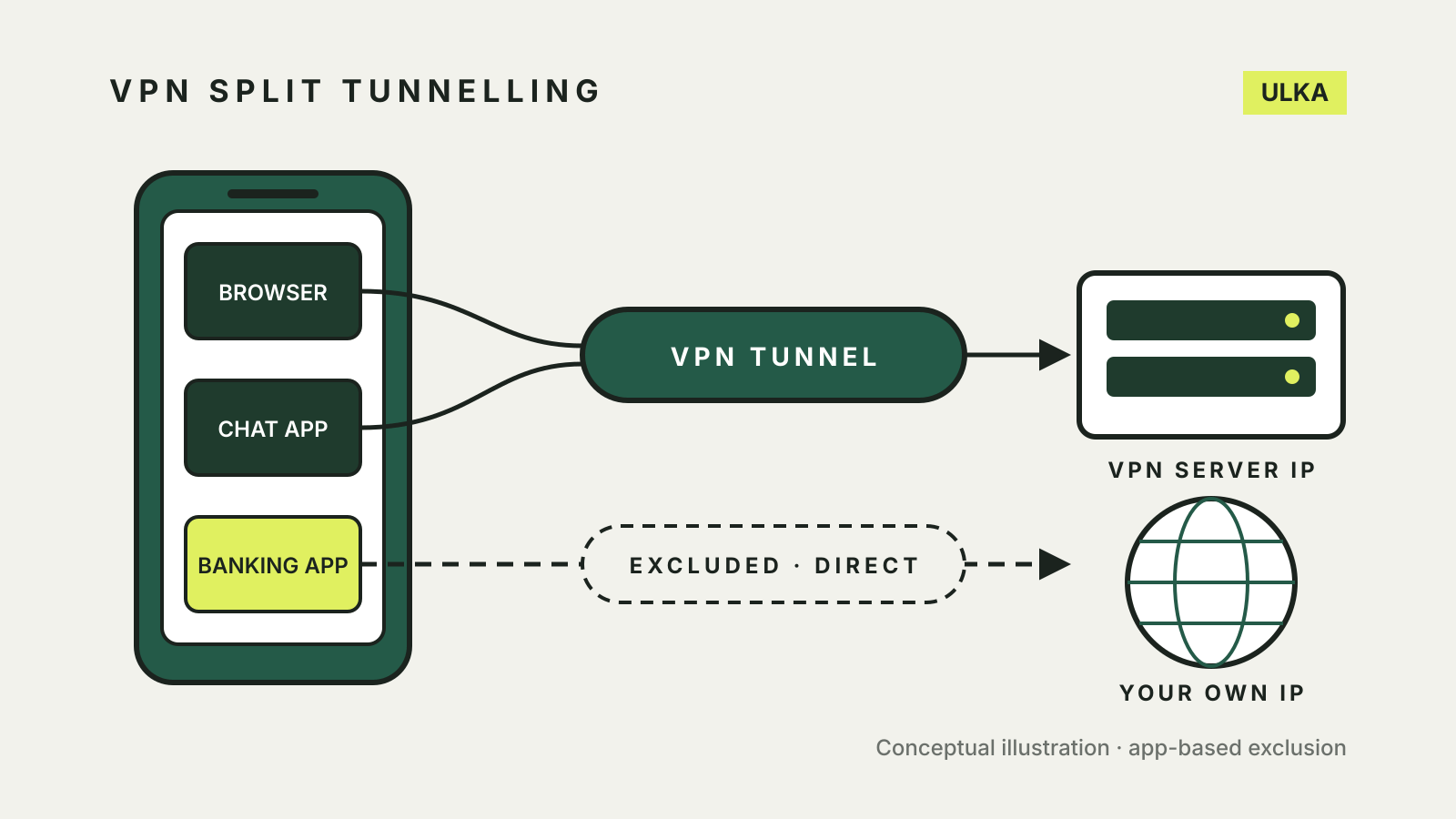
VPN split tunnelling lets you choose which apps, websites or addresses use the VPN and which use your ordinary connection. It is useful when one service refuses VPN traffic, but every excluded app goes out with your own IP address, so keep the list short.
The feature has different names and limits in each VPN app. This guide explains the two ways it works, what each major app supports, and the conflicts with kill switches and DNS that catch people out. Vendor help pages from Proton VPN, Mullvad and NordVPN were checked on 1 November 2026.
What split tunnelling changes
Normally a connected VPN sends all of a device’s internet traffic through an encrypted tunnel to the VPN server. Websites see the server’s IP address, not yours.
Split tunnelling divides that traffic into two routes. Mullvad’s split tunnelling guide puts it plainly: excluded apps “use your regular Internet connection and your own IP address”, and their traffic does not go through the VPN. Mullvad gives one common reason to do it: some websites block VPN services.
NordVPN’s support article describes the same idea as rerouting a specific part of your connection outside the VPN, for example a trusted application that does not need it.
Exclude mode and include mode
Apps that offer split tunnelling use one of two approaches.
| Mode | What happens | Where it is documented |
|---|---|---|
| Exclude | Everything uses the VPN except the apps, sites or addresses you list | Proton VPN, Mullvad, NordVPN |
| Include (inverse) | Nothing uses the VPN except the apps, sites or addresses you list | Proton VPN on Windows, Linux, Android, Android TV and the browser extension |
Exclude mode is the safer default because a new app you install is protected automatically. Include mode suits someone who only wants one browser or one app on the VPN. Mullvad says it does not plan to add an inverse mode, because it believes a VPN should be used by default and not by exception.
What each app supports
Support depends on both the provider and the device. None of the three providers below documents app-based split tunnelling on iPhone or iPad, and Mullvad’s FAQ says it is not currently possible to add it to its iOS and iPadOS app.
Proton VPN. Proton’s split tunnelling help page lists Windows, Linux, macOS, Android, Android TV and its browser extension, and says the feature needs a paid plan. On Windows and Android you can exclude or include apps and IP addresses, including ranges written in CIDR notation such as 46.36.198.0/24. On macOS it is marked experimental: it can only exclude apps, needs a macOS network extension the first time, and works only with the WireGuard and Stealth protocols. The browser extension splits by website domain instead of by app.
Mullvad. Mullvad includes split tunnelling in its apps for Windows, Linux, macOS and Android, in exclude mode only.
NordVPN. NordVPN documents split tunnelling on Windows, Android and Android TV. Its Linux app uses an Allowlist instead, which bypasses the VPN for chosen ports or subnets rather than apps. The NordVPN browser extension has an Exclude from VPN setting for domains.
How to turn it on
Menu names change between versions, so check your provider’s help page if a step does not match.
Proton VPN on Windows. Select the Split tunneling shortcut on the Home screen or open it from Settings, turn the switch on, choose Exclude mode or Include mode, add apps or IP addresses, then click Apply or Reconnect.
Proton VPN on Android. Go to Settings > Split Tunneling, turn it on, tap Mode to choose exclude or inverse, add apps or IP addresses, then tap Save.
Mullvad on Windows, macOS and Android. Open the app settings with the gear icon, choose Split tunneling, and add the apps you want to exclude. On Android, tap Enable first. On Linux, you launch an excluded app from the same screen instead.
NordVPN on Windows. Open Settings, choose Split tunneling, turn it on and select Add apps. NordVPN notes that the list only shows apps that are currently open; use Browse apps to find others.
Restart an app after excluding it if it was already running. Proton’s Linux instructions require this every time you connect, and Mullvad’s Linux app shows a reminder to close running apps first.
Kill switches and split tunnelling clash
If you also use a kill switch, check how your app handles both together.
- Proton VPN. On most platforms, split tunnelling cannot be used with the kill switch, so you must turn one off. Windows is the exception: both the Standard and Advanced kill switches work with split tunnelling there.
- NordVPN. NordVPN’s kill switch and split tunnelling article says the Internet Kill Switch takes priority: apps you excluded lose internet access while both features are on.
- Android’s own setting. Mullvad warns that excluded apps will not work if Block connections without VPN is turned on in Android’s settings.
Our guide to the VPN kill switch explains the different kill switch types.
The DNS catch
Excluding an app does not always move its DNS lookups out of the VPN. Mullvad says excluded apps still use the DNS server on the Mullvad server you are connected to, so lookups appear to come from the VPN location rather than yours. NordVPN describes the same behaviour and notes that some streaming services or apps can then misbehave, because the app’s IP address and its DNS requests do not match.
Mullvad suggests two fixes: turn on DNS over HTTPS (Secure DNS) in an excluded browser, or set a custom DNS server in the app, which affects all traffic, not only excluded apps.
Things that may not exclude cleanly
Mullvad’s Windows notes give a realistic picture of the edge cases:
- Windows Store apps cannot be excluded; use the app’s normal installer if one exists.
- An installer started from inside an excluded browser can itself run outside the VPN.
- Some games with anti-cheat software and some Java-based games are difficult or impossible to exclude.
- Other VPN or network tools installed on the same PC can stop split tunnelling from working.
On macOS, both Mullvad and Proton say Safari and other apps built on Apple’s WebKit cannot be excluded reliably. Proton suggests its browser extension, which works by domain, if you need certain websites outside the tunnel.
Check that it is working
Exclude a browser you do not normally use with the VPN, then open your provider’s connection check page in it. Mullvad’s check should report that you are not using Mullvad VPN in the excluded browser, while a second browser still shows the VPN. Our guide on how to check if your VPN is working walks through the IP and DNS leak tests for the protected side.
When to use it, and when not to
Split tunnelling is worth turning on for a specific problem: a site or app that blocks VPN traffic, a trusted app that does not need the VPN, or a service that needs to see your own Australian IP address while everything else stays on the VPN. Exclude that one app or address, test it, and leave the rest alone.
Avoid it if the reason you use a VPN is privacy on hotel or airport Wi-Fi. Anything you exclude there travels outside the tunnel. Our guide to using a VPN on public Wi-Fi covers that situation, and our VPN comparison can help if you are still choosing a provider.