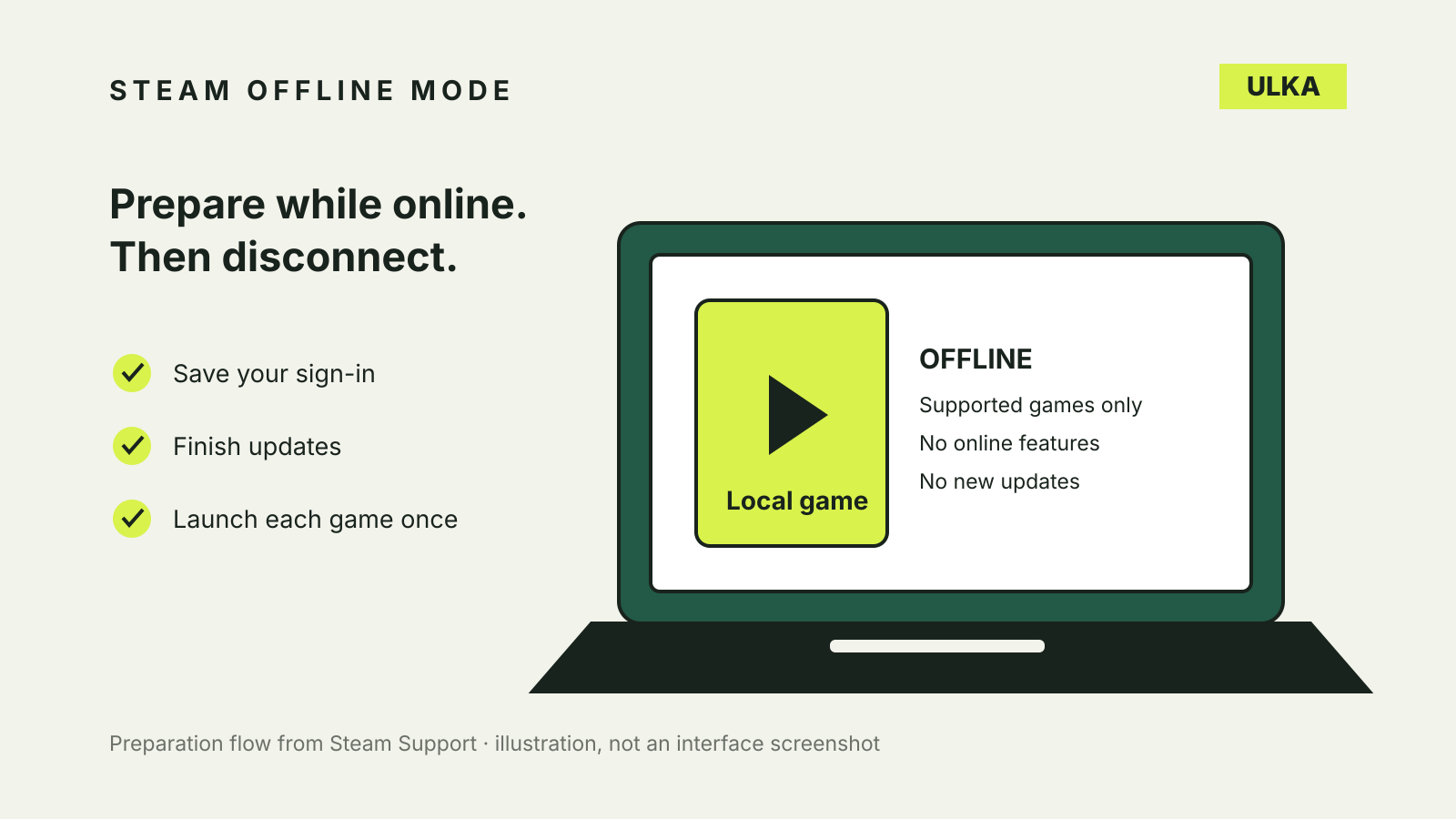
Steam Offline Mode lets supported games run without an active Steam Network connection, but you should prepare the PC while it still has internet access. Save your sign-in, finish downloads and launch each game once before choosing Steam > Go Offline. Games that need an active connection or an external launcher are excluded by Valve’s instructions.
For a flight, a patchy connection or a weekend away, the useful question is whether your particular installation starts after you disconnect. A downloaded game is a good start, but its first launch can still need updates or installation work.
What Offline Mode does
Offline Mode runs supported games through Steam without connecting to the Steam Network. Steam features that depend on that connection are unavailable. It does not turn an online game into a single-player game, remove a publisher’s sign-in requirement or download missing files.
Valve’s current PC instructions make two conditions especially clear: Steam needs saved account information, and the game needs to be ready to run. If the client asks you to log in, Valve says there is no way to bypass that request without going online.
| Situation | What to do before disconnecting |
|---|---|
| A game is still downloading or updating | Let it finish, then launch it |
| A game has never been started on this PC | Start it online and complete any remaining installation |
| Steam does not remember your account | Sign in online and check the saved-credentials settings |
| A game requires an active connection | Choose another game with offline support |
| A game uses an external launcher | Check the game’s requirements; Valve excludes these from its Offline Mode support |
This guide follows Steam Support’s PC procedure. It does not claim that every game or every device has been tested.
Set up Steam Offline Mode while you are online
Do this on the computer you intend to use away from the internet. Preparing another PC does not prove that this installation has the files and saved sign-in information it needs.
- Start Steam online. At the login window, tick Remember me.
- Finish updating the games. Check that the game files are fully downloaded and updated.
- Launch each game you want to play. Let it complete any remaining update or installation requirements. Once you have confirmed it can be played, close the game and return to Steam.
- Open Steam > Settings > Security. Make sure Don’t save account credentials on this computer is not selected.
- In the main Steam window, choose Steam > Go Offline….
Keep the saved-sign-in choice to a computer you control. A shared public PC is a poor place to retain access to your game account simply to make offline play convenient.
The menu labels above are the ones in Valve’s English-language support instructions. If your client uses another language or its layout differs, use the matching offline and security controls rather than changing unrelated settings.
Test the games before leaving
After switching modes, try opening the games you actually plan to use. This is a practical preparation check, not a promise that an entire library will work offline.
A useful test goes beyond seeing a title in the library. Start the game, reach the part you want to play and confirm that it does not stop at a sign-in or connection request. If it does, investigate while you still have internet access.
For example, imagine that two games are downloaded on a laptop. One opens normally; the other needs a publisher account screen. The first is the better candidate for the trip. Steam’s offline setting cannot resolve the second game’s separate connection requirement.
If your plan is to stream a game rather than run a local installation, read our cloud gaming guide for Australia. A local Steam library and a remote streaming service have different connection needs.
Why a fully downloaded game can still fail
Valve notes that most games need an initial start-up while connected to the Steam Network. A download reaching its ready state therefore does not settle every requirement.
If a game reports that it cannot start in Offline Mode, reconnect and check updates for both Steam and the game. Start the game online again, let any remaining installation finish and repeat your offline check.
Also read the game’s own requirements. Valve says games that require an active connection or use an external launcher will not work in Offline Mode. Do not assume that a single-player description overrides those requirements.
The same distinction matters when several people share a library. Steam Families sharing has its own eligibility and copy rules. Offline preparation is not a way to establish an extra entitlement to a game.
If Steam asks you to log in
Reconnect to the internet. Valve’s guidance says a login request cannot be bypassed offline.
Once online, check Remember me and the setting that prevents Steam from saving account credentials. Then repeat the preparation process. Avoid troubleshooting that deletes account information when you need it for offline use.
If you have forgotten the account password or cannot complete account access, use Steam Support’s official recovery process. Turning off Wi-Fi again will not solve an authentication problem.
Close Steam normally
Stored information is part of how Offline Mode works. Valve recommends manually closing Steam before shutting the computer down and avoiding a force quit, so that required information is not lost.
This is a small preparation step that is easy to miss when packing a laptop. Finish the game, close Steam normally and allow the computer to shut down cleanly.
Steam Support also points to interfering programs and firewall settings as possible causes of update trouble. If updates cannot complete while you are online, fix that problem first. Do not switch off security protections broadly just to make an offline trip work.
Remember to reconnect for updates
Steam and the games do not receive their important updates while in Offline Mode. Reconnect when practical and allow updates to finish before the next time you depend on offline play.
Avoid leaving the preparation until the final minutes before departure. The amount to download depends on the client and the games, so there is no useful universal waiting time.
Source
Valve, Steam Support, “Offline Mode”. Current instructions reviewed 1 November 2026. The support page does not display an original publication date.