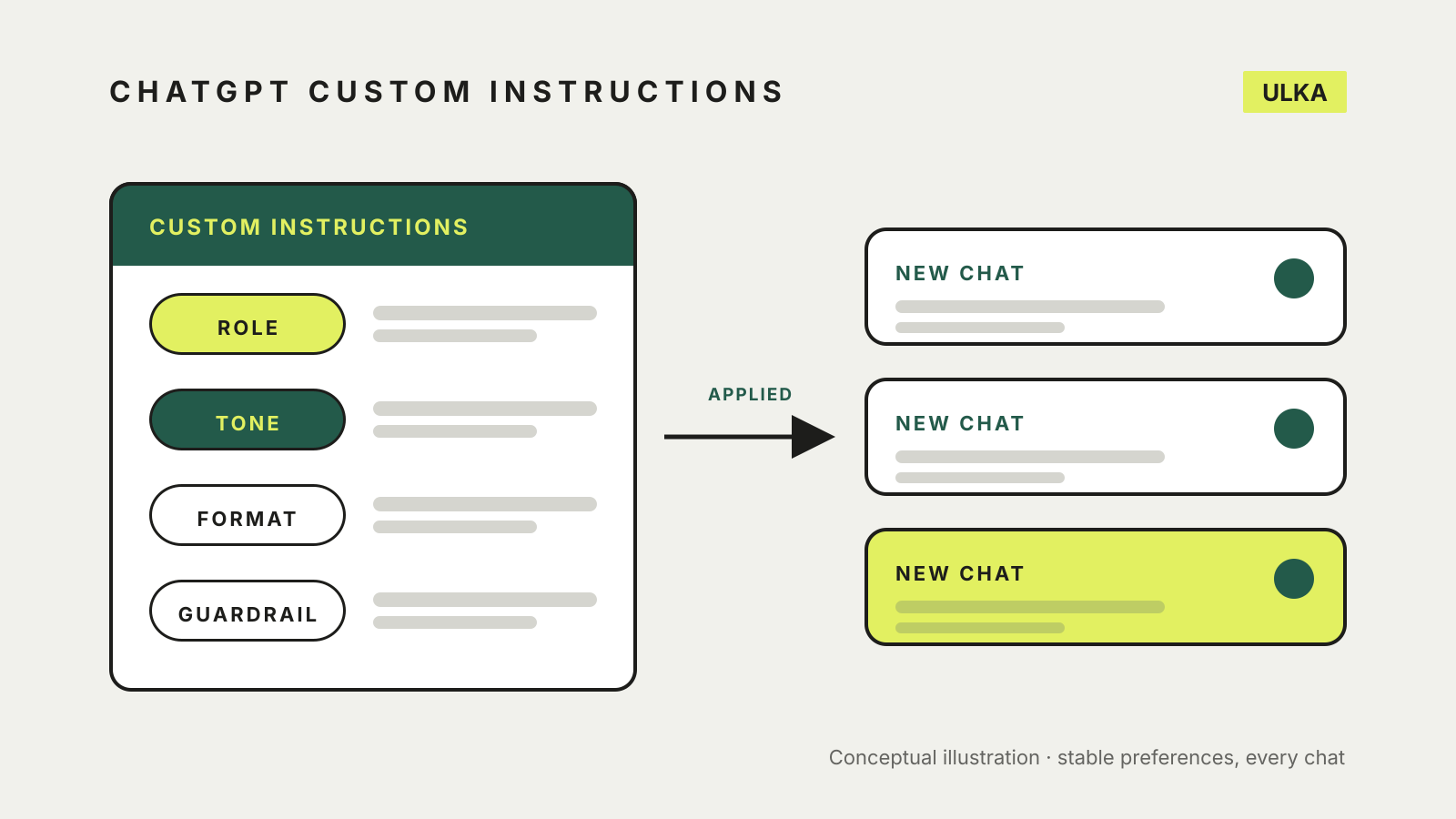
ChatGPT custom instructions are a standing note that ChatGPT considers in every chat, so you do not have to repeat your role, tone or preferred format each time. On the web or desktop app, open Settings > Personalization, make sure Enable customization is on, and type into the Custom Instructions field. On iOS and Android, the same setting is under Customize ChatGPT in Settings.
This guide covers where to find the setting, what is worth writing in it, how it differs from Memory, and what happens to the text you enter. It follows OpenAI’s help centre and OpenAI Academy pages, checked on 2 November 2026. Menu labels change from time to time, so look for the closest match if yours differs.
Where to set custom instructions
OpenAI’s custom instructions page says the feature is available on all plans on web, desktop, iOS and Android.
Web and desktop
- Open Settings and select Personalization.
- Check that Enable customization is switched on.
- Enter your text in the Custom Instructions field.
iOS and Android
- Open Settings and select Customize ChatGPT.
- Check that Enable customization is switched on.
- Enter your text in the Custom Instructions field.
OpenAI says updated settings apply immediately across all chats. Its FAQ adds that changes are reflected in future conversations only. Instructions you saved earlier stay part of past conversations, so clear those chats if you want them gone from history. To stop ChatGPT using your instructions, switch Enable customization off, and optionally delete the text.
What to write
OpenAI Academy’s personalisation guide describes custom instructions as telling ChatGPT what it should know about you and how you prefer it to respond. It lists four kinds of detail that can improve results:
- your role and responsibilities, such as leading customer onboarding or working as a finance manager
- your preferred tone, such as concise, formal or friendly
- the types of output you want, such as bullet points, tables or drafts you can copy and paste
- guardrails, such as asking clarifying questions when requirements are unclear
The same page offers a useful rule: use custom instructions for stable preferences like role, tone and format, and use the chat prompt for the task in front of you. A one-off request does not belong in a setting that applies to every conversation.
Here is an illustrative example in that spirit. It is our own wording, not OpenAI’s:
I work in operations for a small Australian business. Use Australian English. Keep answers short and put the recommendation first. Use bullet points for steps. If my request is unclear, ask one clarifying question before answering.
That is well under OpenAI’s stated limit, which is 1,500 characters for the longer text fields. If you want to learn how to phrase the request itself, our guide to writing AI prompts covers it.
Custom instructions are not Memory
OpenAI’s Memory FAQ separates the two. Custom instructions are direct guidance you write about what you want ChatGPT to know and how to respond. Memory is context ChatGPT can remember from your chats, files and connected apps, and you manage it under Settings > Personalization > Memory. OpenAI says that for explicit information or instructions you should add them to your custom instructions.
The FAQ also says you can see which sources shaped a response, including custom instructions, by tapping the book icon below it, and that Temporary Chats do not use existing memories or create new ones. For a comparison across assistants, see our guide to ChatGPT, Claude and Gemini memory.
What happens to the text you enter
Treat custom instructions as personal data. OpenAI’s help page makes these points:
- You can edit or delete the instructions at any time for future conversations.
- Your instructions are not shared with people who view a shared link. See our guide to sharing a ChatGPT conversation safely for what a shared link does include.
- Information from your use of custom instructions can be used to improve model performance. OpenAI links to its data controls for opting out.
- Custom instructions are included in your ChatGPT data export.
- If you delete your OpenAI account, instructions tied to it are deleted within 30 days.
- If you use third-party plug-ins, the model may give plug-in developers relevant information from your instructions, so only use plug-ins you trust.
Because of the training point, avoid putting anything in the field that you would not put in a chat. A job title and a style preference are enough. Our AI chatbot privacy settings guide shows how to review the data controls.