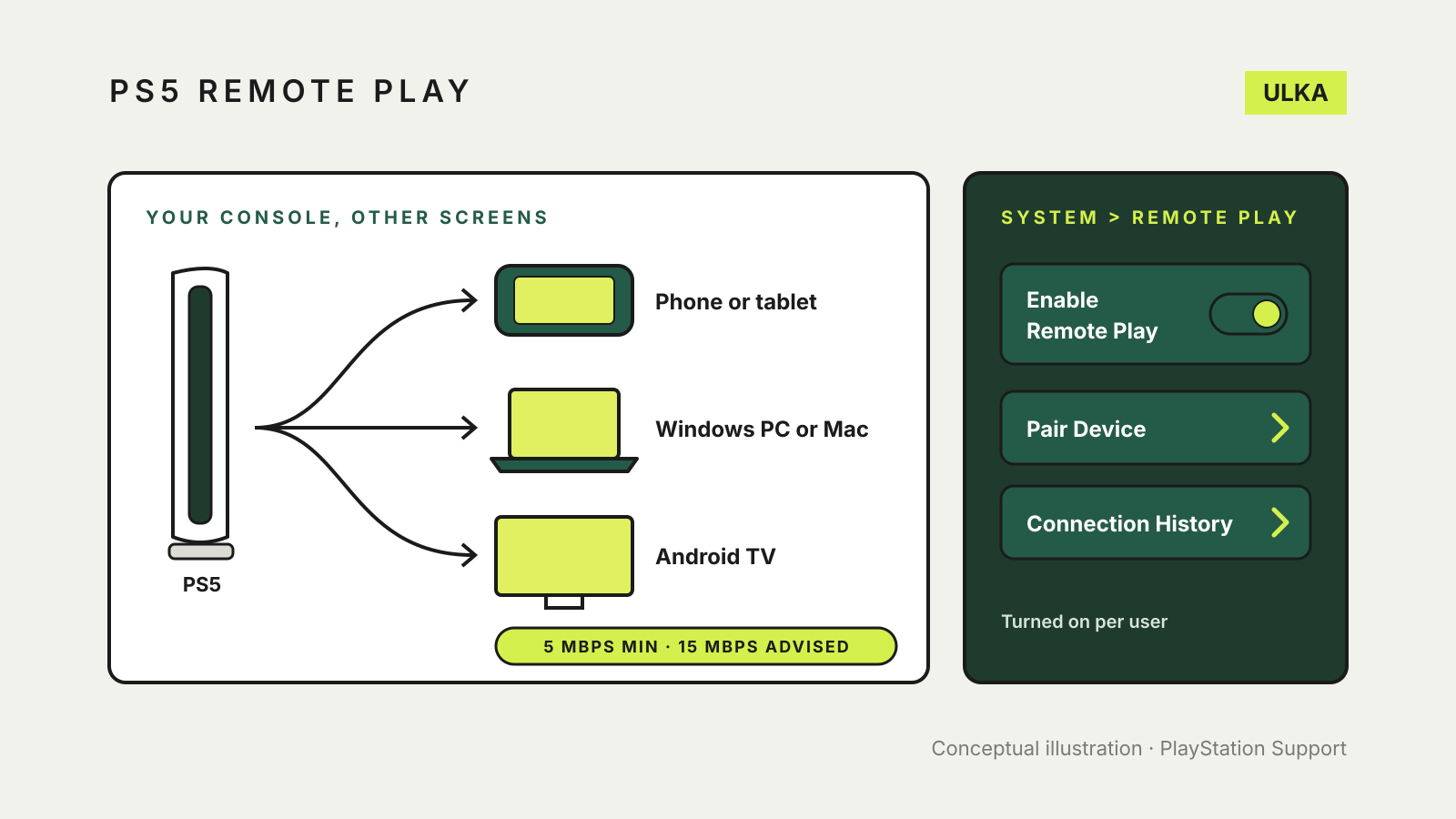
PS5 Remote Play streams your own console to a phone, tablet, PC or Mac through the free PS Remote Play app. On the PS5, go to Settings > System > Remote Play and turn on Enable Remote Play, then sign in to the app with the same PlayStation account. Sony asks for a connection of at least 5 Mbps up and down, and recommends 15 Mbps or more for the best experience.
This guide covers what each device needs, the one-off console setup, how to connect at home and away, what does not work over Remote Play and how to use it on mobile data. It follows PlayStation’s Australian support pages, checked on 16 November 2026.
What you need
- A PS5 (or PS4) with the latest system software.
- The free PS Remote Play app on the device you want to play on.
- The same PlayStation account on the console and in the app.
- A DualSense, DualSense Edge or DUALSHOCK 4 controller, unless you use on-screen touch controls on a phone or tablet.
- An internet connection of at least 5 Mbps upload and download; Sony recommends at least 15 Mbps.
Sony lists these requirements for the device you play on:
| Device | What Sony requires |
|---|---|
| Windows PC | Windows 10 (64-bit) or Windows 11, 7th-generation Intel Core processor or later, 2 GB RAM, 100 MB storage; controller connected by USB cable |
| Mac | macOS Big Sur or later (up to Tahoe), 2 GB RAM, 40 MB storage |
| iPhone and iPad | iOS 14 or later; iOS 14.5 or later to use a DualSense controller |
| Android phone or tablet | Android 9 or later for touch controls; Android 12 or later to use a DualSense controller |
You can also stream to an Android TV device, another PS5 or PS4, or a PlayStation Portal, which needs a PS5.
Set up the PS5 once
- From the home screen, select Settings > System > Remote Play and turn on Enable Remote Play. Sony says this setting is per user, so each person who wants Remote Play turns it on for their own profile.
- To start Remote Play while the console is in rest mode, select Settings > System > Power Saving > Features Available in Rest Mode, then turn on Stay Connected to the Internet and Enable Turning on PS5 from Network.
Without the second step you would have to switch the console on by hand before every session.
Connect from a phone, PC or Mac
- Turn the PS5 on or put it into rest mode.
- On a PC or Mac, connect the controller with a USB cable.
- Open PS Remote Play and select Sign In.
- Select PS5. The app searches for the console signed in to your account and connects. If it finds more than one, choose the one you want.
From then on the app remembers the console. Sony’s advice is to check the connection works while you are near the console before you rely on it away from home, because the app may not find the console if you haven’t signed in for a while.
If the app can’t find the console, pair it by hand. Connect both devices to the same network, select Settings > System > Remote Play > Pair Device on the PS5, then enter the number shown on the TV into the app.
What does not work over Remote Play
Sony says these are not compatible with Remote Play:
- games that need a PlayStation VR or PlayStation VR2 headset;
- games that need peripherals other than a DualSense, DualSense Edge or DUALSHOCK 4 controller;
- games that must be streamed through a PS Plus Premium membership.
Controller features also vary. Sony says DualSense audio output and haptic effects may not all be available on Android, PC, Mac, iPhone or iPad.
Remote Play on mobile data
The app uses Wi-Fi when it is available. To allow mobile data, open PS Remote Play, sign in, select Settings at the top right, then Mobile Data > Use Mobile Data. Sony warns that Remote Play uses a lot more data than most video streaming services and that some providers or network conditions may prevent it working on mobile data. Watch your plan’s data allowance, and choose a lower video quality for mobile streaming if the app offers it.
Sharing the console with other people
When someone else signs in to the PS5 while you are using Remote Play, a “Remote Play connected” message can appear on the TV. To hide it, go to Settings > System > Remote Play on the console and turn on Hide Remote Play Connection Status. The same screen has Connection History, which shows the devices that have connected to the console through Remote Play.
Playing in the background and quitting
On iPhone and iPad, turn on Background Streaming in the app’s settings to switch briefly to another app. Sony says Remote Play can run in the background for up to five minutes before it closes. On Android you can use Picture-in-Picture from the in-app options instead.
To finish, tap the screen, select the options button at the bottom right, choose Settings > Disconnect and tick Put the connected console in rest mode if you want the PS5 to sleep afterwards.
Remote Play or cloud streaming?
Remote Play streams from your own console, so it only works with games on that PS5 and only while the console is connected at home. Cloud gaming services stream from the provider’s servers instead, which raises different questions about your connection and the game library; our guide to cloud gaming in Australia covers those. If you move between consoles, PS5 cloud saves keep your progress in step.