A system transfer copies your users, settings, save data, screenshots and download list from a Nintendo Switch to a Switch 2 during the new console’s first-time setup. Use the local method when you have both consoles in the room, and the server method only when you will not have the old one. Both reset or delete some data on the old console, so read the save data section before you start.
Checked 24 November 2026: this guide follows Nintendo’s support article “System Transfer from Nintendo Switch to Nintendo Switch 2” and Nintendo Australia’s Switch 2 transfer guide. Nintendo can change the process.
Local or server: which method to use
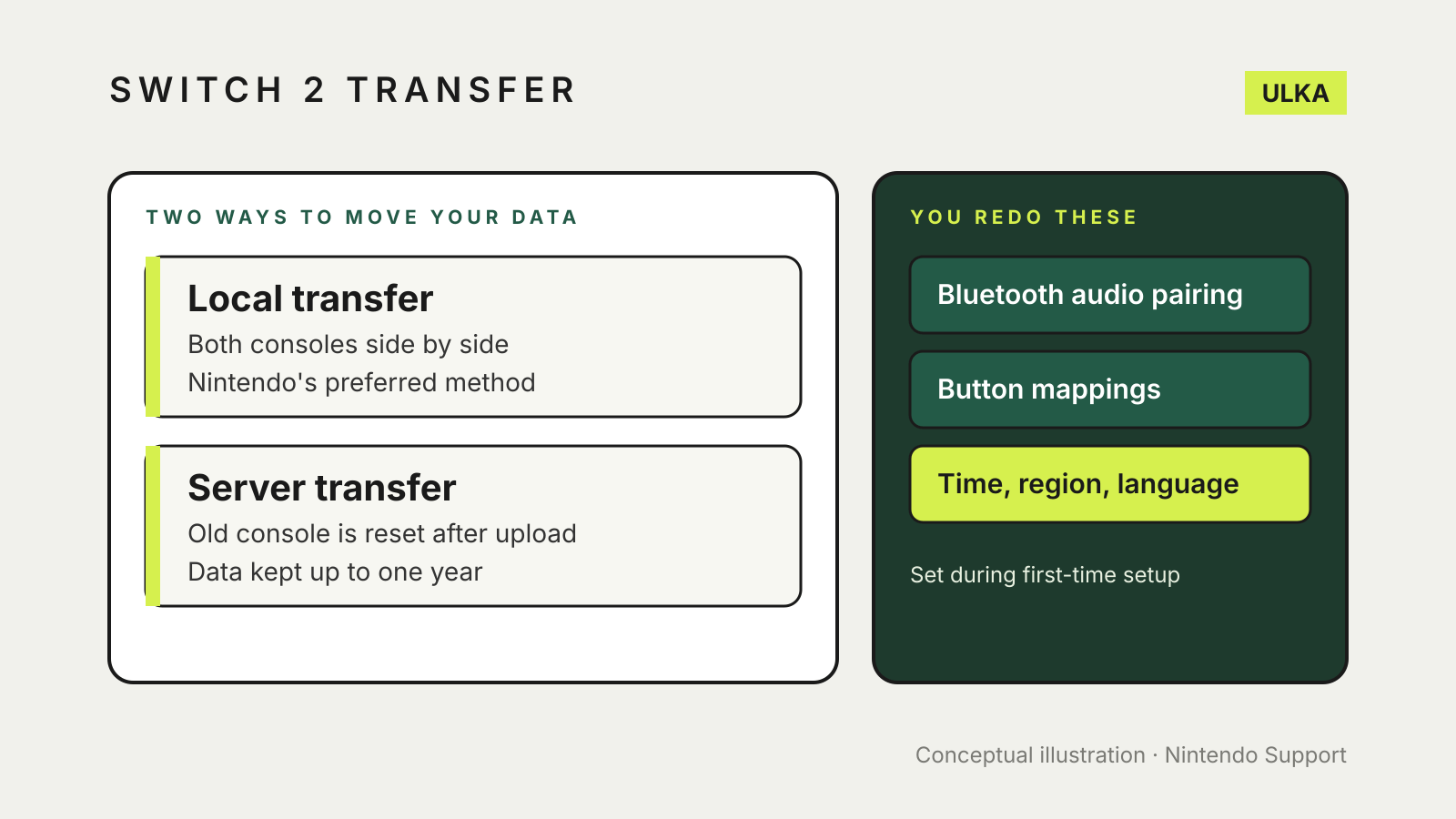
Nintendo describes two methods. You collect the data during the Switch 2’s initial setup either way.
| Local communication | Server | |
|---|---|---|
| When to use it | Both consoles are available now | You will not have the old console when the new one arrives, such as a trade-in, sale or gift |
| Internet needed | Yes | Yes |
| Nintendo Account | Needed for the user who starts it | Required |
| What happens to the old console | Save data for linked users and supported games stays and is copied; other save data is deleted | Initialised after upload: “deletes all data on the console and resets it to factory settings” |
| Can you undo it? | Not back to a Switch | Cancel and restore to a Switch source; on a Switch 2 source you cannot cancel |
Nintendo says that if you will have both consoles, a local communication transfer is preferred. Data uploaded by the server method stays on Nintendo’s server for up to one year, and you see a Download Deadline during setup and in your Nintendo Account settings.
What moves to the Switch 2
Nintendo lists these as transferring:
- Digital games: they are downloaded again on the Switch 2 after setup, which needs an internet connection. You can turn the download off during transfer and download later.
- Users: all users, user settings, signed-in Nintendo Accounts, friends, play activity and users you have played with.
- Save data: how much is copied depends on the method (see below).
- Screenshots and videos saved to system memory.
- Network devices, parental controls and Mii data, plus settings such as HOME Menu icon order and software groups.
Nintendo Australia’s transfer guide adds that GameChat settings must be adjusted by hand and that some Switch games may not be supported or fully compatible on Switch 2.
What you set up again
- Bluetooth audio devices: pair them again on the Switch 2.
- Custom controller button mappings: set them again in System Settings.
- Time, time zone, region and language: you choose these during initial setup.
What happens to save data
This is the part that causes regret. Nintendo’s article says:
- With local communication, save data supported by Save Data Cloud Backup for users linked to a Nintendo Account stays on the source console and is copied. Save data for users who are not linked, and for games that do not support cloud backup, is deleted from the source after the transfer.
- With the server method, the old console is initialised after upload, so everything on it is gone once the transfer completes.
- If you have uploaded backups for compatible games, a Nintendo Switch Online membership lets you download them to the Switch 2 without initialising it.
Before a local transfer, check which of your games support cloud backup. Our guide to Nintendo Switch cloud saves explains how to see what is backed up. Anything that is not backed up and not linked to an account is the data at risk.
Before you start: checklist
- Update both consoles to the latest system version.
- Open every unopened gift. Nintendo says you cannot start a transfer while any remain.
- Link at least one user to a Nintendo Account. The Australian guide lists this as a requirement.
- Check your storage. The Switch 2 does not use microSD cards; it supports microSD Express cards for expanded storage. If the source is a Switch, move as much data as possible to system storage, because you may be asked to put the microSD card in temporarily to copy screenshots and videos.
- If a full game download is pre-installed but unregistered, register it through the eShop first.
- Avoid the start of a network maintenance window; Nintendo says transfers are blocked during maintenance.
If you have already finished setup
Nintendo says server data can be retrieved only during the Switch 2’s initial setup, using the same Nintendo Account that started the transfer. If you have already finished setup, you must initialise the Switch 2 and run setup again to retrieve it. Otherwise, you can cancel the server transfer and restore the data to the old console, then move save data by hand. Cancelling is only possible when the source is a Nintendo Switch, and a Switch OLED Model source must cancel on an OLED Model.
Parental controls after the move
Parental controls and the link with the parental controls app transfer with the console. Nintendo Australia says the Nintendo Switch Parental Controls smart device app works with Switch 2. For a refresher on settings across consoles, see our guide to console parental controls.
Questions
Can I transfer from Switch 2 back to Switch?
No. Nintendo says you cannot perform a system transfer back to a Nintendo Switch console from a Nintendo Switch 2.
Do I have to download my games again?
Digital games are downloaded again on the Switch 2 after setup. You can postpone that download during the transfer.
Will the transfer wipe my old Switch?
With the server method, yes: it is initialised after upload. With the local method, Nintendo says save data for linked users in supported games stays, while unlinked or unsupported save data is deleted from the source.
How long is server data kept?
For up to one year. The Download Deadline appears during setup and in your Nintendo Account settings.
Do I need Nintendo Switch Online?
Not for the transfer itself. Nintendo mentions the membership only in connection with downloading Save Data Cloud Backup data without initialising the Switch 2.
Sources
- Nintendo Support (Americas), “System Transfer from Nintendo Switch to Nintendo Switch 2”, read 24 November 2026.
- Nintendo Australia, “For Nintendo Switch owners: transfer guide”, read 24 November 2026.